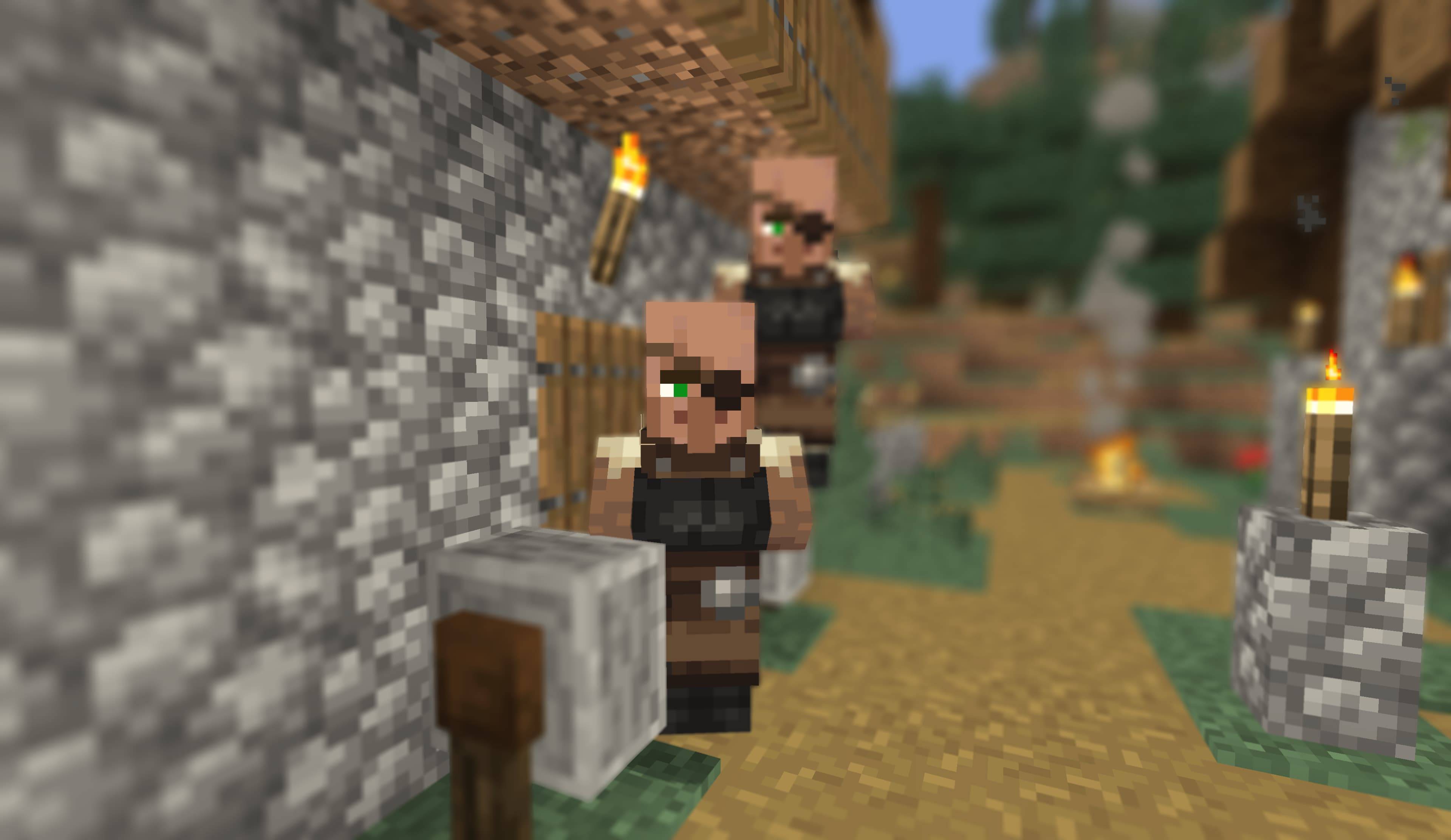
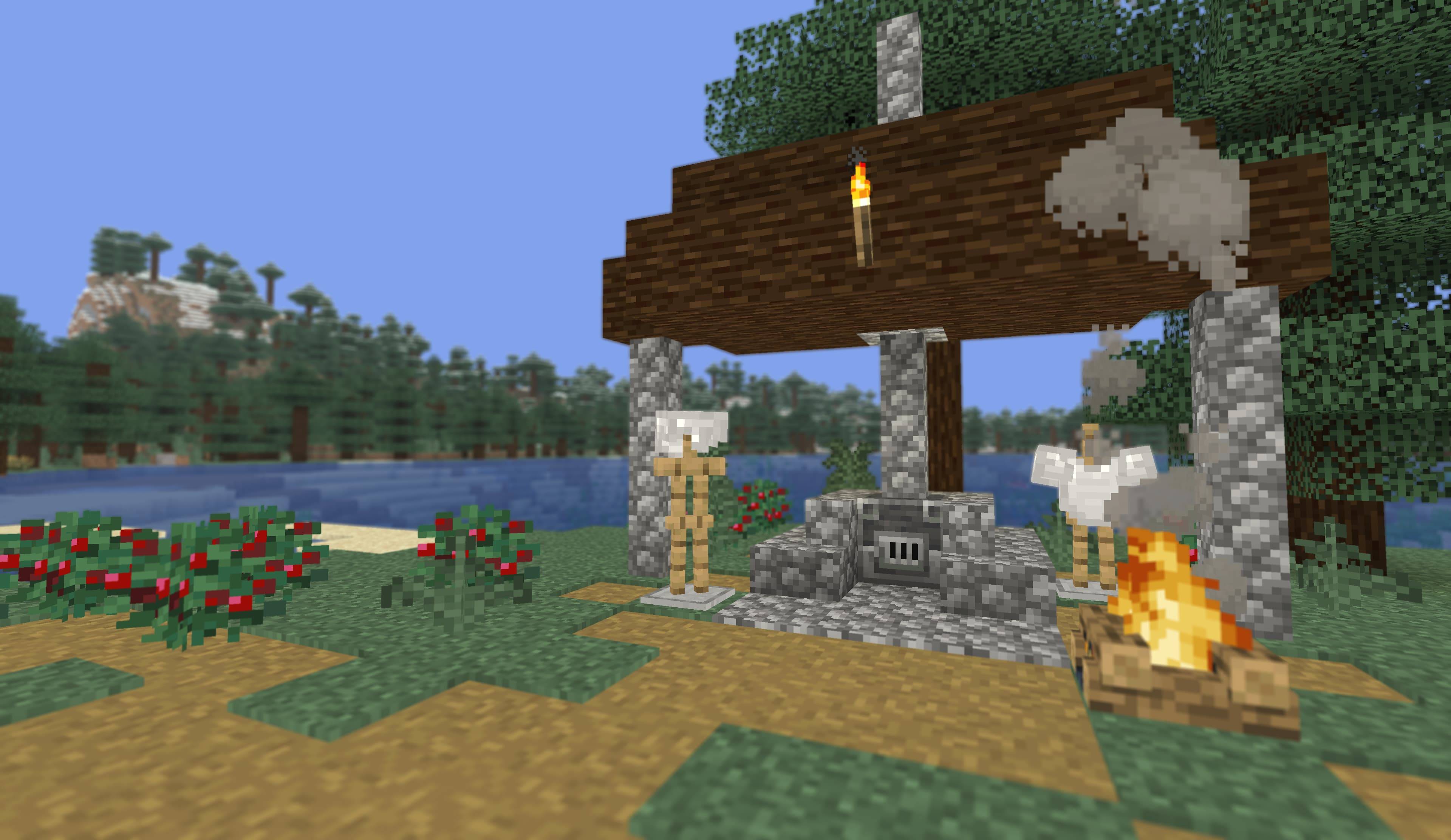
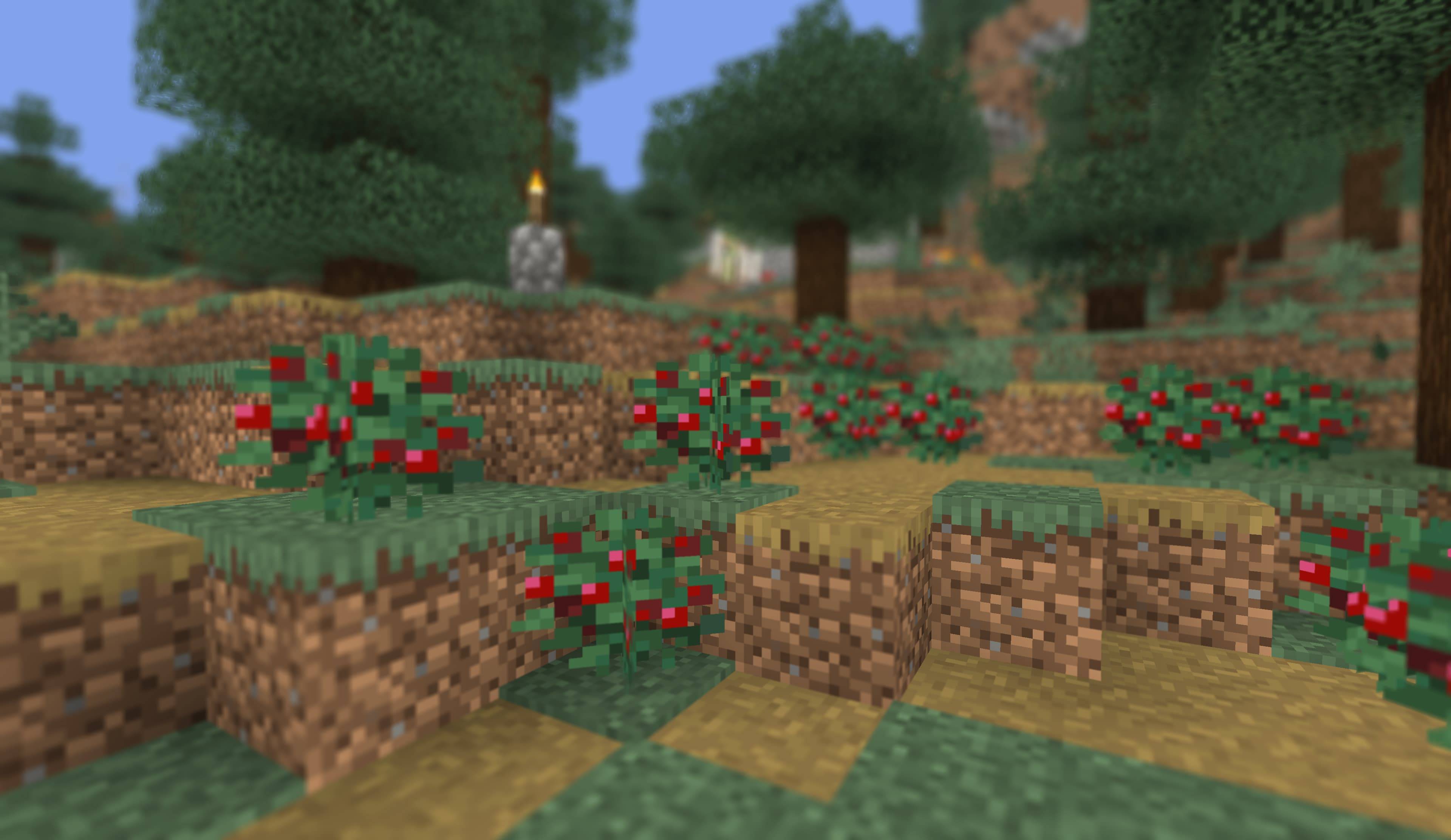
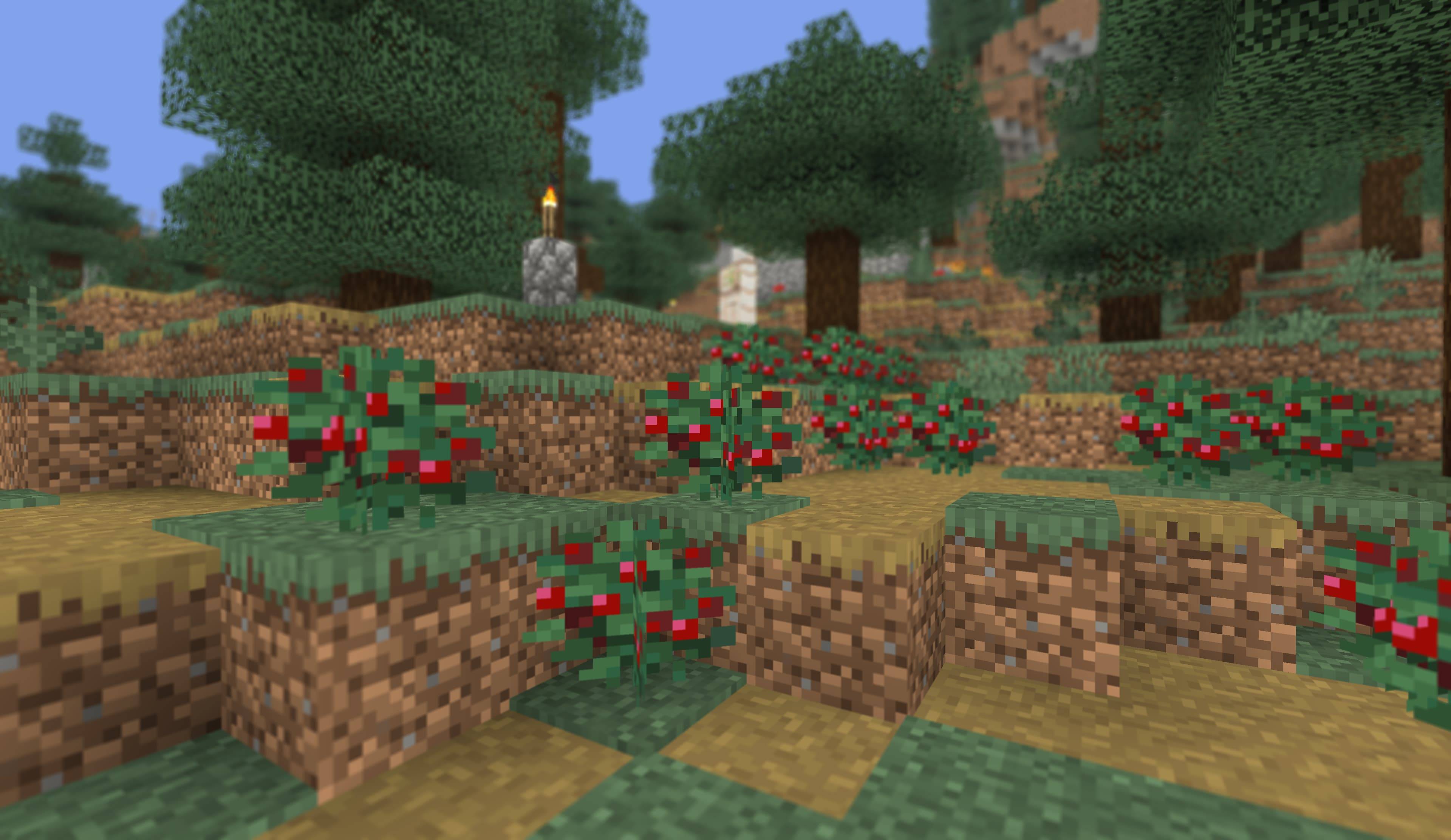
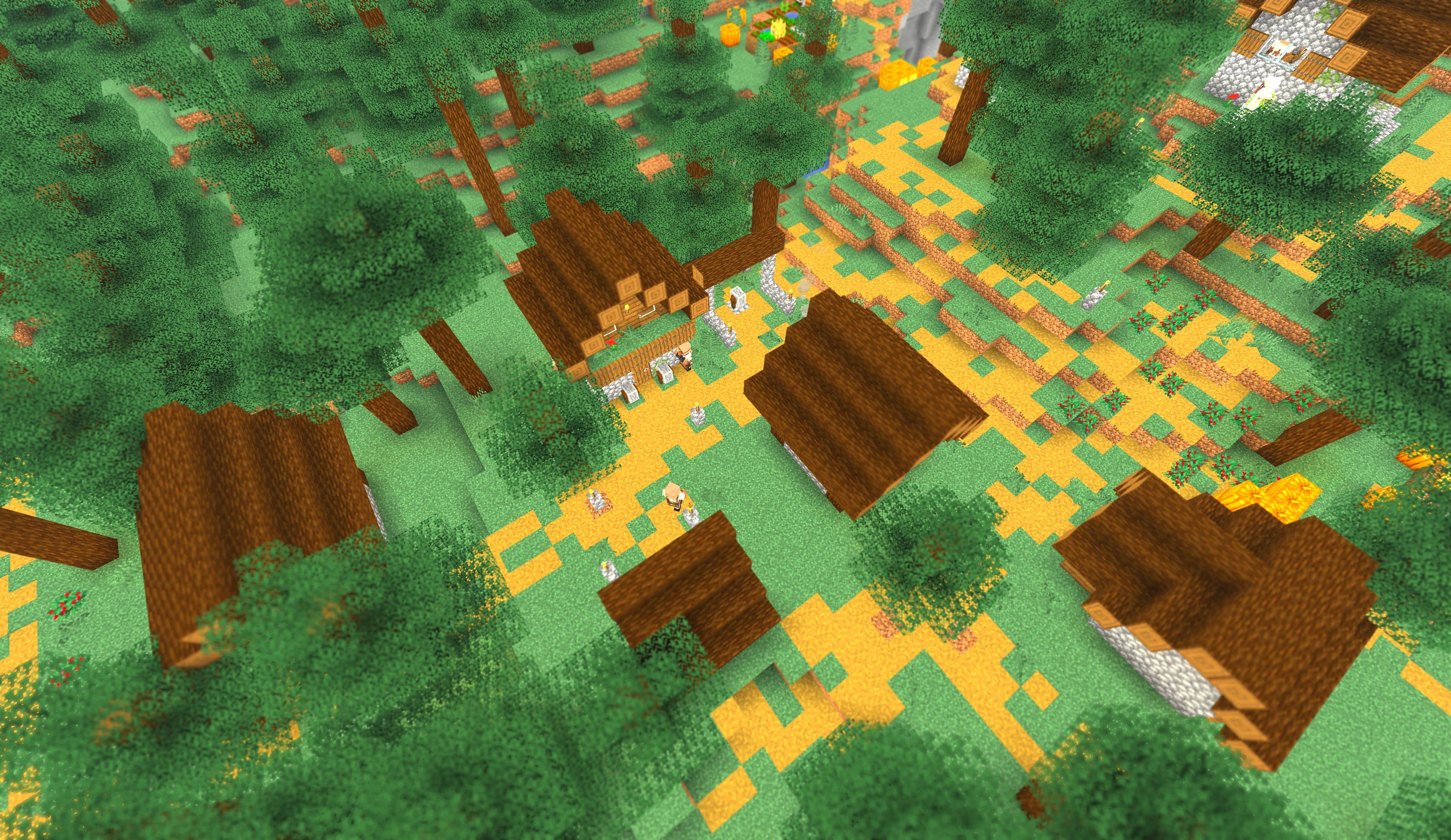
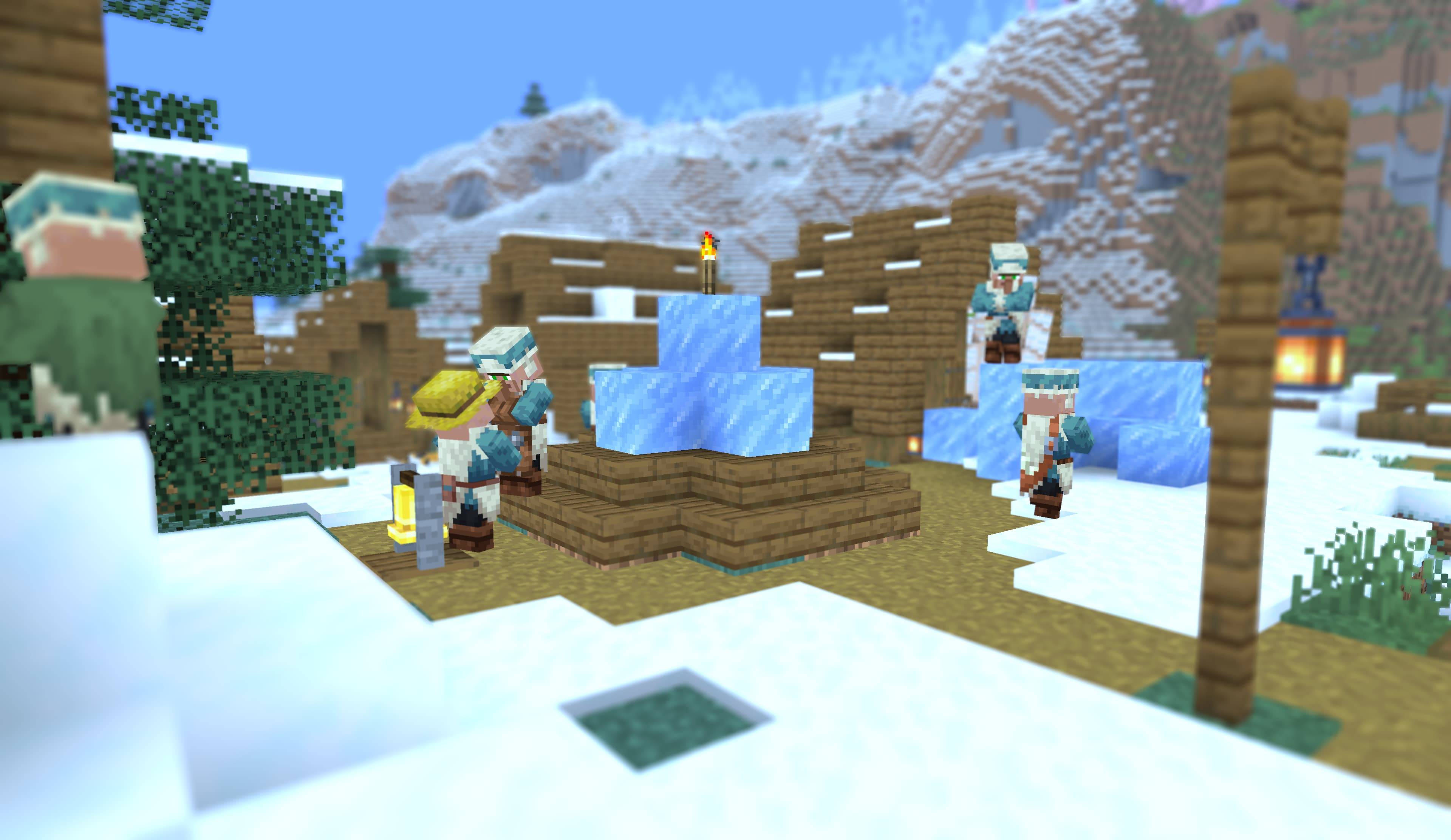
Make Minecraft look like you shot it with a camera — without changing Minecraft itself.
Vanilla Camera is a lightweight shader pack for Minecraft 1.21.11 or newer + Iris.
It keeps the familiar vanilla look and simply gives you a few camera-style controls for screenshots, videos, and streams.
Want a darker, moodier shot? A warmer sunset? A little more colour? A blurred background that makes your subject stand out?
You can adjust exposure, colour temperature, tint, saturation, and depth of field — without adding shadows, changing the lighting, or replacing Minecraft's sky and water.
Minecraft stays Minecraft. You just get more control over the picture.
Vanilla-Camera.zip in your shaderpacks folder.That's it. No other mods or configuration are required.
Everything is available from a single settings screen. You don't need to dig through menus while you're trying to get the right shot.
Choose a preset from the top:
Presets set all the controls for you, so you can quickly switch between looks and then fine-tune them.
Control how bright or dark the image feels, just like adjusting exposure on a camera.
The Brightness slider can also be used as a live exposure control while recording. Unlike the other settings, it updates immediately, making it useful for adjusting brightness during a shot.
Give your screenshots and footage the colour you want.
Think of these as the colour controls you'd normally reach for when editing a photo — except you can see the result directly in Minecraft.
Add a photographic background blur to make your subject stand out.
You can turn DoF on or off and control how strong and smooth the blur is. Focus normally follows the centre of the screen, making it easy to point at something and keep it in focus.
Vanilla Camera is intentionally simple. It doesn't try to make Minecraft look like a different game.
There are:
It works with the image Minecraft already produces and gives you a small set of controls for shaping the final picture.
Because of that, it also can't recover detail that Minecraft has already lost to overexposure. And, like other Iris shader packs, only one shader pack can be active at a time.
For the best results, set up your look before recording, then use the Brightness slider for quick adjustments while filming.
Iris allows saved shader values to contain values between the visible slider steps. If you're interested in experimenting, you can edit shaderpacks/Vanilla-Camera.zip.txt manually:
DOF_STRENGTH=37.5The value will be used when the shader is compiled. Changing that setting in the Minecraft menu will reset it to one of the normal slider values.
This is an undocumented Iris behaviour rather than a supported feature, so it's mainly here for experimentation.
MIT LICENSE.