--------------------------------------------------------------------
1. How to obtain items (crafting recipes / bonus chest)
--------------------------------------------------------------------
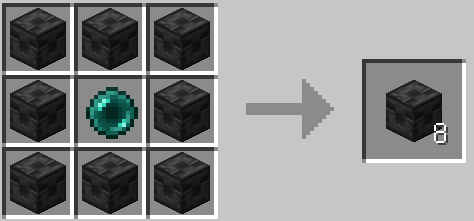
* Gate Frame (gate_frame_block) - yields 8 per craft
A shaped recipe: surround an ender pearl on all sides with
chiseled deepslate, in a 3x3 grid:
D D D
D E D
D D D
D = Chiseled Deepslate / E = Ender Pearl
Note: the "Gate Portal" block that appears inside a gate has no
item form. You cannot obtain it or place it manually - it is
generated automatically when a gate frame is built correctly.
* From the bonus chest
When you turn on the "Bonus Chest" option while creating a new
world, the generated bonus chest is guaranteed (not random) to
contain 16 Gate Frame blocks and 1 Gate Linker, in addition to
vanilla's usual tools and food. If a data pack (or similar)
completely replaces the bonus chest's loot table, that content
takes priority and this addition does not happen.
--------------------------------------------------------------------
2. Building a gate
--------------------------------------------------------------------
Works exactly like a Nether portal.
1. Build a rectangular frame out of Gate Frame blocks with a
hollow interior.
- Minimum inner size: width 2 x height 3
- Maximum inner size: 21 x 21 (both width and height)
- Corner blocks are optional (same as vanilla Nether portals)
2. Once the frame is correctly shaped and a "link" has been set,
a Gate Portal (a purple membrane-like surface) is generated
inside automatically (see the next section for how to set a
link).
3. Touching the generated portal warps you to the linked
destination.
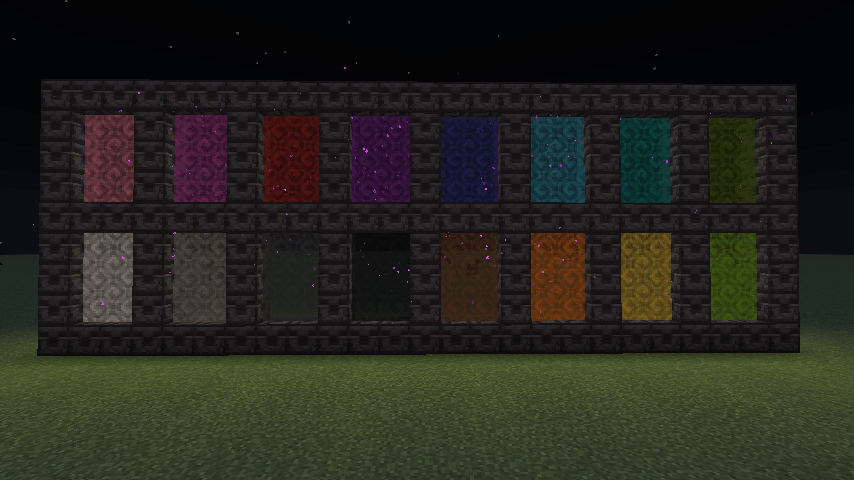
You can change the portal's color by holding a dye item (like a
white carpet-colored dye) and right-clicking the portal surface -
it changes to that dye's color. Changing the color also
automatically updates the color of the linked portal on the other
side.
Not just players - mobs and other entities (including dropped items)
also warp when they touch the portal, just like a vanilla Nether
portal. This only works for links within the same save (including
cross-dimension links); for links to another save, this relies on a
player-only mechanism, so anything other than a player simply passes
through with no effect (see section 7).
--------------------------------------------------------------------
3. How to link gates (using the Gate Linker)
--------------------------------------------------------------------
To connect two gates, follow these steps:
[Link source (e.g. World A)]
1. Right-click any block of the gate frame you built with the
Gate Linker.
2. In the screen that opens, press "Copy this frame's mark".
-> A string in the form "WorldID:DimensionID:x:y:z:WorldName"
is copied to the clipboard (this is the "mark").
[Link target (e.g. World B, or another dimension in the same
save)]
3. Right-click any block of the gate frame you want to link, with
the Gate Linker.
4. Paste the mark you copied earlier into the paste box (you can
also use the "Paste" button to read it from the clipboard).
5. Press "Link".
This connects both directions, so either portal can be used to warp
to the other's location (if the other side is a different save, the
reverse link is set automatically the next time that save is
opened).
A frame is made of multiple blocks, but right-clicking any of them
is treated as the same gate, so you can copy the mark or unlink from
any part of the frame.
--------------------------------------------------------------------
4. Gate descriptions and checking the destination
--------------------------------------------------------------------
The Gate Linker screen has a description field (a free-form note)
and a "Save" button. You can leave yourself notes like "resource
storage" or "friend's house" to remember where a gate leads.
When you aim your crosshair at a linked portal, the action bar at
the bottom of the screen automatically shows:
-> Save Name (x, y, z) "Your saved description"
showing the destination save name, coordinates, and description.
--------------------------------------------------------------------
5. Unlinking a gate
--------------------------------------------------------------------
To remove only the link without breaking the frame, right-click a
linked frame with the Gate Linker and press "Unlink". This is useful
as a recovery option when a mutual link didn't connect properly, or
when you want to change the destination.
Of course, breaking the frame block itself also removes the link
(and the connected portal surface disappears along with it). Note
that breaking an unrelated, purely decorative frame block (e.g. a
corner block placed just for looks) does not affect the actual
portal.
--------------------------------------------------------------------
5.5. Break protection for gate frame blocks
--------------------------------------------------------------------
To keep a carefully built gate from being broken by accident, you
can "break-protect" its frame blocks so players cannot destroy them.
Opening the Gate Linker screen shows a "Break Protection: OFF (click
to enable)" button. Pressing it changes it to "Break Protection: ON
(click to disable)", and from then on that gate (every frame block
connected via its actually-formed portal surface) cannot be broken -
attempting to break it shows a message and is blocked. Press the
button again to remove protection.
The /worldportal protect command toggles protection the same way
for whichever gate you're looking at.
Note: setting frameBreakProtectionEnabled to false in the config
disables this feature entirely (see section 8).
--------------------------------------------------------------------
6. Command list
--------------------------------------------------------------------
Even without the Gate Linker item, the following commands perform
the exact same operations (targeting the frame you are looking at).
/worldportal mark
Issues a mark for the frame you're looking at and shows it in
chat (click to copy).
/worldportal link Links the frame you're looking at to the given mark.
/worldportal unlink
Unlinks the gate that the frame you're looking at belongs to.
/worldportal protect
Toggles break protection for the gate that the frame you're
looking at belongs to.
/worldportal residency
Shows the current "direct access to departed saves" setting,
and whether this save itself has a departure record.
/worldportal residency allow
Allows playing a departed save directly, without the
auto-redirect.
/worldportal residency block
Restores the auto-redirect behavior (the default).
/worldportal residency clear
Clears the "departed" record on the save you currently have
open.
--------------------------------------------------------------------
7. About cross-save warping / cross-dimension warping
--------------------------------------------------------------------
* Warping to another save (fast save-switching)
Entering the portal saves the current save and closes it
automatically, then reopens the linked save (singleplayer only).
After moving to another save, the original save keeps a
"departed" record, and trying to open that save directly again
will automatically redirect you to the destination (see the
config in the next section and the commands in section 6 for
details).
* Cross-dimension warping
You can link any combination of Overworld, Nether, and End.
Crossing dimensions within the same save switches dimensions
on the spot, just like a vanilla portal.
--------------------------------------------------------------------
8. Config (config/worldportal.json)
--------------------------------------------------------------------
Generated automatically on first launch. You can edit it directly to
adjust the following options.
allowCrossDimensionTravel (default: true)
Set to false to completely disable warping involving the
Nether or the End (both creating links and passing through
them). When disabled, using the Gate Linker or the commands in
the Nether/End shows a message and is blocked.
allowCrossSaveTravel (default: true)
Set to false to disable warping to another save entirely. Does
not affect warping within the same save (including across
dimensions).
allowEnteringDepartedSave (default: false)
Set to true to allow directly playing a "departed" save
without the auto-redirect. Can also be toggled with
/worldportal residency allow|block.
portalCooldownTicks (default: 60; 20 ticks = 1 second)
The grace period right after warping, to prevent immediately
warping again.
minGateInnerWidth / minGateInnerHeight (default: 2 / 3)
maxGateInnerSize (default: 21)
The minimum/maximum inner size accepted for a gate frame.
reverseLinkMaxRetryTicks (default: 200; about 10 seconds)
The maximum number of retries (one per END_SERVER_TICK) for
forming the portal on the other side after linking to another
save/dimension, while waiting for nearby chunks to load. You
normally don't need to change this.
frameBreakProtectionEnabled (default: true)
Set to false to disable the frame block "break protection"
feature entirely. Gates with protection set will become
breakable by anyone, as a normal block (see section 5.5).
--------------------------------------------------------------------
9. Notes
--------------------------------------------------------------------
- This MOD is singleplayer-only (the cross-save warp feature
depends on the integrated server's mechanics).
- Before warping to another save, it's recommended to keep regular
backups of your saves just in case.
- The in-game display language follows Minecraft's own "Language"
setting. If you have Japanese (日本語 / ja_jp) selected, text is
shown in Japanese; for any other language, it is shown in
English (only Japanese and English are supported at this time).
====================================================================
Tested with: Minecraft 26.2 / Fabric Loader 0.19.5 / Fabric API 0.161.0+26.2
====================================================================