NOTE: This mod does not run with Forge.
For my Forge-compatible version of the mod, see this page.
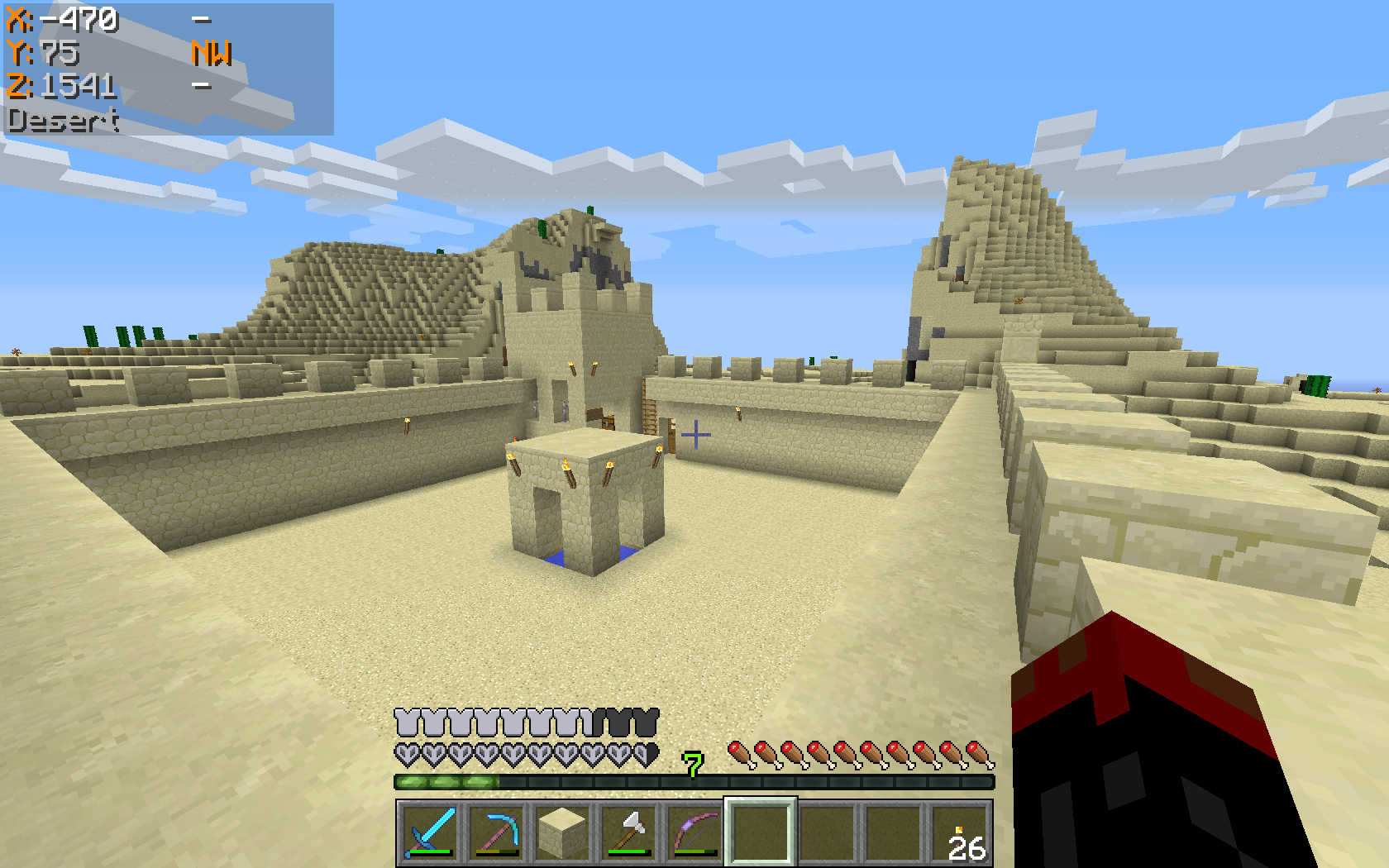
The X, Y and Z coordinates that locate the player's position in the world are normally displayed on the F3 Debug screen.
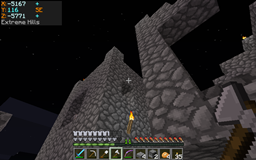
This mod has a number of display modes that present this information, and more, discreetly in a corner of the main game screen, so you don't have to leave F3 open to see them.
In Mode 0 the Coordinates are hidden.
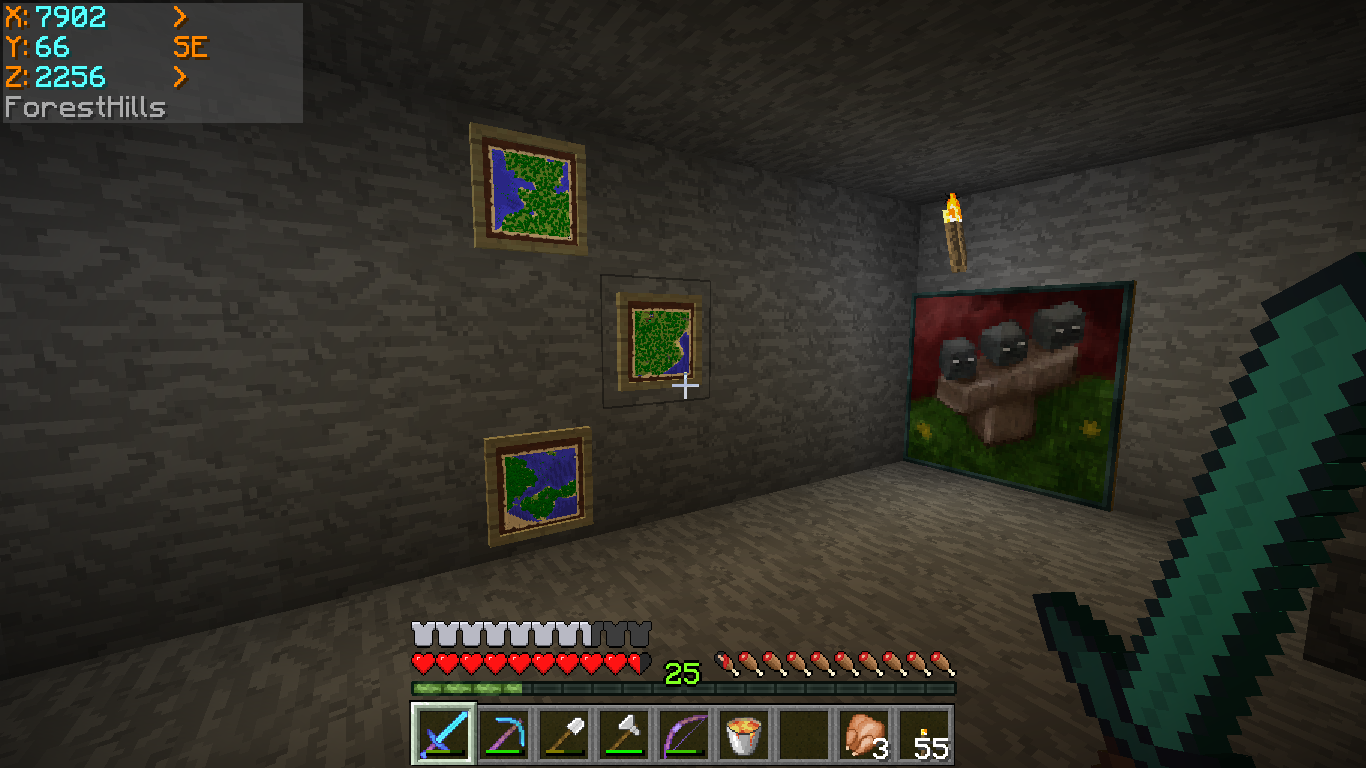
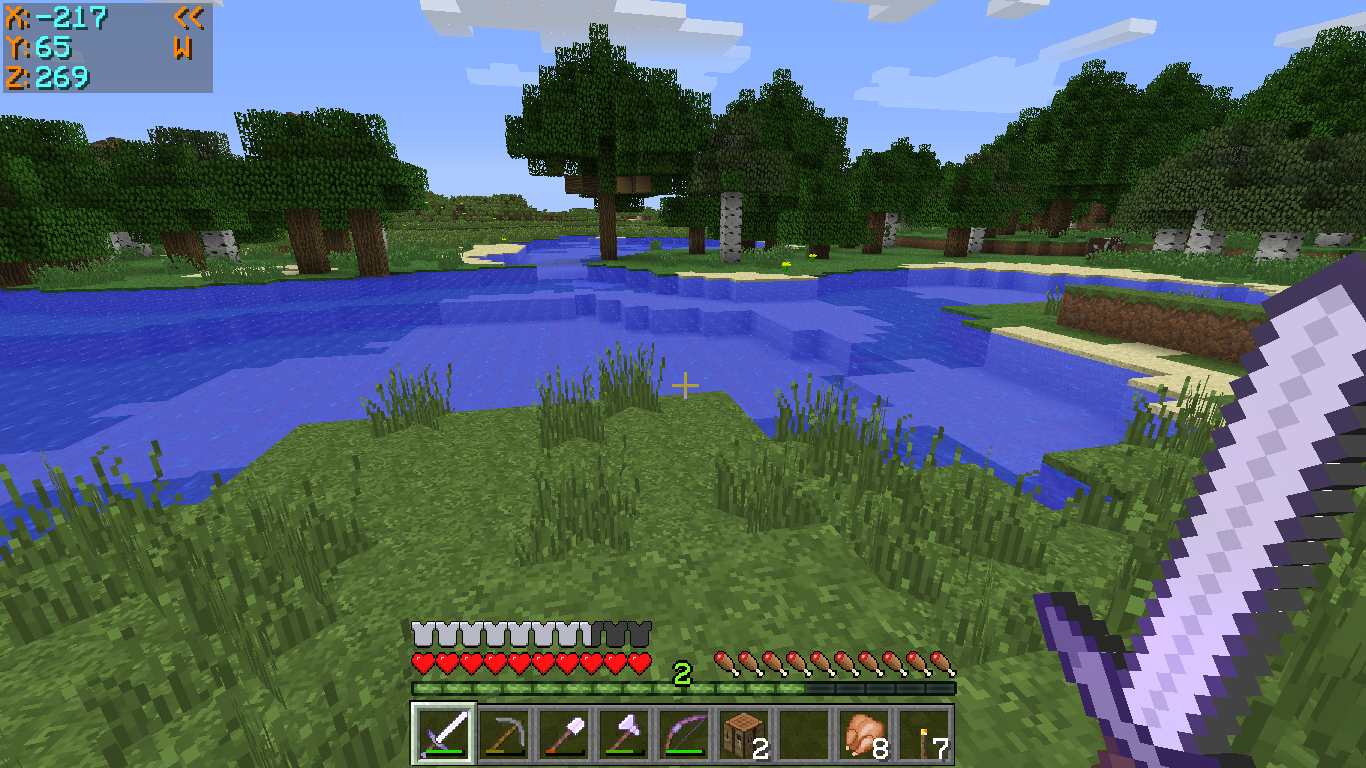
Mode 1 shows the X, Y and Z coordinates, and it also indicates the direction that you are facing, in compass-direction terms.
Mode 2 adds an indication whether your X and Z coordinates will Increase or Decrease if you move in the direction you are facing.
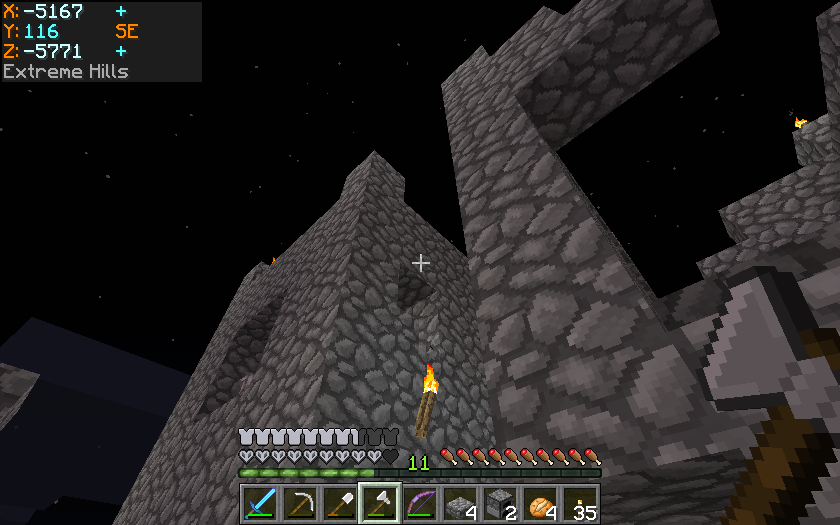
Mode 3 also shows the Biome that you are currently in, displayed below the coordinates.
Mode 4 adds the Minecraft Day counter, shown as 'dy'.
Mode 5 replaces the normal X, Y and Z coordinates with Chunk information:
This shows which Chunk you are in, and which Block within that Chunk
The display appears with the Chunk being denoted by a 'c' and the Block by a 'b', for example:
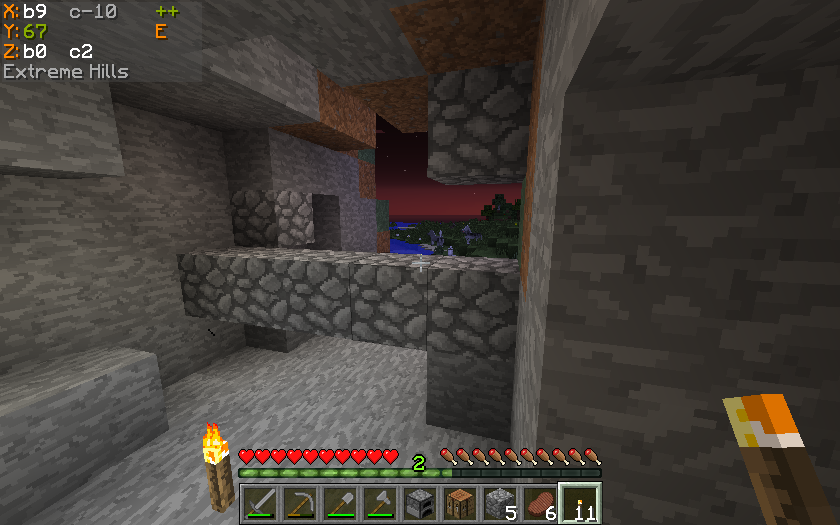
- means
*X = Block 9 within Chunk -10 *Z = Block 0 within Chunk 0
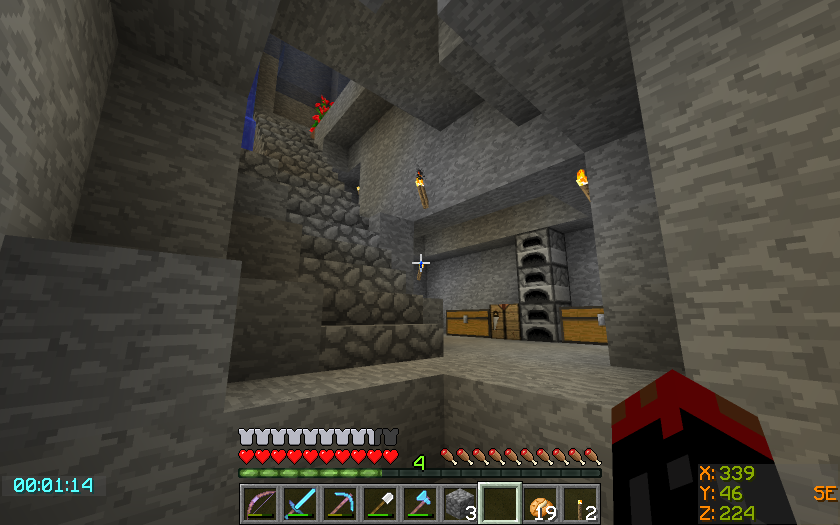
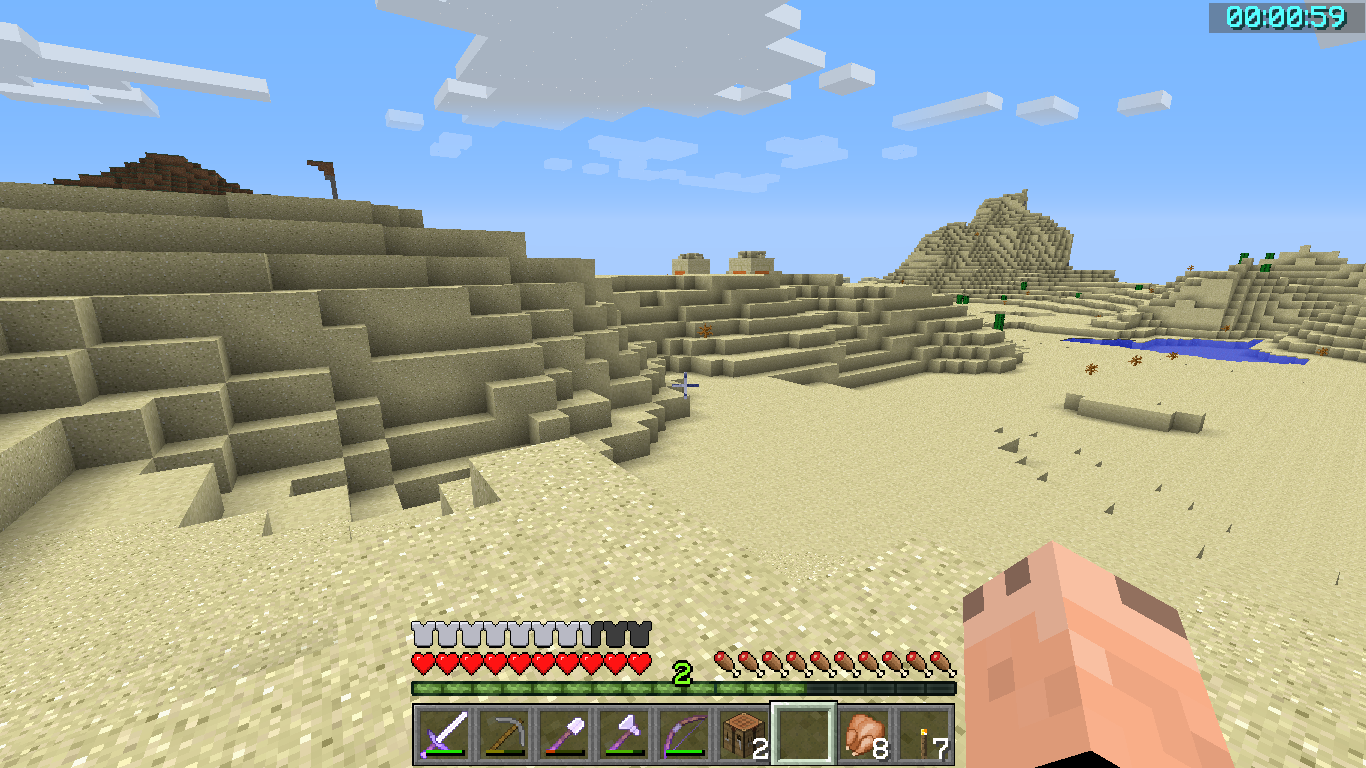
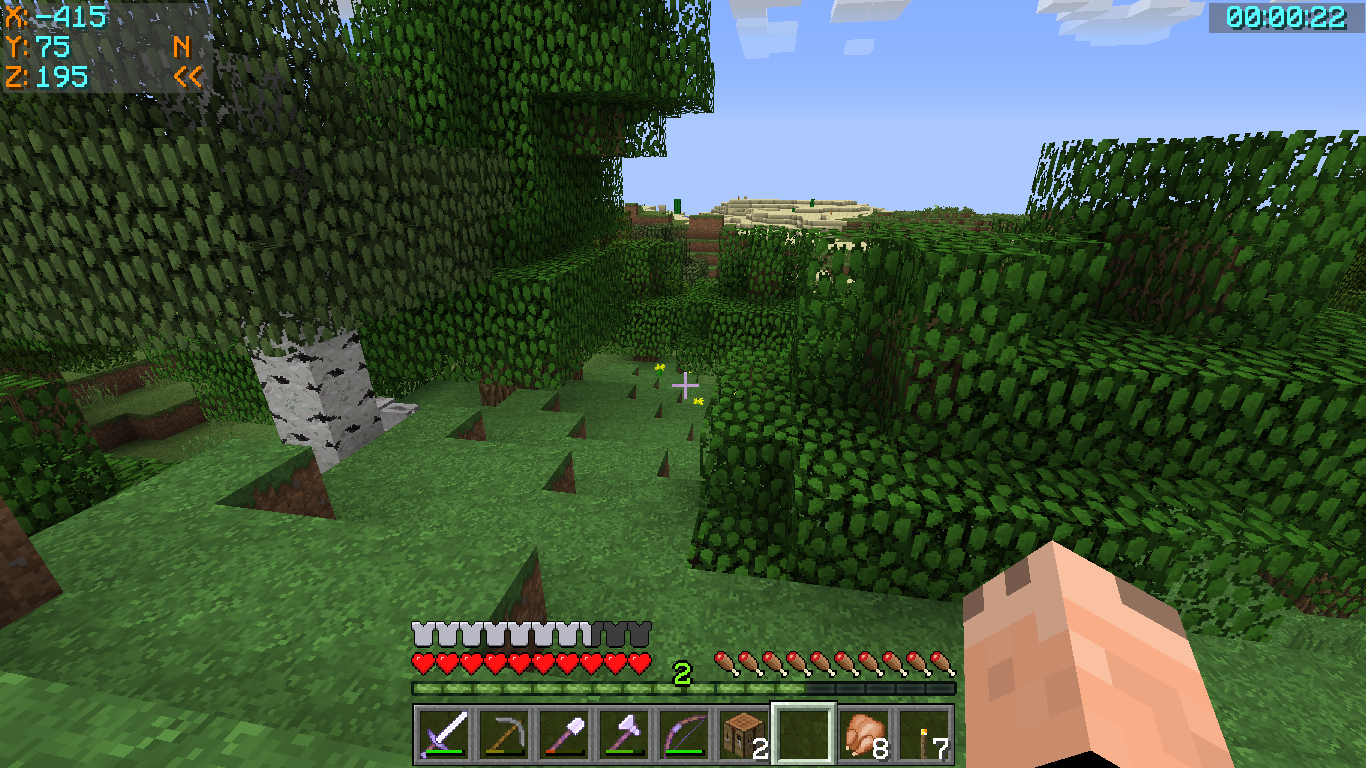
A discreet timer tucked away in a corner of the screen, that you can hide, reappear, stop, start and zero using key presses.
Can be used to time activities in-game. Useful for speed challenges.
Shows the time passed in hours, minutes and seconds.
Colour-coded so you know at a glance if it is stopped or running.
This display will show either the FPS, the Block Light-level or the Moon phase. You can switch between these at the press of a button.
The Frames per Second that the game is running at is displayed in a corner of the screen.
The block light (i.e. artificial light reaching this block) of the block the player is standing on is displayed
An icon, showing the current phase of the moon, is displayed.
A Mod Spotlight (covering all variations of my mods) by EddCase and OddyC of TheMobCave.
From version 1.7.2_2.5.0 the Controls have been completely revamped
All controls use keys from the NumPad (Be sure to have NumLock set on!)
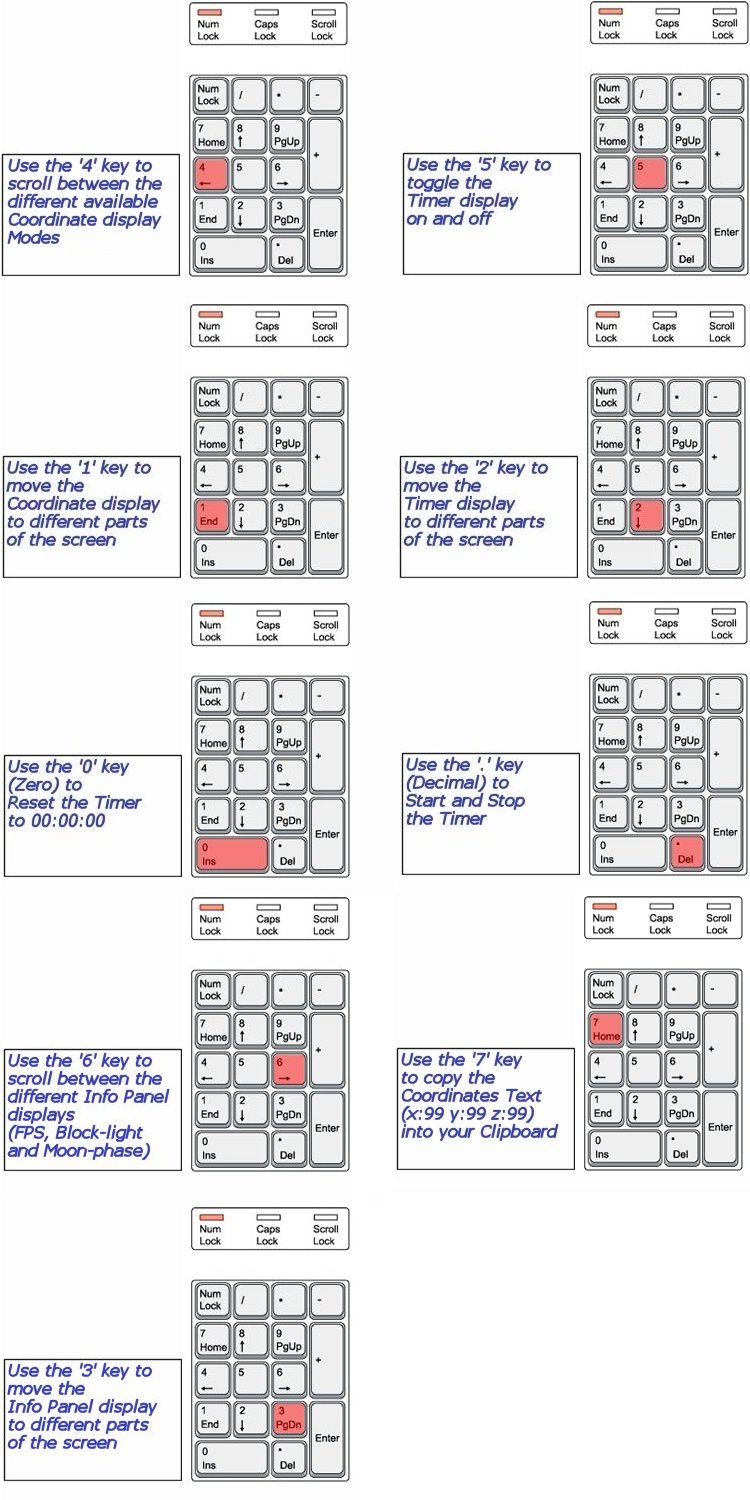
NOTE 1 Coordinates can appear:
NOTE 2 Timer can appear:
NOTE 3 The Info Panel can appear:
NOTE 4 All of the Control Keys are fully reconfigurable via the Options Menu in-game
NOTE 5 Screen locations and display modes are remembered when you quit Minecraft
If you use Minecraft Forge, be sure to check out Batty's Coordinates PLUS! Mod for Forge
You can customise the colours in which Batty's Coordinates and Timer appear on the screen.
This done by creating a small file called BatMod.properties in your .minecraft folder.
If this file is not present, the displays all appear in the default colours.
NOTE 1: PosCoordText and NegCoordText can be used to distinguish positive and negative coordinates from each other by giving them different colours
NOTE 2: You can still use CoordText, and this will override anything you put in PosCoordText and NegCoordText
NOTE 3: You can choose the character that indicates whether your coordinates are increasing or decreasing in the X or Z directions. By default these are '+' and '-', but by use of Coords.chars.Increase or .Decrease you can substitute another character.
NOTE 4: You can choose the colours that the Chunk Coordinates display, positive and negative
NOTE 5: You can decide to copy the Coordinates to your clipboard in standard format "x=999, y=99, z=999" or in /tp command format "999 99 999" by the Coords.copy.tpFormat parameter. Setting this to true will make it use the /tp command format.
NOTE 6: Info.colours.Dim chooses the colour that light-levels of 7 and below will display, while Info.colours.Bright chooses the colour that light-level of 8 and above will display.

(*Note* that you must type all of the entries exactly as they appear here - capitals and lowercase - or they will be ignored and the default colours will be used by the game)
Click Here for a sample file that you can use as a start-point for changing colours.
Batty's Coordinates PLUS! mod makes changes to these Minecraft internal classes:
It also adds its own class:
It will conflict with any other mods that you install which modify the same classes.
Optifine does not touch these classes, and so should be completely compatible.
This is a very basic mod and is installed either by editing the appropriate Minecraft jar file or by using apps e.g. MagicLauncher, MultiMC
I made a short tutorial video to illustrate this process (Note that this refers to outdated versions of Minecraft):