Mineuniverse
Data Packs
Not Enough Armor Stand Arms [NEASA]

Not Enough Armor Stand Arms [NEASA]

DATA PACK
Make arms to your Armor Stands!
by iAhmed_7024
Download Claim this project
Add a badge to your pageLink to Not Enough Armor Stand Arms [NEASA] from a README, website or forum post.
Preview: Badge

Badges update automatically and link to the data pack page on MineUniverse.

1,087 downloads
0 likes
0 followers
Updated Oct 14, 2026
0 hypes
Follow0
Utility
Advertisement Remove ads with Premium →

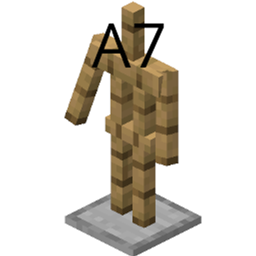
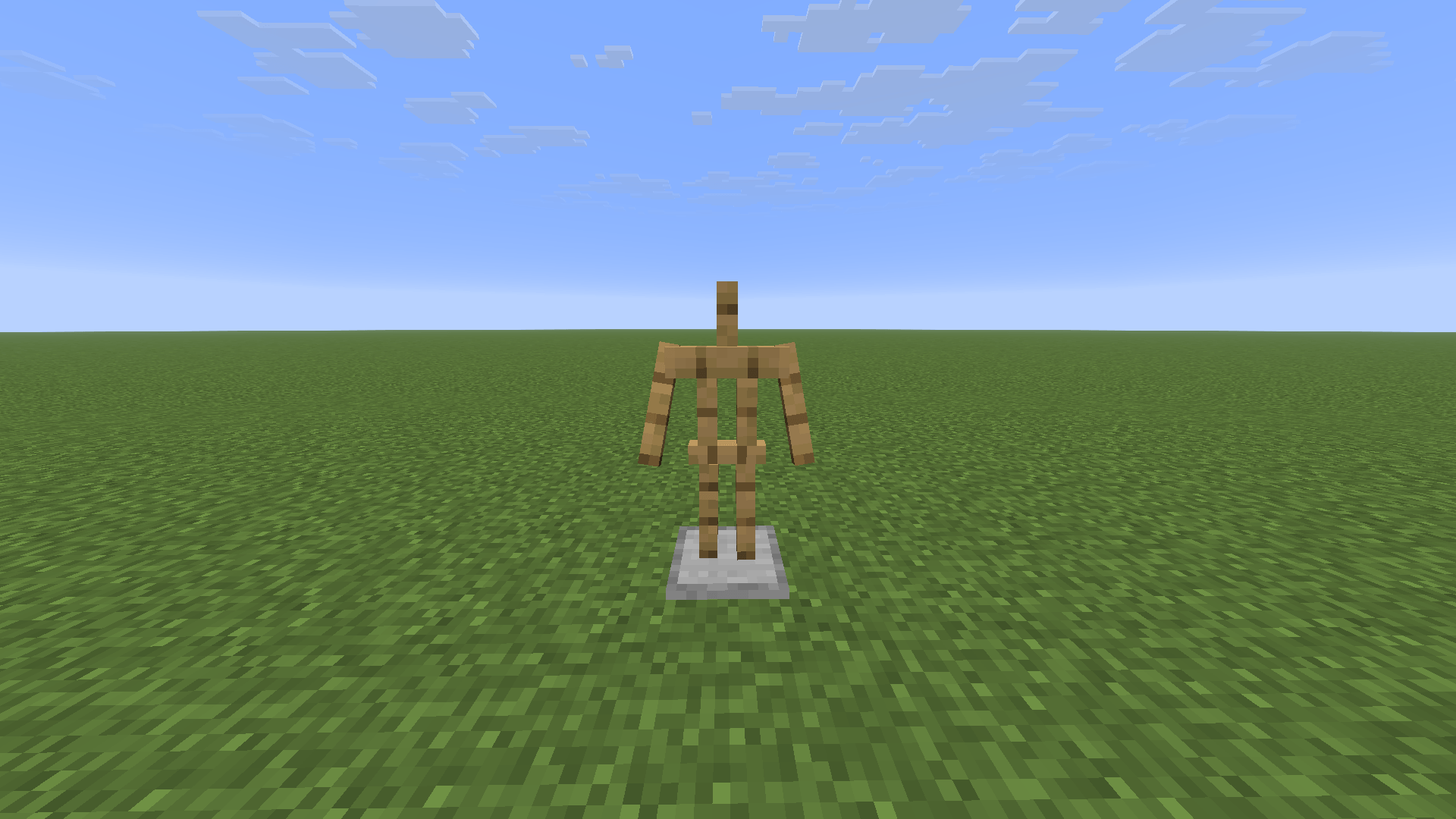
This project is making the Armor Stand has arms, so now after downloading and installing the data pack, you will be able to put your sword on the Armor Stand.

✨ Features
- Resemblance between Editions: The data pack makes Armor Stand has arms like Minecraft: Bedrock Edition.
- Low file size: The data pack size is less than 100 KiB making it easy and fast to download for very weak internets.
- Open Source: You can see the source code of the project to know how the project works.
- Wide Compatibility: Supports Minecraft Java Edition from version 1.13.x up to the latest releases.


🗒️ News & Updates

See the latest News about my Projects:

Telegram

Other Projects

Note: To recive the latest versions of the Project, go to the NEASA Modrinth Project page.


📂 Source Code & Issues

GitLab (Source Code)

GitLab (Issues)


Installation 🗂️

Linux:


World that already exists:

1. Go to this location "~/.minecraft/saves/" (Make sure you are showing the Hidden Folders and Files by pressing Left Ctrl + H).

2. Choose the world folder you want to put the Data Pack in it.

3. Open datapacks folder, then put the data pack.zip in the datapacks folder.

4. Reload the world by /reload command or by Quit the world and rejoin it.


New World:

1. Open Minecraft, then click on "Singleplayer".

2. Click on "Create New World", then click "More World Options...".

3. Click on "Data Packs" button, then drag the data pack file into Minecraft.

4. Click "Done" and "Create New World".


MacOS:


World that already exists:
1. Go to this location "~/Library/Application Support/minecraft".
2. Choose the world folder you want to put the Data Pack in it.
3. Open datapacks folder, then put the data pack.zip in the datapacks folder.
4. Reload the world by /reload command or by Quit the world and rejoin it.

New World:
1. Open Minecraft, then click on "Singleplayer".
2. Click on "Create New World", then click "More World Options...".
3. Click on "Data Packs" button, then drag the data pack file into Minecraft.
4. Click "Done" and "Create New World".


Windows:


World that already exists:

1. Press Win + R, then type %appdata%, then press Enter.

2. Open "Roaming" folder, then ".minecraft" folder, then open "saves" (Make sure you are showing the Hidden Folders and Files by pressing Left Ctrl + Left Shift + . (period)).

4. Choose the world folder you want to put the Data Pack in it.

5. Open datapacks folder, then put the data pack.zip in the datapacks folder.

6. Reload the world by /reload command or by Quit the world and rejoin it.


New World:

1. Open Minecraft, then click on "Singleplayer".

2. Click on "Create New World", then click "More World Options...".

3. Click on "Data Packs" button, then drag the data pack file into Minecraft.

4. Click "Done" and "Create New World".


🛑 Deletion


Linux:


1. Go to this location "~/.minecraft/saves/" (Make sure you are showing the hidden folders and files by pressing Left Ctrl + H).
2. Find the world folder that you put the Data Pack into it.
3. Open datapacks folder, then remove the data pack.zip in the datapacks folder.
4. Reload the world by /reload command or by quit the world and rejoin it.


MacOS:


1. Go to this location "~/Library/Application Support/minecraft/saves/".
2. Find the world folder that you put the Data Pack into it.
3. Open datapacks folder, then remove the data pack.zip in the datapacks folder.
4. Reload the world by /reload command or by quit the world and rejoin it.


Windows:


1. Press Win + R, then type %appdata%, then press Enter.
2. Open "Roaming" folder, then ".minecraft" folder, then open "saves" (Make sure you are showing the hidden folders and files by pressing Left Ctrl + Left Shift + period).
4. Find the world folder that you put the Data Pack into it.
5. Open datapacks folder, then remove the data pack.zip in the datapacks folder.
6. Reload the world by /reload command or by Quit the world and rejoin it.


Enjoy!

NEASA (26.3) - (1.0.0).zip
MC 26.3
Release 2026-09-22 Get
NEASA (1.13 - 1.14.4) - (1.0.0).zip
MC 1.13.1, 1.14.3, 1.13, 1.14.4, 1.14.1, 1.14, 1.13.2, 1.14.2
Release 2026-07-16 Get
NEASA (1.15 - 1.16.1) - (1.0.0).zip
MC 1.16.1, 1.15, 1.16, 1.15.2, 1.15.1
Release 2026-07-16 Get
NEASA (1.16.2 - 1.16.5) - (1.0.0).zip
MC 1.16.3, 1.16.5, 1.16.2, 1.16.4
Release 2026-07-16 Get
NEASA (1.17 - 1.17.1) - (1.0.0).zip
MC 1.17.1, 1.17
Release 2026-07-16 Get
NEASA (1.18 - 1.18.1) - (1.0.0).zip
MC 1.18.1, 1.18
Release 2026-07-16 Get
NEASA (1.18.2) - (1.0.0).zip
MC 1.18.2
Release 2026-07-16 Get
NEASA (1.19 - 1.19.3) - (1.0.0).zip
MC 1.19.3, 1.19.1, 1.19.2, 1.19
Release 2026-07-16 Get
NEASA (1.19.4) - (1.0.0).zip
MC 1.19.4
Release 2026-07-16 Get
NEASA (1.20 - 1.20.1) - (1.0.0).zip
MC 1.20.1, 1.20
Release 2026-07-16 Get
NEASA (1.20.2) - (1.0.0).zip
MC 1.20.2
Release 2026-07-16 Get
NEASA (1.20.3 - 1.20.4) - (1.0.0).zip
MC 1.20.4, 1.20.3
Release 2026-07-16 Get
NEASA (1.20.5 - 1.20.6) - (1.0.0).zip
MC 1.20.5, 1.20.6
Release 2026-07-16 Get
NEASA (1.21 - 1.21.1) - (1.0.0).zip
MC 1.21, 1.21.1
Release 2026-07-16 Get
NEASA (1.21.2 - 1.21.3) - (1.0.0).zip
MC 1.21.3, 1.21.2
Release 2026-07-16 Get
NEASA (1.21.4) - (1.0.0).zip
MC 1.21.4
Release 2026-07-16 Get
NEASA (1.21.5) - (1.0.0).zip
MC 1.21.5
Release 2026-07-16 Get
NEASA (1.21.6) - (1.0.0).zip
MC 1.21.6
Release 2026-07-16 Get
NEASA (1.21.7 - 1.21.8) - (1.0.0).zip
MC 1.21.8, 1.21.7
Release 2026-07-16 Get
NEASA (1.21.9 - 1.21.10) - (1.0.0).zip
MC 1.21.9, 1.21.10
Release 2026-07-16 Get
NEASA (1.21.11) - (1.0.0).zip
MC 1.21.11
Release 2026-07-16 Get
NEASA (26.1 - 26.1.2) - (1.0.0).zip
MC 26.1, 26.1.1, 26.1.2
Release 2026-07-16 Get
NEASA (26.2) - (1.0.0).zip
MC 26.2
Release 2026-07-16 Get
NEASA (1.13 - 1.14.4) - (0.1.0).zip
MC 1.13.1, 1.14.3, 1.13, 1.14.4, 1.14.1, 1.14, 1.13.2, 1.14.2
Beta 2026-06-24 Get
NEASA (1.15 - 1.16.1) - (0.1.0).zip
MC 1.16.1, 1.15, 1.16, 1.15.2, 1.15.1
Beta 2026-06-24 Get
NEASA (1.16.2 - 1.16.5) - (0.1.0).zip
MC 1.16.3, 1.16.5, 1.16.2, 1.16.4
Beta 2026-06-24 Get
NEASA (1.17 - 1.17.1) - (0.1.0).zip
MC 1.17.1, 1.17
Beta 2026-06-24 Get
NEASA (26.2) - (0.1.0).zip
MC 26.2
Beta 2026-06-17 Get
NEASA (1.18 - 1.18.1) - (0.1.0).zip
MC 1.18.1, 1.18
Beta 2026-06-15 Get
NEASA (1.18.2) - (0.1.0).zip
MC 1.18.2
Beta 2026-06-15 Get
NEASA (1.19 - 1.19.3) - (0.1.0).zip
MC 1.19.3, 1.19.1, 1.19.2, 1.19
Beta 2026-06-15 Get
NEASA (1.19.4) - (0.1.0).zip
MC 1.19.4
Beta 2026-06-15 Get
NEASA (1.20 - 1.20.1) - (0.1.0).zip
MC 1.20.1, 1.20
Beta 2026-06-08 Get
NEASA (1.20.2) - (0.1.0).zip
MC 1.20.2
Beta 2026-06-08 Get
NEASA (1.20.3 - 1.20.4) - (0.1.0).zip
MC 1.20.4, 1.20.3
Beta 2026-06-08 Get
NEASA (1.20.5 - 1.20.6) - (0.1.0).zip
MC 1.20.5, 1.20.6
Beta 2026-06-08 Get
NEASA (1.21 - 1.21.1) - (0.1.0).zip
MC 1.21, 1.21.1
Beta 2026-06-05 Get
NEASA (1.21.2 - 1.21.3) - (0.1.0).zip
MC 1.21.3, 1.21.2
Beta 2026-06-05 Get
NEASA (1.21.4) - (0.1.0).zip
MC 1.21.4
Beta 2026-06-05 Get
NEASA (1.21.5) - (0.1.0).zip
MC 1.21.5
Beta 2026-06-05 Get
NEASA (1.21.6) - (0.1.0).zip
MC 1.21.6
Beta 2026-06-05 Get
NEASA (1.21.7 - 1.21.8) - (0.1.0).zip
MC 1.21.8, 1.21.7
Beta 2026-06-05 Get
NEASA (1.21.9 - 1.21.10) - (0.1.0).zip
MC 1.21.9, 1.21.10
Beta 2026-06-05 Get
NEASA (1.21.11) - (0.1.0).zip
MC 1.21.11
Beta 2026-06-05 Get
NEASA (26.1 - 26.1.2) - (0.1.0).zip
MC 26.1, 26.1.1, 26.1.2
Beta 2026-06-05 Get

Requirements & install

How to use this data pack in Minecraft
Mods needed
None, works in vanilla
Minecraft
1.21.9 – 26.3
Install folder
saves/<world>/datapacks

How to install data packs

  1. Download the data pack .zip file (do not extract it).
  2. New world: click Data Packs on the world creation screen and drop the .zip in. Existing world: open .minecraft/saves/<world>/datapacks.
  3. Put the .zip into the datapacks folder of the world (servers: world/datapacks).
  4. Run /reload in game (or rejoin the world) and check it with /datapack list.
Browse more: Data Packs for 26.3 All data packs

More from iAhmed_7024

Advertisement Remove ads with Premium →

You Might Also Like