An important announcement...
It's been 2 years since the last update. At this point I no longer have enough time and willpower to continue working on Tetra_GUI.
It was an amazing little passion of mine, but I honestly lost interest in Minecraft, thus also in keeping this resource pack up to date with all of the mods that I supported over that short span of time I actively worked on the thing.
So to anyone interested - I hereby grant anyone permission to use and incorporate parts of this RP in whatever project they may be developing.
Lastly - if anyone is interested in taking over Tetra_GUI let me know in a private message.
Important mentions!
I would like to say "Thank you!" to mickelus for creating Tetra and mutil (formerly mGui). Without his creations there would be no Tetra_GUI.
Another shoutout goes to Anomaliss17 - he helped me with reimagining some designs. I used some of his texturing ideas in the 0.7 update. Cheers mate!
I would also like to thank MR_SPᐰGETTY for updating some Immersive Engineering textures.
Side notes
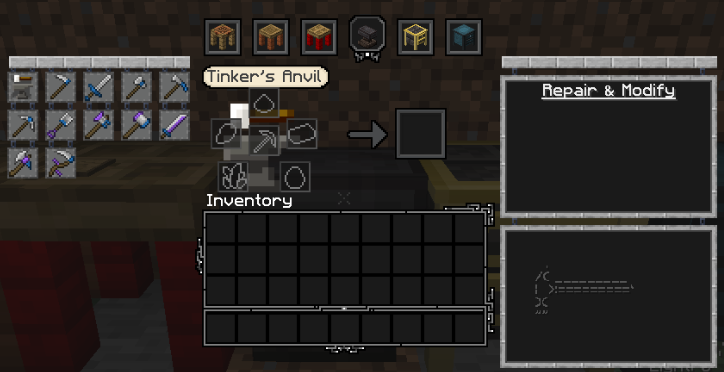
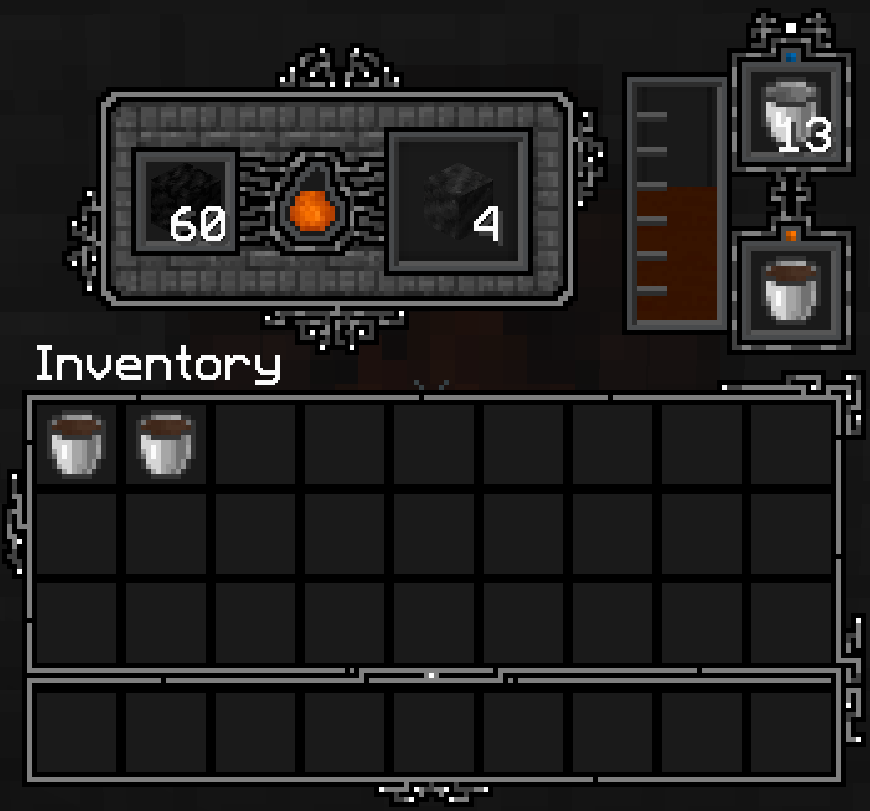
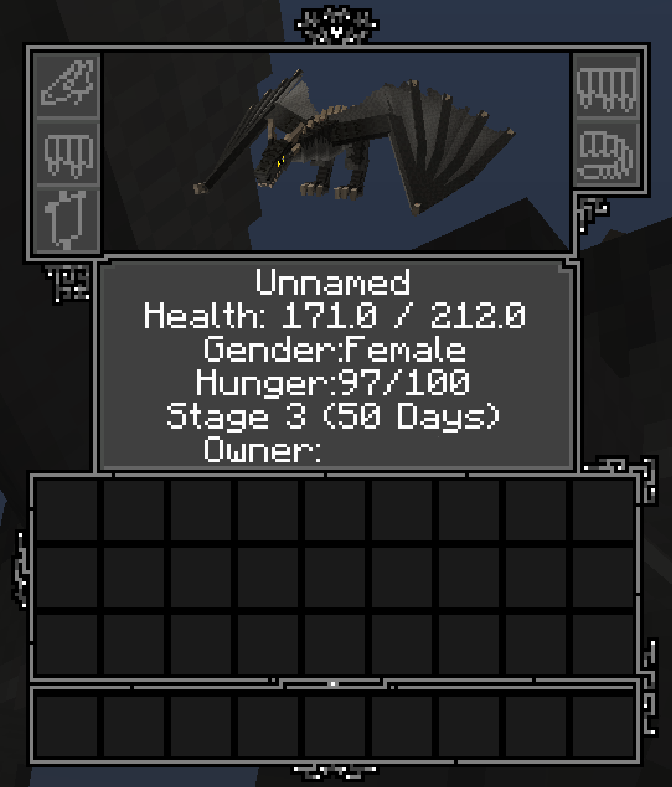
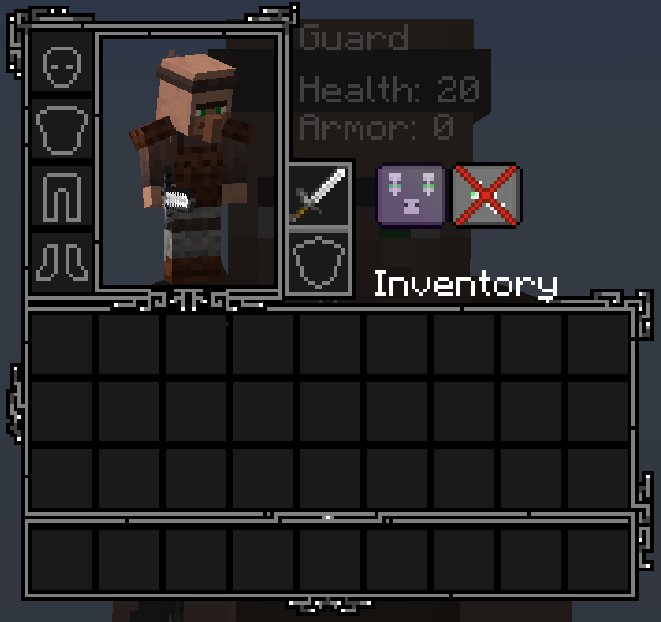
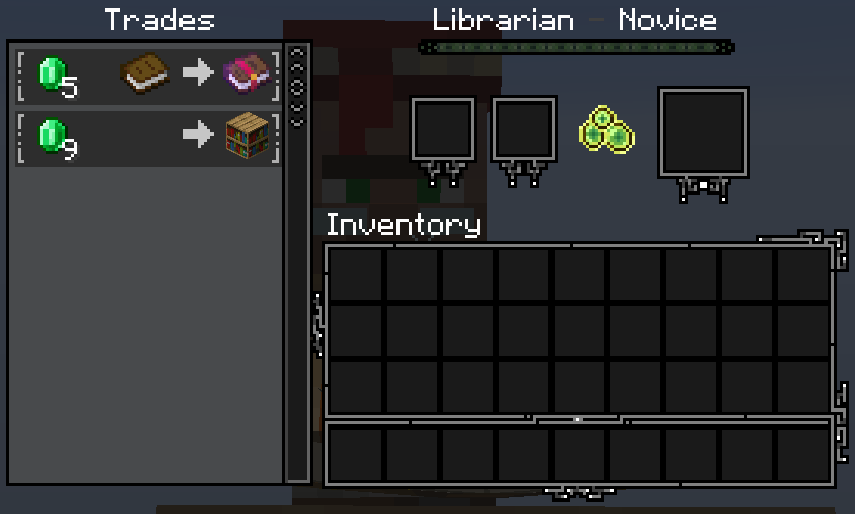
As stated before - Tetra_GUI supports some - {'ight, let's be honest - a TON of} (Forge) mod menus. Here's a quick list:
Optional support:
- Custom Cursor mod
Supported Modpacks:
Custom Cursor usage:
IMPORTANT!
I you enabled my cursor and decided to remove Tetra_GUI from your resource pack list, but you still want to use Custom Cursor Mod you first need to revert the changes in the mod config menu to their default state. If you'll close your game without doing it the next time you'll try to run it, it WILL crash on startup.
If it already happened just load your game without the said mod --> activate Tetra_GUI again --> load your game with the mod installed --> revert the changes --> remove Tetra_GUI from RP load order and reload your game.
1. In the game title screen press on "mods" tab. It'll open up your current mod list.

2. Type Custom Cursor Mod in the mod list search bar on the top left side of the screen. After that press "config" which will again lead you to a new menu.

3. This time you'll find yourself in the Cursor Mod main menu. Go ahead and choose "Options..."

4. We're almost at the end of the journey... Still with me? Here we've got a few buttons. The one's that are in our interest are named - from top to bottom - "Pointer", "Hand" and "Grabbing hand". In order to fully utilize my textures you'll need to edit what's under all of them. The process looks the same for every single one, thus in the next step I'll show you just an example.
Also... don't mind the harsh look of those cursor images. They look a bit different on the inventory screens etc.

5. Here's an example of "Pointer" confing menu. What you're gonna do in order to activate the new design is a pretty simple task. Just follow the instruction and provided image.
a) Change X and Y hotspots to 0,0. Alternatively you could use your mouse and press on the peak of the arrow marked by that little white cross on the provided image.
b) Edit the file location by adding "_crystal" (without quotation marks) just before the .png extension.
c) After that press "Done", restart your game and enjoy the new cursor!

Bonus!
If you're a modpack creator and you'd be interested in spreading a word about Tetra_GUI, feel free to utilize my brand new banners on your modpack page (unedited, unscaled versions are available in the Images section)!