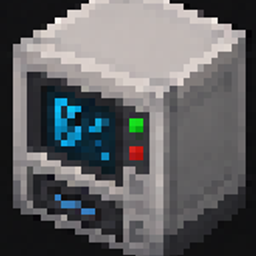
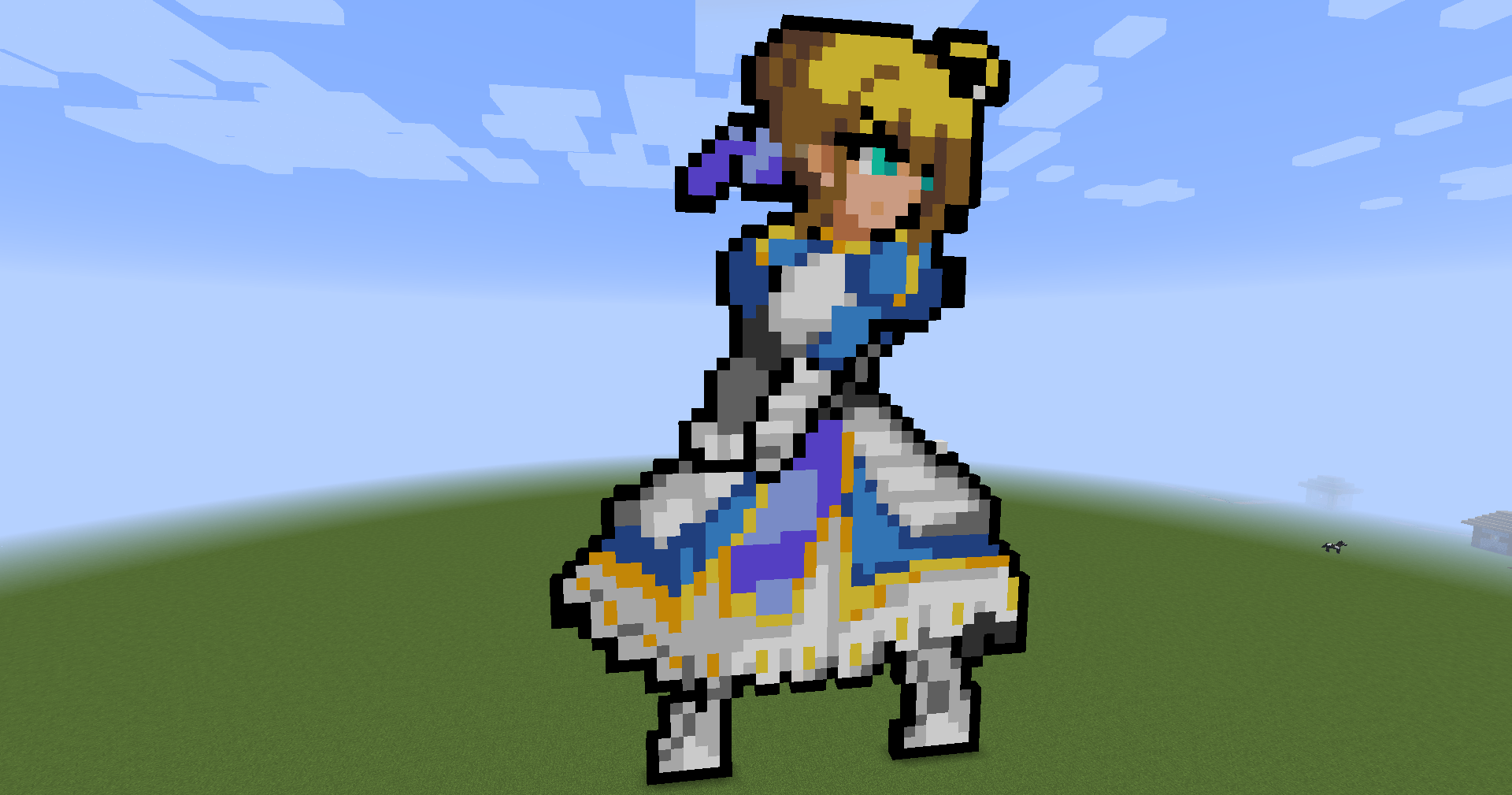
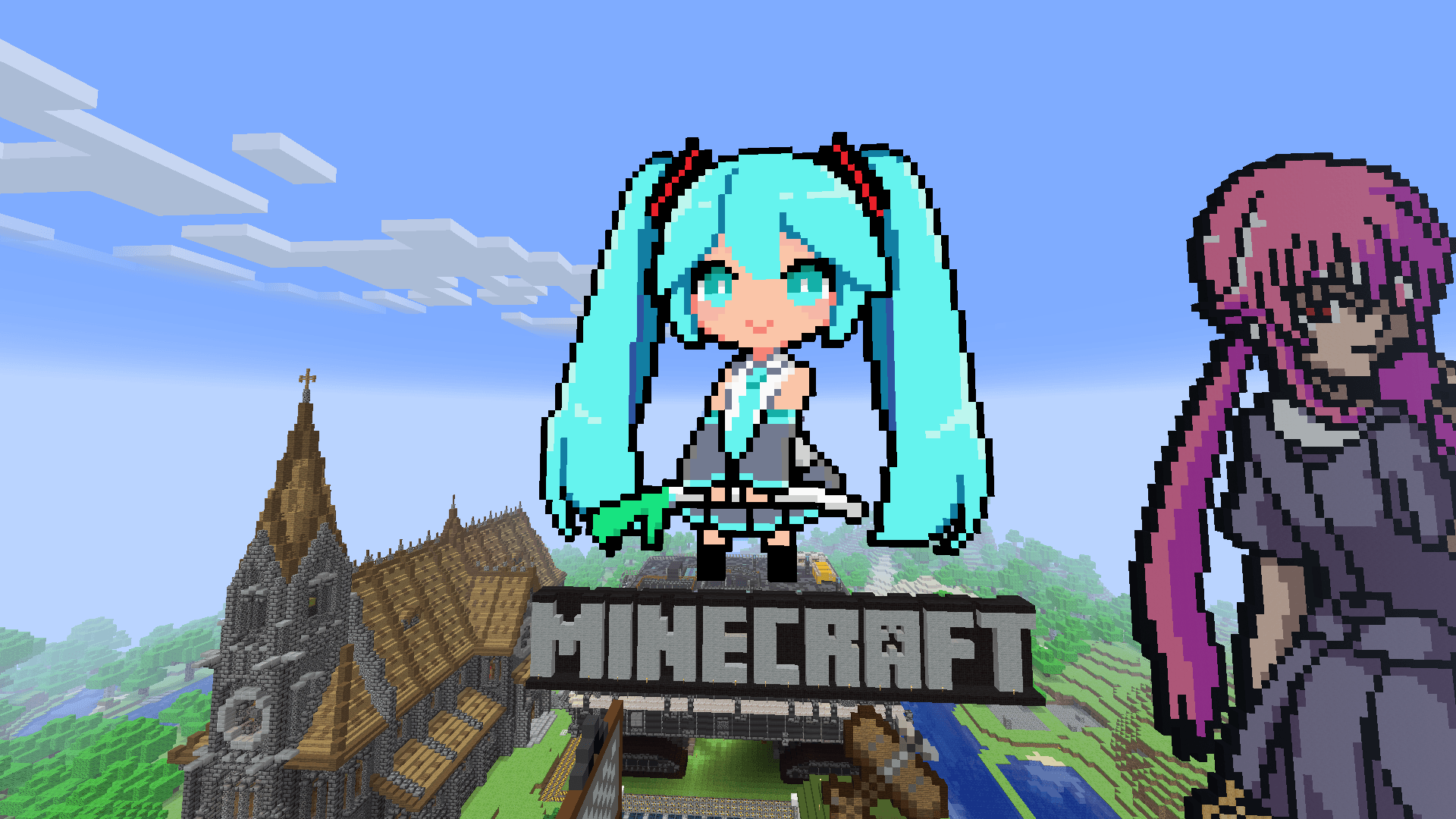
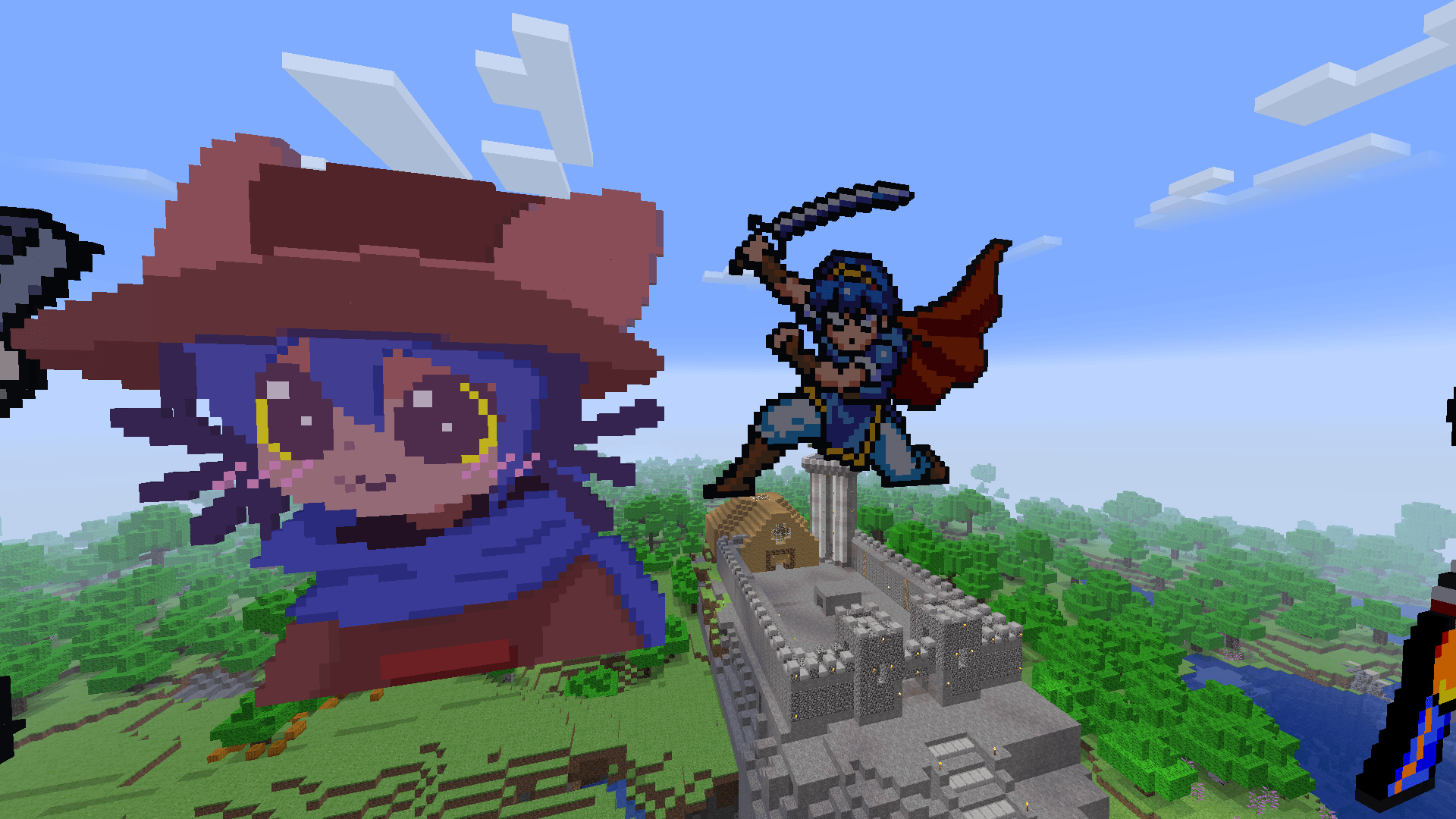
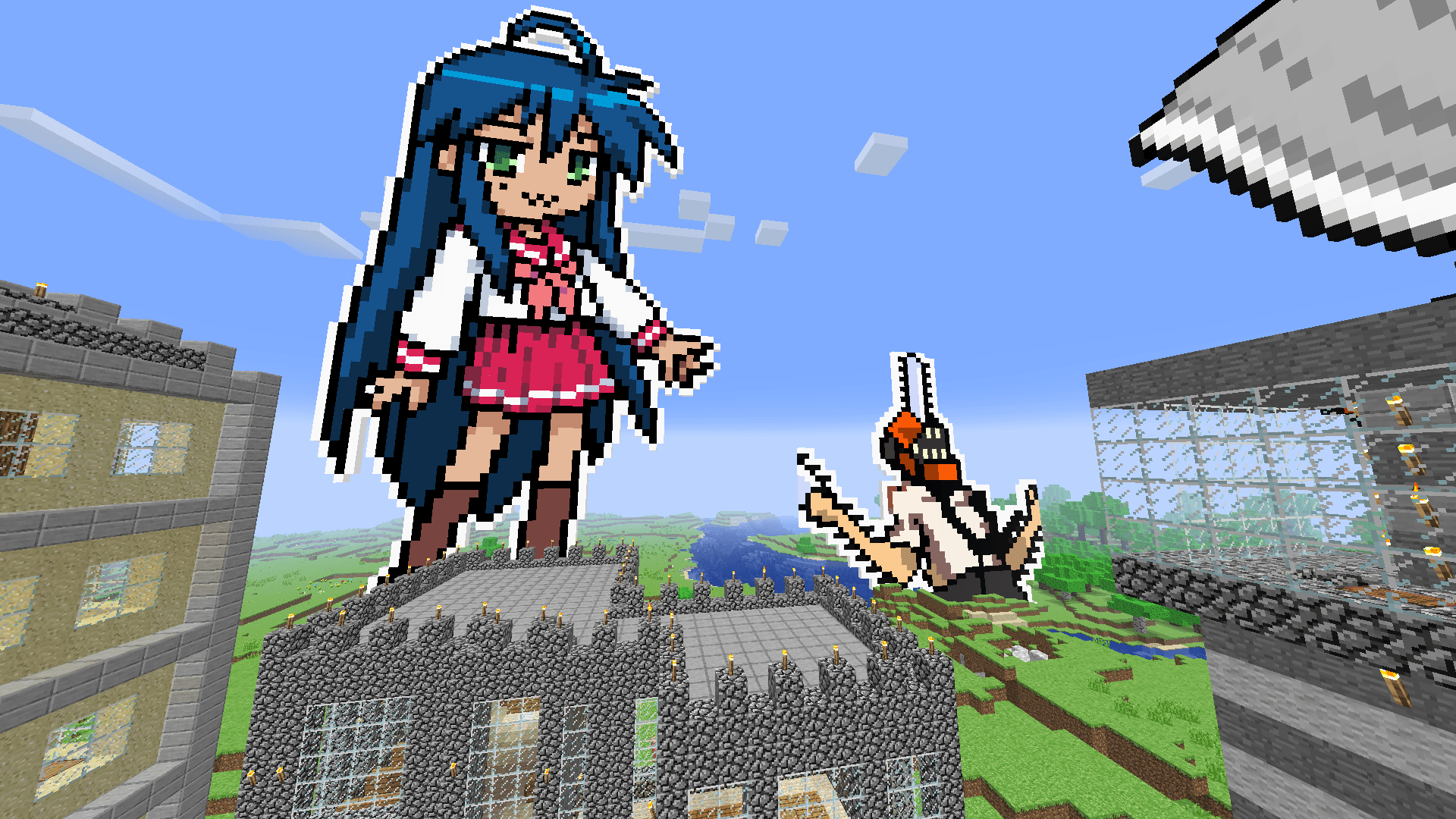
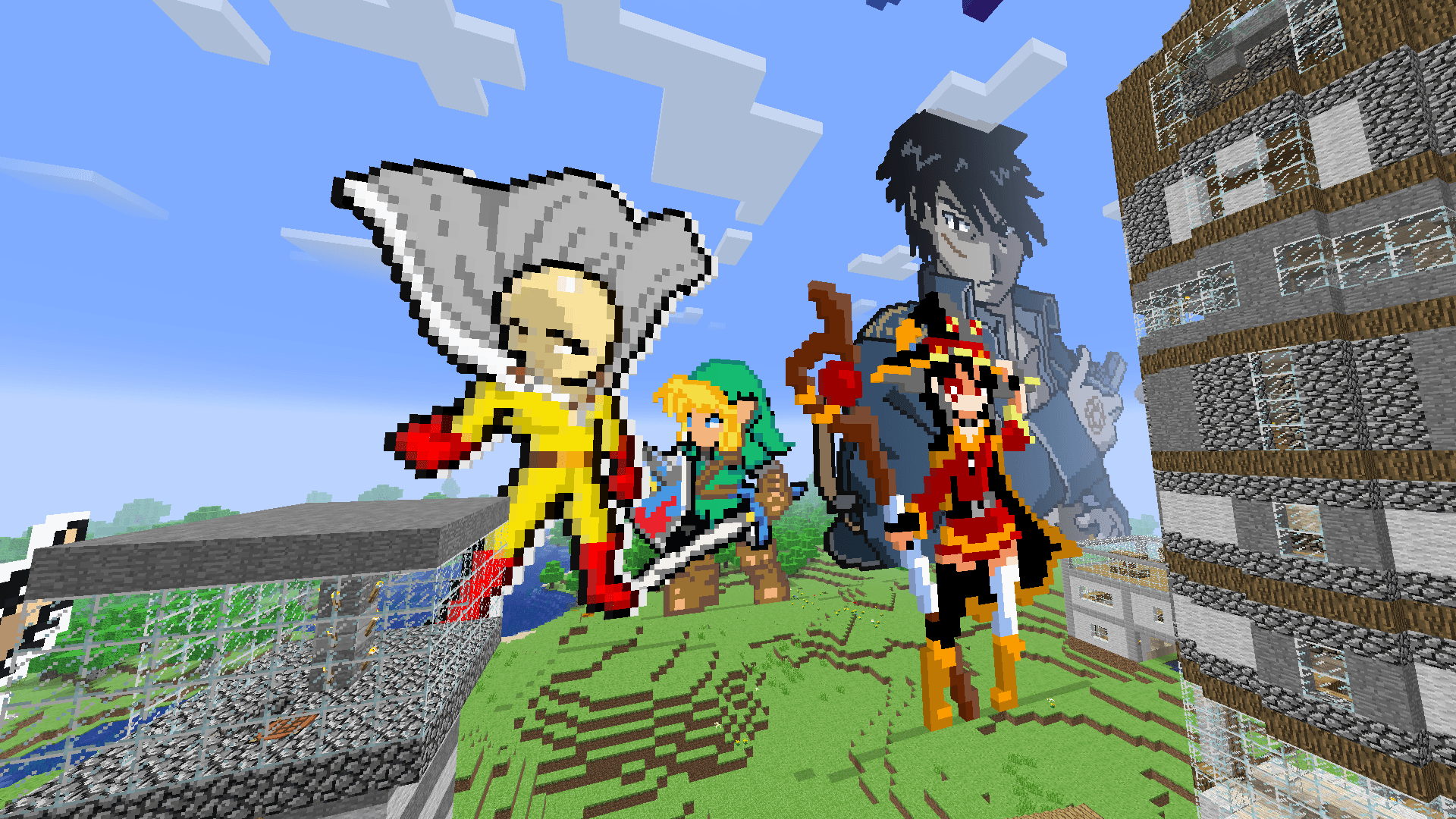
A complete toolkit for building, editing, copying, moving, printing, and managing pixel art inside Minecraft.
PixelToMine Core adds specialized blocks and tools designed specifically for pixel art creation. Instead of working with dozens of different vanilla blocks, you can work with precise colored Pixel Blocks, copy entire creations, move them, print additional blocks, save schematics to Floppy Disks, and manage your designs.
 Pixel Block
The Pixel Block is the foundation of PixelToMine.
Each Pixel Block can store its own precise color, allowing you to create pixel art using virtually any RGB color instead of being limited to Minecraft's normal block palette.
Colors are stored individually on each block, meaning two Pixel Blocks can look completely different while still being the same block type.
Features
 Pixel Copy
The Pixel Copy Tool allows you to select a group of Pixel Blocks and copy the entire structure.
It has two modes:
Select two corners of your pixel art structure. Pixel Copy captures only Pixel Blocks inside the selected area, including their exact colors.
The selection editor allows you to inspect and adjust the selected region before using it.
After copying a structure, switch to Pixel Paste mode to preview it before placement.
The placement editor includes:
The preview displays the individual colored pixels along with the structure bounding box, helping you position the design before placing it.
In Survival Mode, Pixel Copy requires the correct colored Pixel Blocks for placement. Existing Pixel Blocks with the exact required color are automatically recognized and do not consume additional materials.
In Creative Mode, materials are not required.
 Pixel Cut
The Pixel Cut Tool is designed for moving existing pixel art instead of duplicating it.
Its workflow consists of two stages:
Unlike Pixel Copy, Pixel Cut does not use the G key to change modes. The tool automatically moves from Cut mode to Move mode after the selected structure is cut.
Before moving the structure, Pixel Cut checks whether the destination is valid. If the structure cannot be placed safely, the move is prevented instead of partially placing the build.
Once the structure is successfully placed, the tool automatically returns to Pixel Cut mode.
 Palette
The Palette is the main color tool used with Pixel Blocks.
It allows you to choose precise colors using HEX values and work with Pixel Blocks without needing a separate block ID for every possible color.
This makes it much easier to create detailed pixel art with colors that closely match the original design.
 Floppy Disk
The Floppy Disk is a portable storage device for PixelToMine schematics.
Instead of keeping a schematic only inside a Pixel Copy Tool, you can save it to a Floppy Disk and reuse it later.
When hovering over a saved Floppy Disk, its tooltip displays useful information such as:
Floppy Disks can also be inserted directly into the Pixel Printer and used as printing templates.
 Pixel Printer
The Pixel Printer is a machine designed to manufacture the exact colored Pixel Blocks required by a schematic.
Instead of manually preparing every color, the Printer reads a template and determines which Pixel Blocks need to be produced.
Right Click the Pixel Printer to open its interface.
The Pixel Printer accepts:
The Printer uses normal Pixel Blocks as the base material and RGB dye resources to create the required colors.
It contains separate Red, Green and Blue ink systems. The exact RGB value of each requested Pixel Block determines how much ink is required.
Insert Pixel Blocks, supply the required RGB dyes, insert a template and press Print.
The Printer will produce Pixel Blocks with the exact colors required by the selected schematic.
 Pixel Manager
The Pixel Manager is the schematic management station of PixelToMine.
It allows you to transfer structures between Pixel Copy Tools, Floppy Disks and external PixelToMine schematic data.
Right Click the Pixel Manager to open its interface.
Insert a Pixel Copy Tool containing a captured structure and a Floppy Disk. Enter a Template Name and press Save.
The schematic will be stored on the Floppy Disk together with its name and structure information.
Insert a Floppy Disk with a previous saved pixel art and pixel copy tool, then press load
The schematic stored on the Floppy Disk will be transferred into the Pixel Copy Tool.
The Copy Schematic button exports the current schematic into PixelToMine's standardized JSON format and copies it to your clipboard.
This makes it possible to move schematic data between Minecraft and compatible external PixelToMine tools.
Copy a compatible PixelToMine schematic JSON to your clipboard and press Import Schematic.
The Pixel Manager will read the schematic data and load it into the Pixel Copy Tool.
Floppy Disks can have custom Template Names, making large schematic collections much easier to organize. When a named Floppy Disk is inserted into the Pixel Manager, its existing template name can be reused or replaced.
PixelToMine tools are designed to remain useful in both Creative and Survival gameplay.
Creative Mode gives you the freedom to build and paste without material restrictions, while Survival Mode keeps track of the exact colored Pixel Blocks required by your structures.
⚠ IMPORTANT: PixelToMine Core is currently available for Minecraft Forge 1.16.5. Support for newer Minecraft versions is planned, and the mod will receive updates for more recent versions in the future.