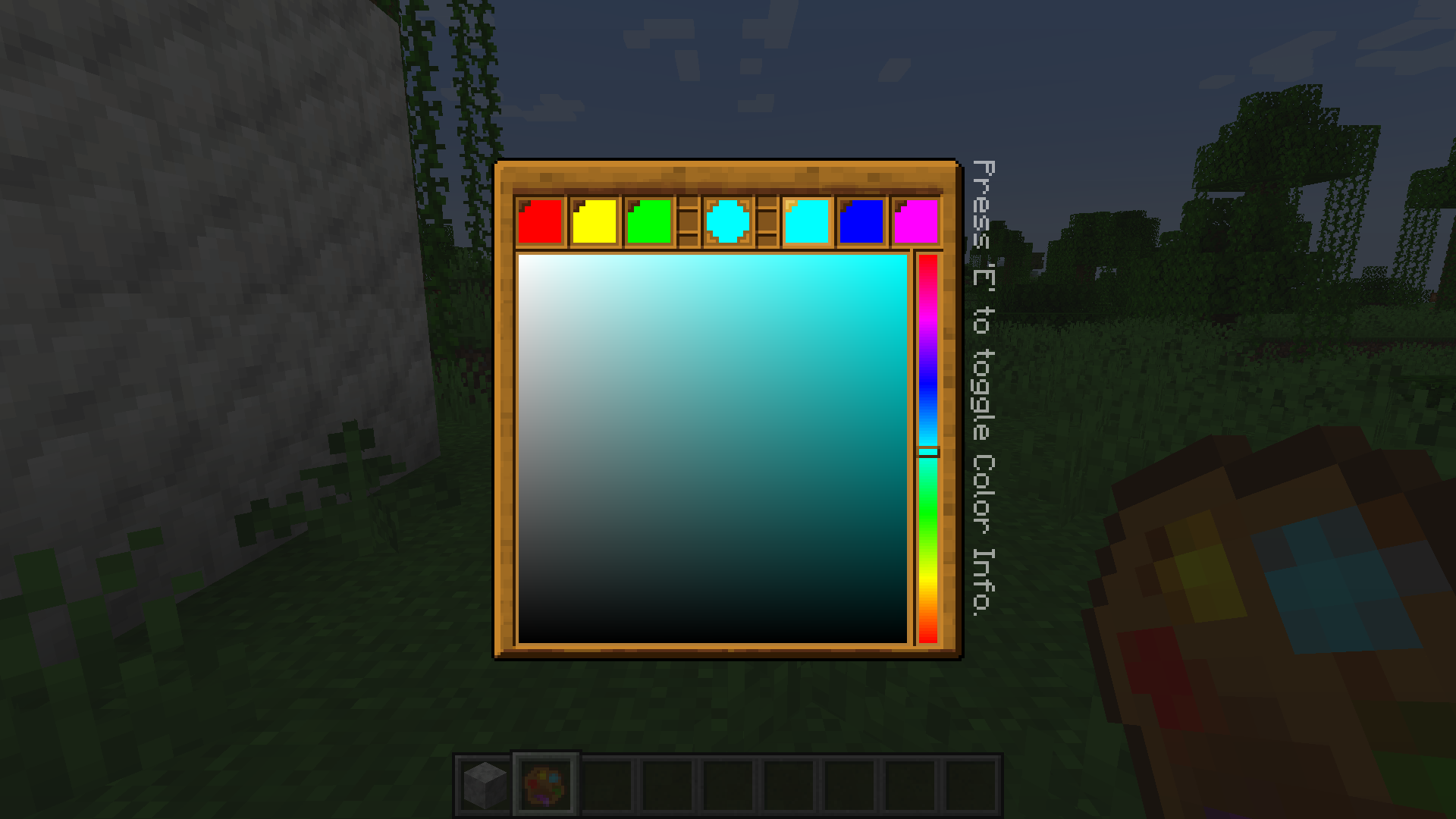
 Step 2. Start to paint!
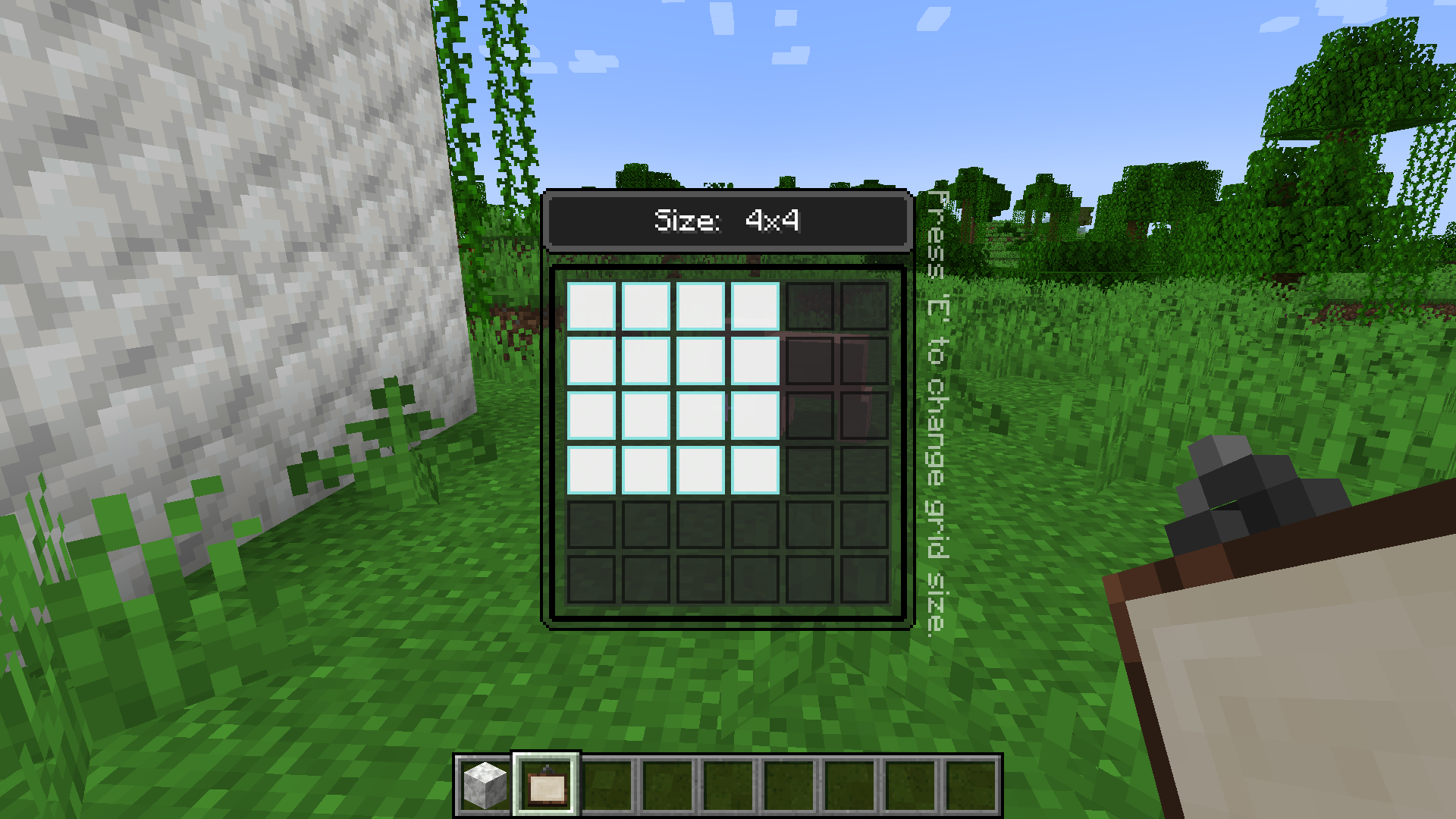
Then, you can place your blank painting on a wall, and the size of this painting is fixed at this time and cannot be changed anymore. Simply right click on it with a palette in your hand, and you can start painting!
Step 2. Start to paint!
Then, you can place your blank painting on a wall, and the size of this painting is fixed at this time and cannot be changed anymore. Simply right click on it with a palette in your hand, and you can start painting!
 Step 3. Saving/Loading paintings
You can input a path in the textfield at the top of the GUI, specifying the image file you want to save to/load from. The root directory of local paths is
Step 3. Saving/Loading paintings
You can input a path in the textfield at the top of the GUI, specifying the image file you want to save to/load from. The root directory of local paths is
.minecraft/nekopaint, and these paths should contain the extension name(.jpg or .png). For png images it's still OK to omit the extension name, which means you can simply use "foo" to refer to "foo.png", but for jpg images a full name is required.
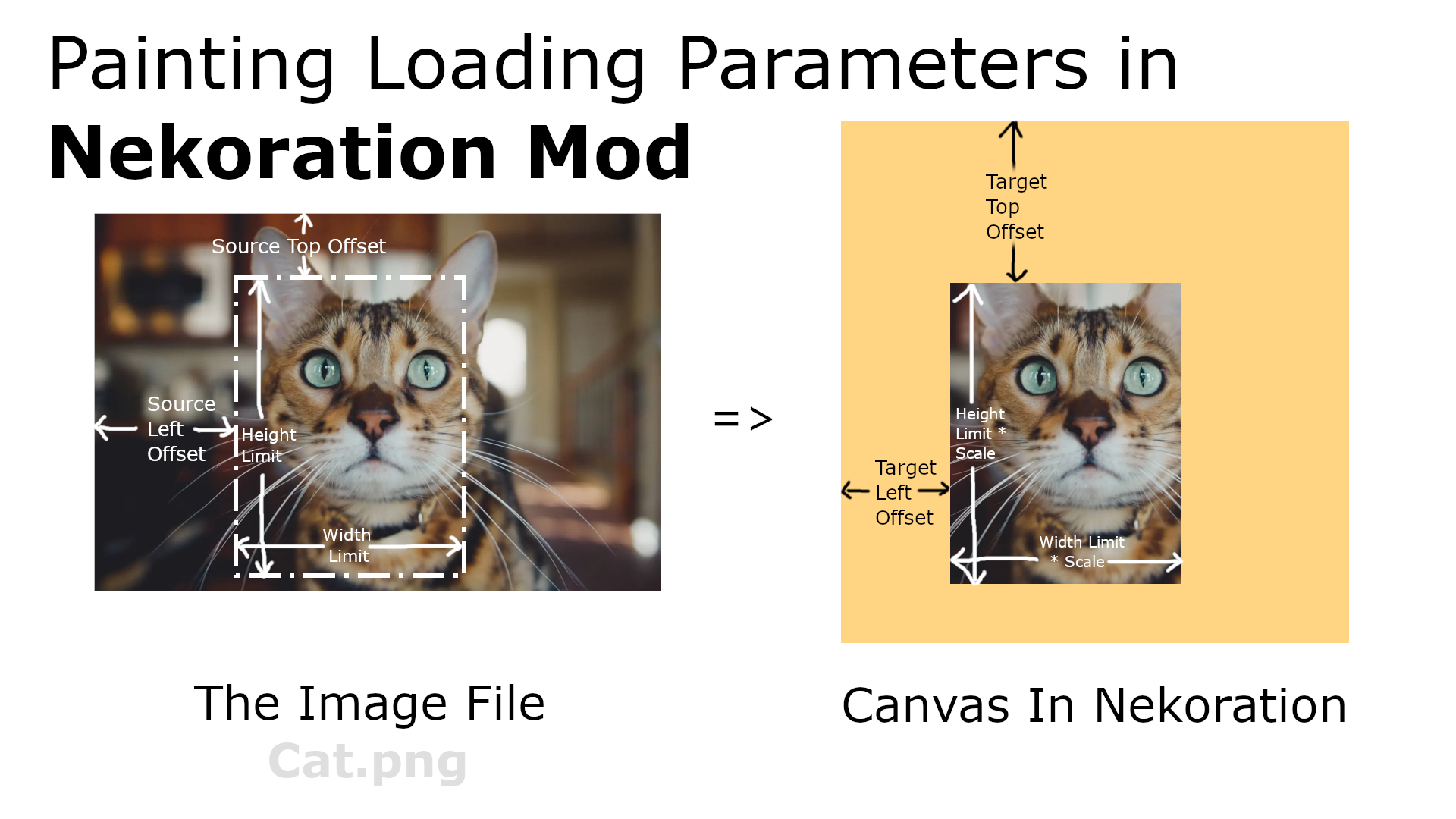
.minecraft/nekopaintonto the canvas. A few loading parameters are supported: Target Left Offset, Target Top Offset, Source Left Offset, Source Top Offset, Scale, Width Limit, and Height Limit, these parameters should be seperated with '>', following the file path. Not all parameters need to be specified, but they
mustbe given
in the above order.
foo.pngunder
.minecraft\nekopaintfolder, inputing
foo.png > 0 > 0 > 0 > 0 > 0.5will load the image at half size, and using
foo.png > 10 > 20 > 50 > 60 > 1.0 > 10 > 20will load the part of the image from (50, 60) to (60, 80) at position (10, 20) onto your canvas. For another example, you can use
https://www.misaka-cloud.net/image/Meow.png> 0 > 0 > 0 > 0 > 0.5to load that image from a remote server onto your canvas at half size. (That URL doesn't actually exist, just to explain how it works)