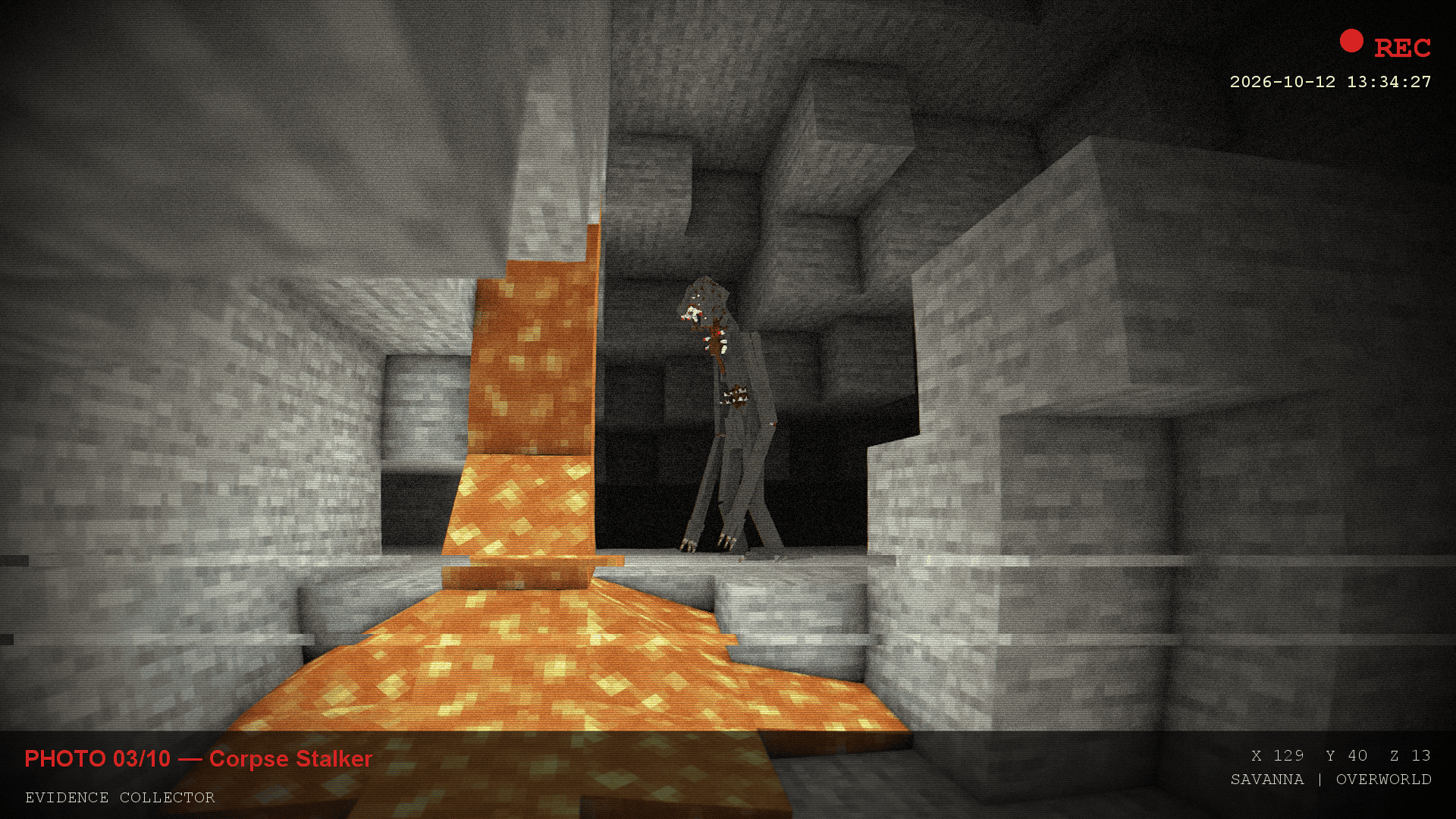
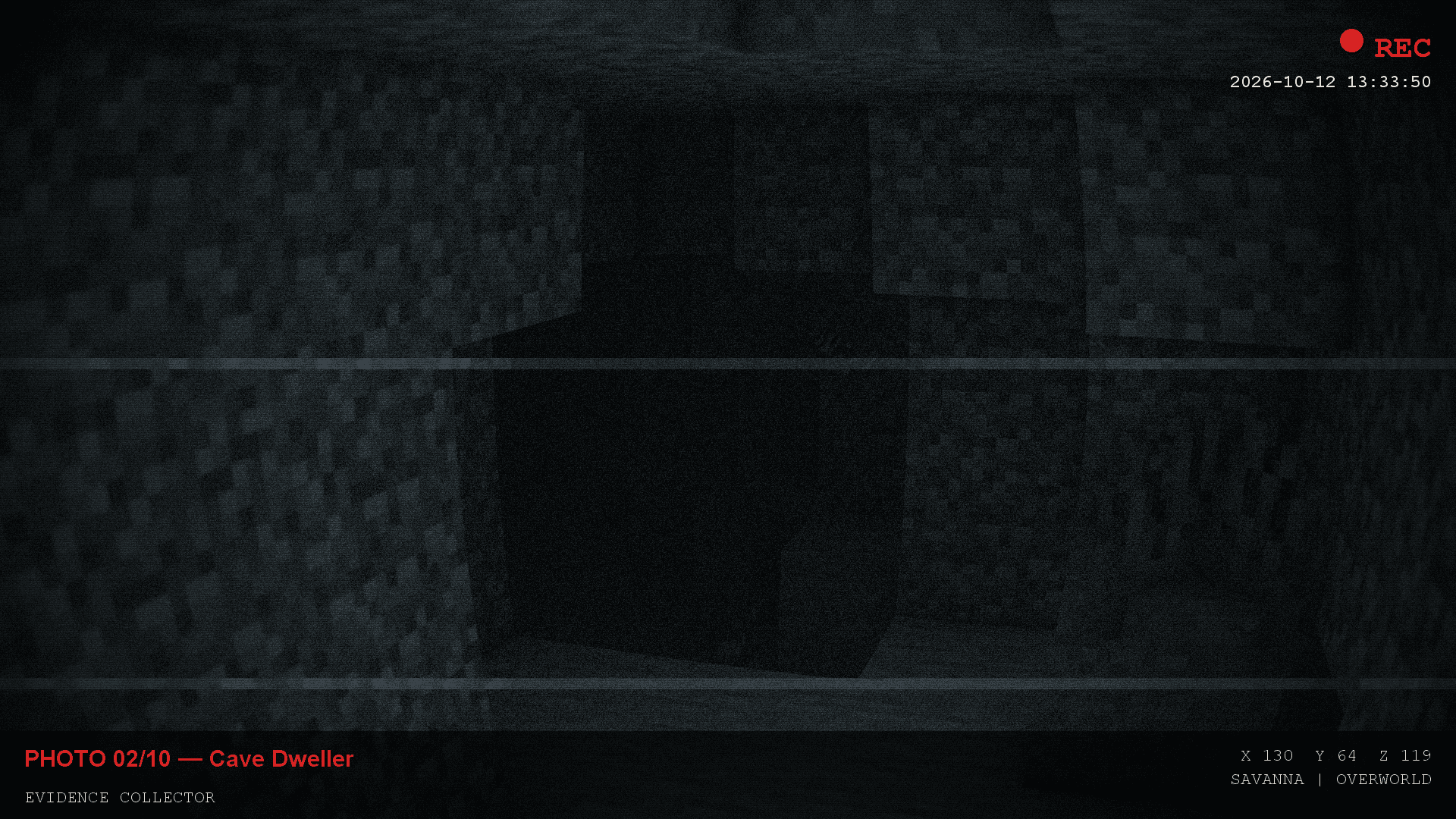
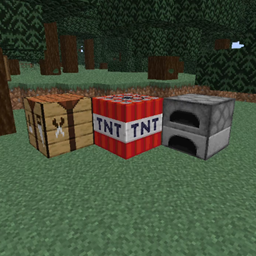
Bring a little bit of Phasmophobia-style investigation into your world!
Evidence Collector adds an evidence-photography system inspired by Phasmophobia, bringing a new layer of paranormal investigation to Minecraft. Grab your camera, search for mysterious entities, and capture photographic evidence!
Originally created as a small extra feature for my own modpack, this add-on eventually became a standalone project worth sharing with everyone. Now you can bring this experience into your own worlds and modpacks!
Evidence Collector includes built-in support for creatures from the following mods:
These creatures are included in the default configuration, so you don't need to register them manually.
Evidence Collector can also automatically add supported creatures from The Silhouettes, with an option to disable automatic additions and manage the list yourself.
Whether you're building a terrifying horror experience, a paranormal investigation adventure, or simply want to make encounters with creepy creatures more immersive, Evidence Collector adds a new reason to explore your world.
Grab your camera, collect the evidence, and uncover what lurks in the darkness. 📸👁️
The configuration file is located at:
config/evidence_collector-client.toml
It is generated automatically after the first launch. You can edit it with any text editor to customize the experience.
[game]requiredPhotos — the number of different creatures that must be photographed to complete the objective. Set this to 100 to require every creature in the configured list.targets — the list of photographable creatures. Each entry defines a unique identifier, display name, and one or more entity IDs.Each entry in targets counts as one creature, even when it contains multiple entity IDs.
[visibility]Control how Evidence Collector determines whether a creature is successfully captured in a photograph.
maxDistance — the maximum detection distance in blocks. Set to 0 for no additional distance limit.requireLineOfSight — requires an unobstructed line of sight to the creature.ignoreInvisible — ignores invisible entities.minVisiblePoints — determines how many of the 27 sampled points on a creature must be inside the camera frame and unobstructed. A value of 1 means any visible part can count.debugLog — enables detailed logging for photographs in logs/latest.log, which is useful for troubleshooting.[effects]flash — enables or disables the white screen flash when a photograph is taken.flashIntensity — adjusts the brightness of the flash, from a subtle effect to full white.glow — enables or disables the glowing effect, including the screen-edge halo and ring of glowing particles.sounds — enables or disables sound effects. Successful photographs play a level-up sound, while failed shots use a villager's "no" sound.soundVolume — adjusts the sound effect volume.Accessibility: You can disable the screen flash if you are sensitive to bright or flashing lights.
[hud]seconds — controls how long on-screen messages remain visible.counterOverride — replaces the default progress counter message.capturedOverride — replaces the message displayed after photographing a new creature.alreadyCapturedOverride — replaces the message displayed when a creature has already been photographed.completeTitleOverride — replaces the objective completion title.completeSubtitleOverride — replaces the objective completion subtitle.failedShotMessageOverride — replaces the chat message displayed after an unsuccessful photograph.Leave an override empty ("") to use the default translated text.
Supported message placeholders include {current}, {total}, and {name}, where applicable.
[photoCaption]Customize the captions and visual style of saved photographs.
line1 — the first line of text printed on the photograph.line2 — the second line of text printed on the photograph.vhsEffect — enables or disables the VHS-style found-footage effect.grain — adjusts the film grain strength.recOverlay — enables or disables the red REC indicator with the date and time.showCoordinates — displays coordinates, biome, and dimension information on saved photographs.The default caption includes the photo number, the total number of required photographs, the creature's name, and the Evidence Collector label.
Supported caption placeholders include {index}, {total}, and {name}.
[viewfinder]Customize the camcorder-style overlay visible while using the Camerapture viewfinder.
enabled — enables or disables the additional viewfinder effects.scanlines — adds faint scanlines and a slowly moving tracking line.vignette — darkens the edges of the viewfinder.showCoordinates — displays live coordinates and biome information.dateTimeFormat — controls the date and time format used by both the viewfinder and saved photographs.The date and time format uses Java DateTimeFormatter patterns.
Examples:
yyyy-MM-dd HH:mm:ss — 2026-10-12 14:30:00
dd.MM.yyyy HH:mm:ss — 12.10.2026 14:30:00
MMM dd yyyy HH:mm — Oct 12 2026 14:30Want to photograph creatures from other mods? You can add your own entries to targets, provided you know the correct entity IDs.
Each entry follows this format:
targetId|Display Name|modid:entity_id,modid:another_entity_idtargetId — a unique identifier chosen by you, such as custom:ghost. This identifier is stored in the progress file, so keep it consistent if you want to preserve existing progress.Display Name — the name displayed in photo captions and file names.Entity IDs — a comma-separated list of entity IDs belonging to the same creature group. Photographing any entity in this list counts as photographing that group. This is useful when a creature has multiple variants.Add the following entries to your configuration:
targets = [
    "fixed:cave_dweller|Cave Dweller|cave_dweller:cave_dweller",
    "custom:ghost|Ghost|somemod:ghost,somemod:ghost_angry"
]
In this example:
targets.Enable cheats or use a world where you have permission to run commands.
Open the chat and type /summon followed by the mod ID and a colon. For example:
/summon somemod:Press Tab to display available entity IDs, if command suggestions are supported.
An entity ID usually looks like this:
somemod:ghostLocate the relevant mod's .jar file.
Open it with an archive program, since a JAR file is essentially a ZIP archive.
Navigate to:
assets/<modid>/lang/en_us.jsonLook for entries describing entities. For example:
"entity.somemod.ghost": "Ghost"This suggests that the entity ID may be somemod:ghost. Verify the ID in-game when possible.
Important: A mod's ID does not always match its display name. For example, the Psychopath mod uses psycho as its mod ID.
Language files can also contain names for entities that no longer exist. If an entity ID is invalid, check logs/latest.log for warnings such as:
entity type ... is not registeredSet debugLog = true in the configuration.
Take a photograph of the creature.
Open logs/latest.log and examine the output.
The debug log reports information such as the distance to the creature and how many of its sampled points were visible inside the frame. This can help you identify why a photograph was not accepted.
Evidence Collector supports English and Russian. On-screen messages, creature names, and chat messages follow the current game language.
The translation files are located at:
assets/evidence_collector/lang/en_us.json
assets/evidence_collector/lang/ru_ru.jsonYou can add translation keys for custom creatures using this format:
monster.evidence_collector.<targetId>Replace the colon (:) in targetId with a dot (.).
For example, if your configuration contains:
custom:ghost|Ghost|somemod:ghostThe corresponding translation key would be:
"monster.evidence_collector.custom.ghost": "Ghost"Add the appropriate translation to the language files for each language you want to support.
If no matching translation key exists, the mod uses the display name specified in the configuration.
Evidence Collector uses standard Forge events and does not rely on mixins. It does not directly modify the game's rendering pipeline.
It has been tested alongside the following mods: