Mineuniverse
Mods
Desktop Screens

Desktop Screens

MOD
Use your real PC desktop inside Minecraft: build screens of any size, carry a tablet, share a screen with friends.
by MagiMigi
Download Claim this project
26 downloads
0 likes
Updated Oct 14, 2026
0 hypes
Cosmetic Technology Utility & QoL
Advertisement Remove ads with Premium →

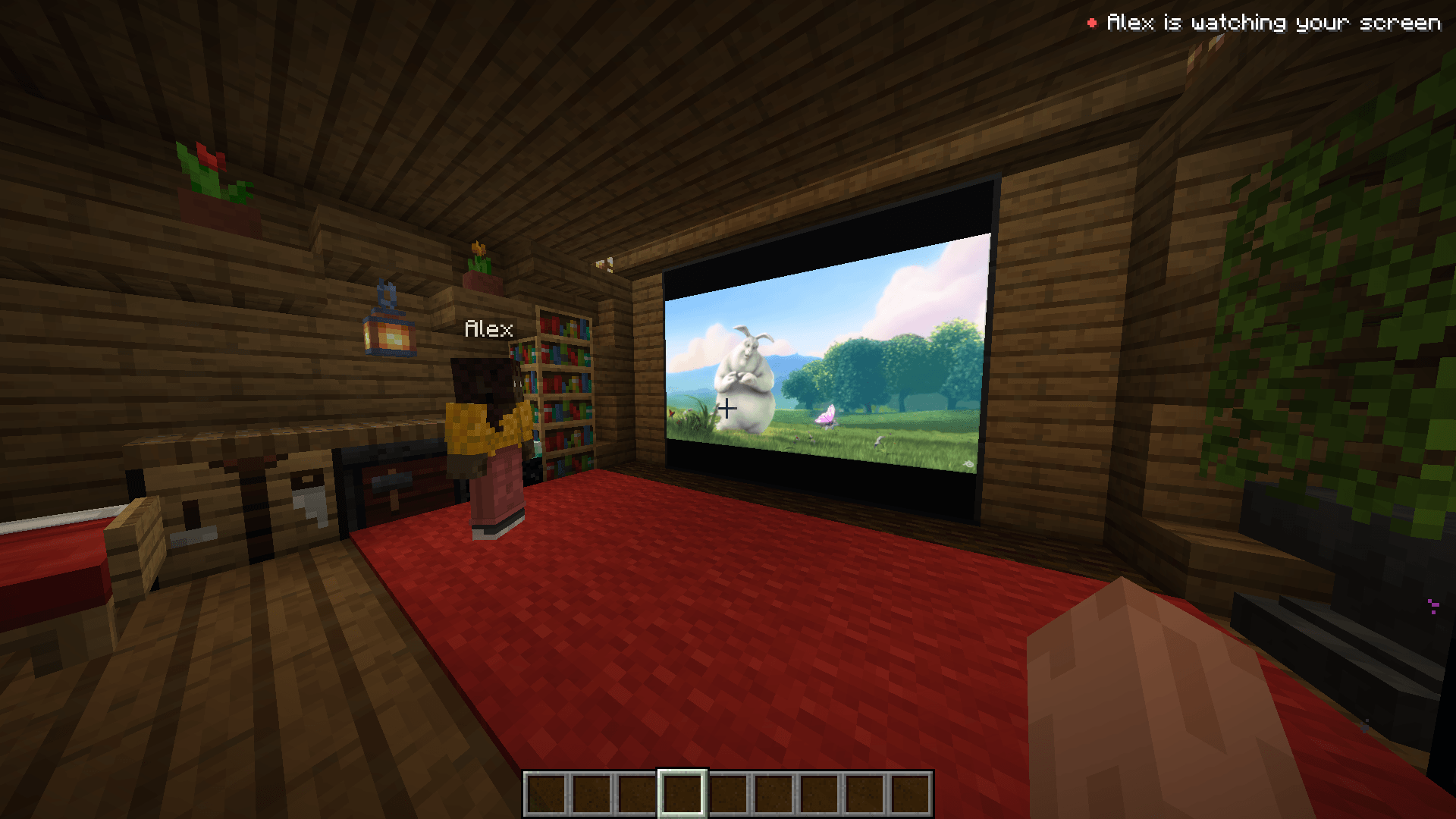
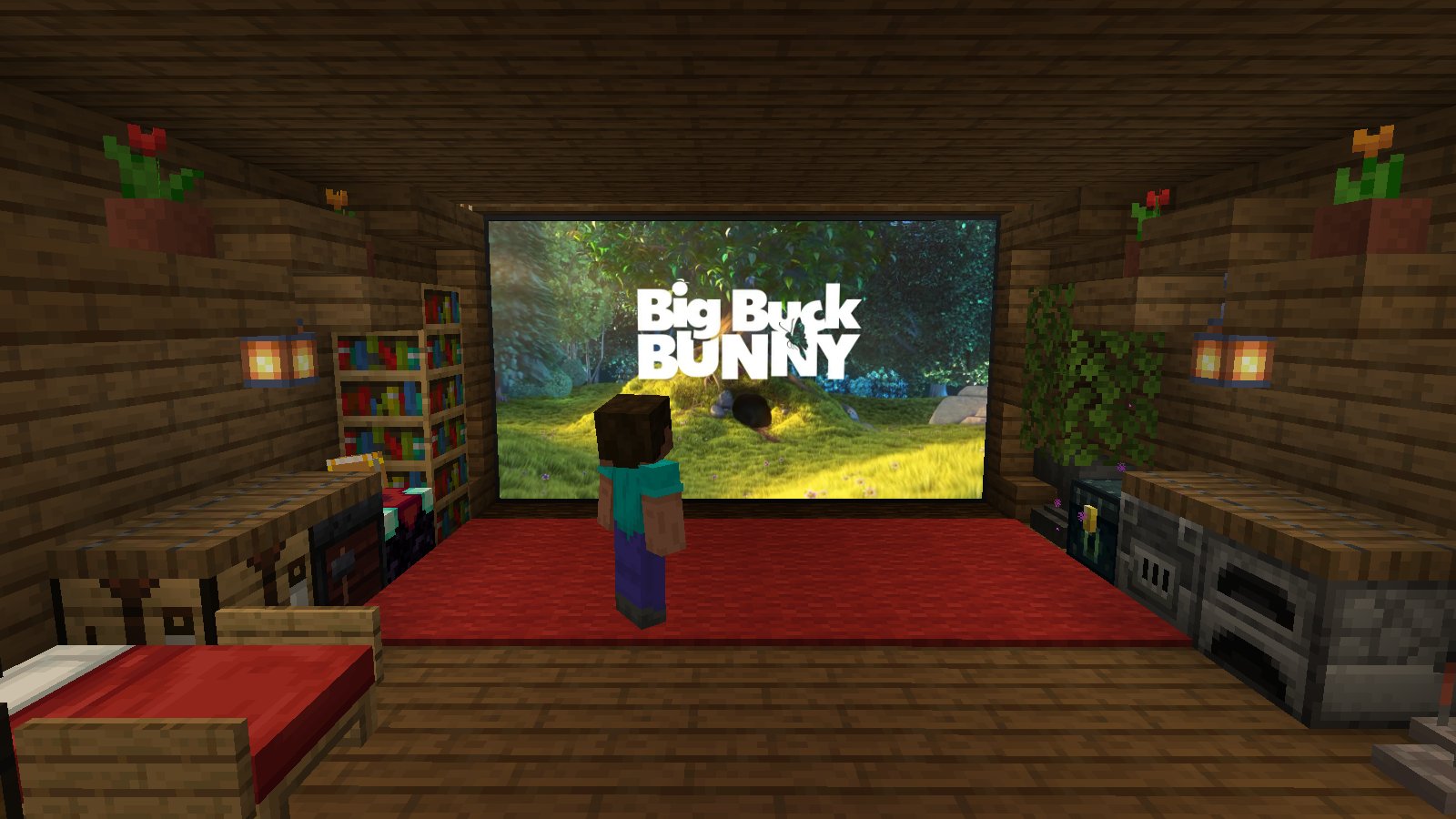
Your desktop on a screen in your base

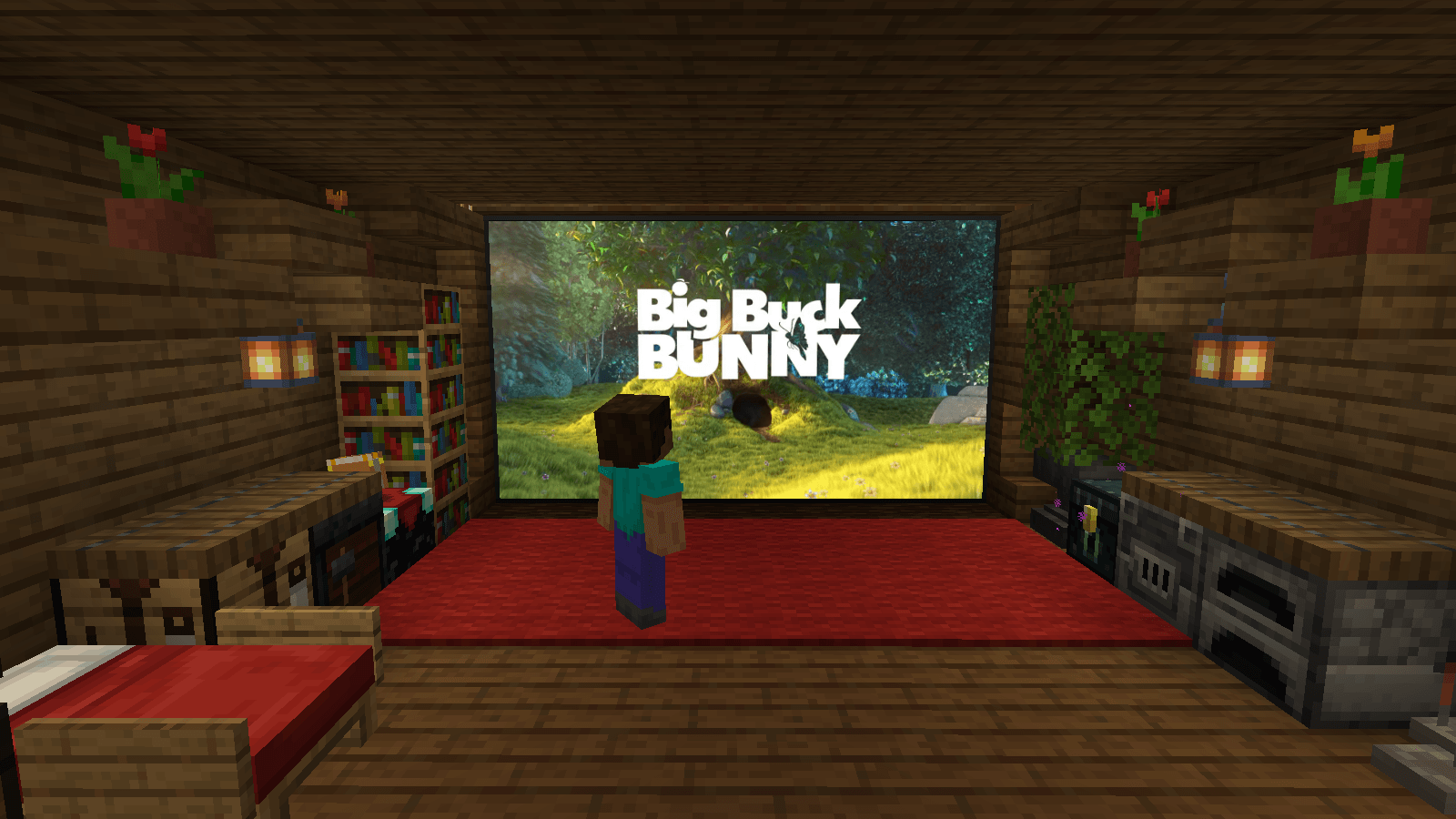
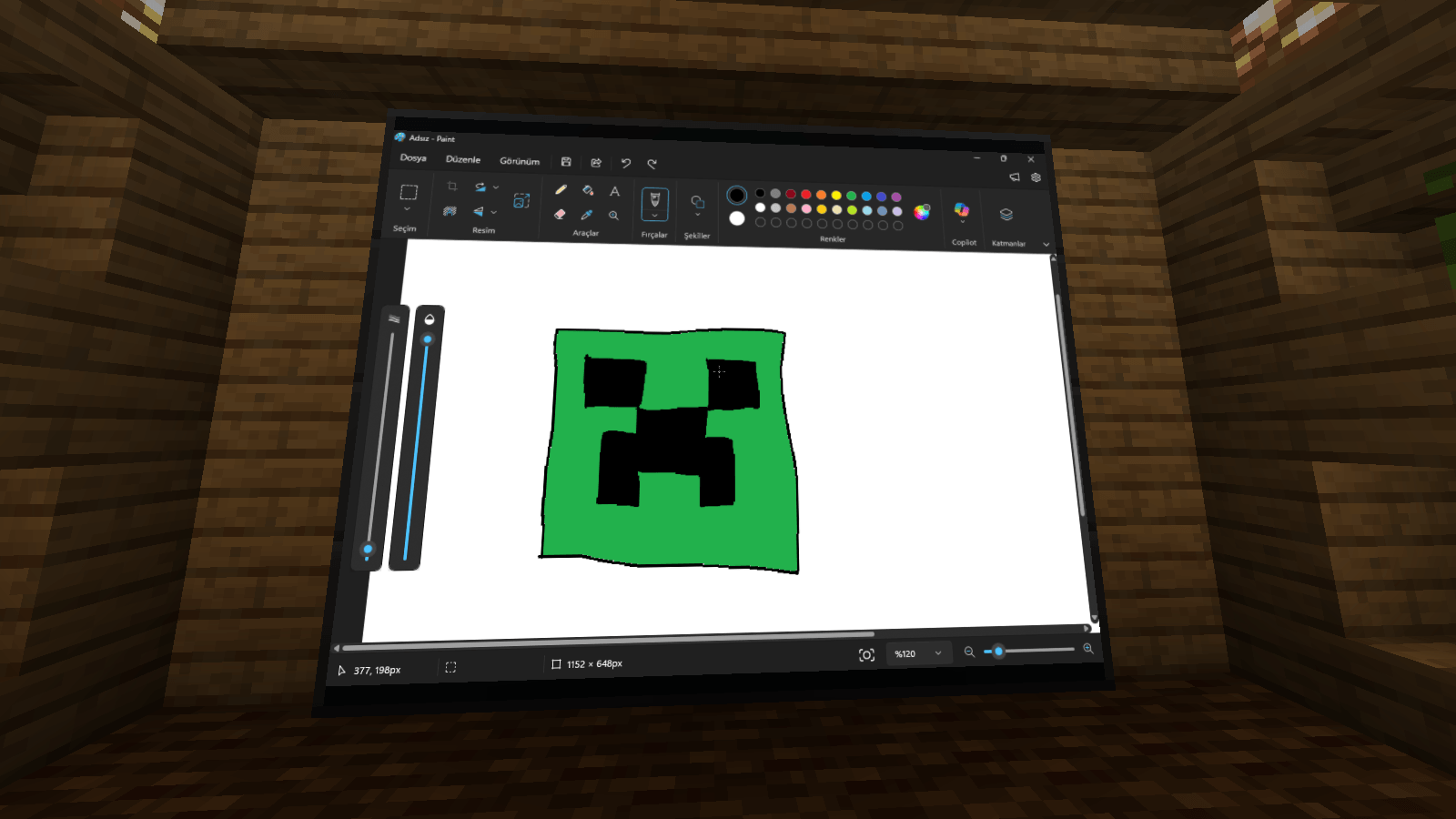
Your real PC desktop, inside Minecraft. Build a screen of any size in your base, turn it on, and it shows your desktop, live, as smooth as your monitor. Walk up to it, press G, and your real mouse and keyboard work on it: skip a song, answer a message, look something up on a wiki. Tap Right Ctrl (or Alt+Tab to Minecraft) and you're back in the game.

Beta. Windows 10 (version 2004 or newer) and Windows 11. Minecraft 1.12.2 (Forge), 1.20.1 (Forge, Fabric), and 1.21.1, 26.1.2, 26.2 and 26.3 (NeoForge, Fabric). Needed on the server and in each player's game. Mac and Linux players can join and watch screens shared with them, but can't use their own desktop yet. Currently there is only 1.21.1 available. Other versions are being reviewed.

How to use it

  • Place Screens on a wall, side by side. They join into one big screen.
  • Turn it on: right-click the screen with an empty hand. It now shows your desktop.
  • Use it: look at the screen and press G. Your mouse and keyboard now work on your PC.
  • Back to the game: tap Right Ctrl.

What's in it

Screens. A thin panel for walls, floors and ceilings. Screens side by side join into one big screen with a single frame. Right-click one with an empty hand to turn it on: it shows your desktop to you and anyone you share it with.

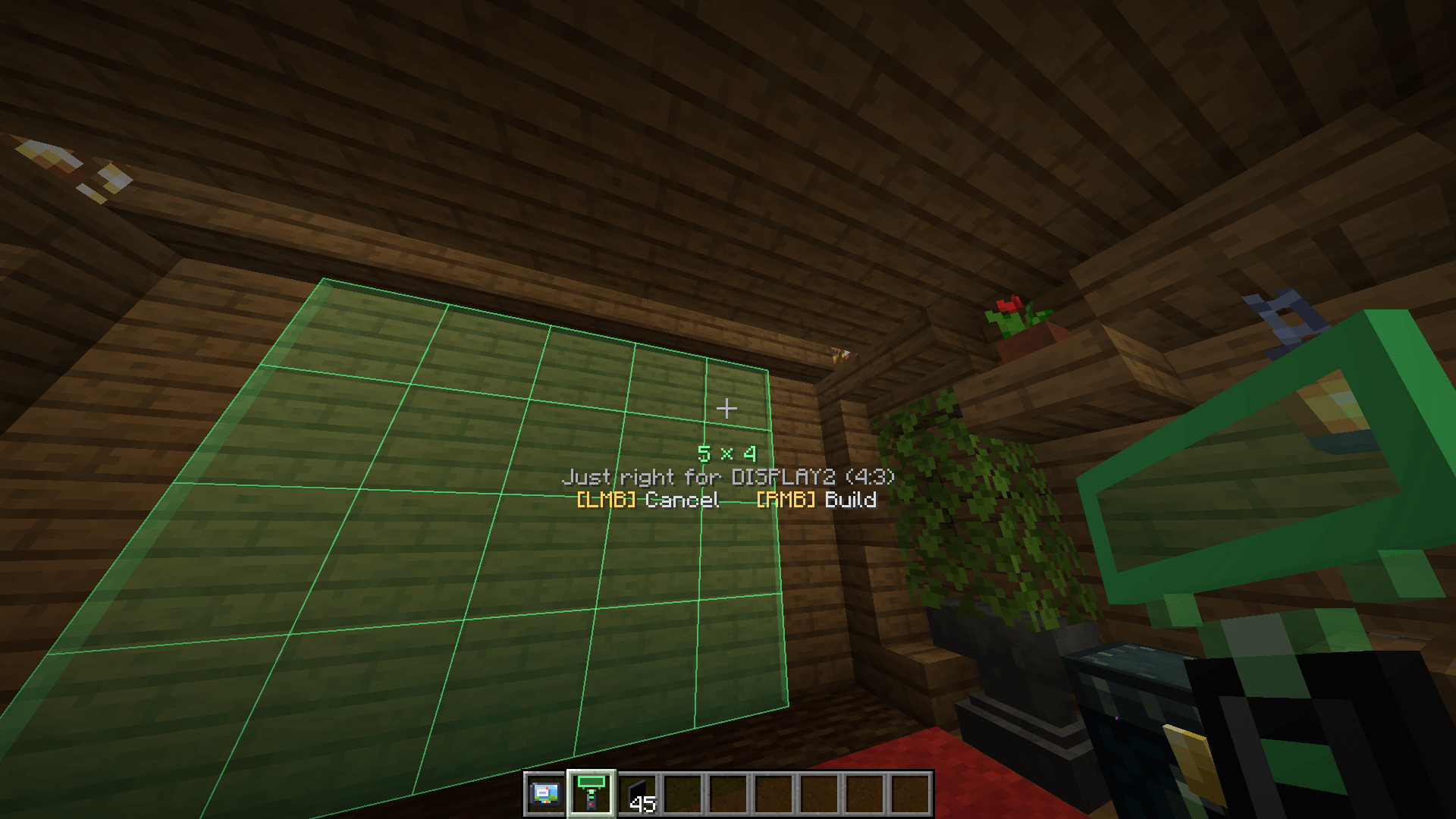
Screen Builder. Builds a whole screen at once, up to 32 × 32 blocks. Right-click a block, look where the screen should end (a hologram follows your view, into mid-air too), right-click again. It shows the height that fits your monitor and names what's in the way. Shift-click a screen that's already there to move it, resize it from a corner or an edge, or take it down.

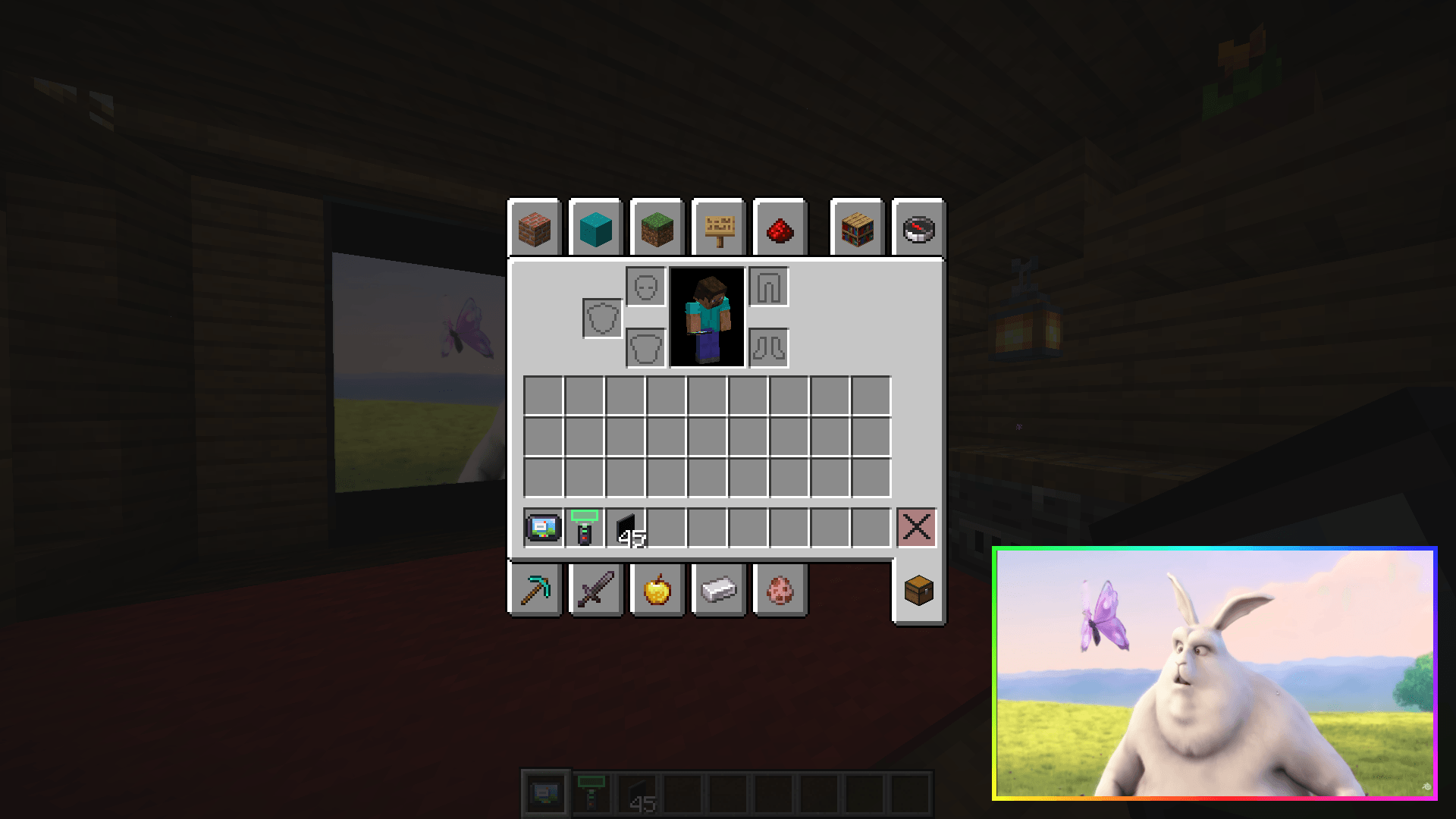
Tablet. Your desktop in your pocket: right-click it, or press G while it's anywhere in your inventory.

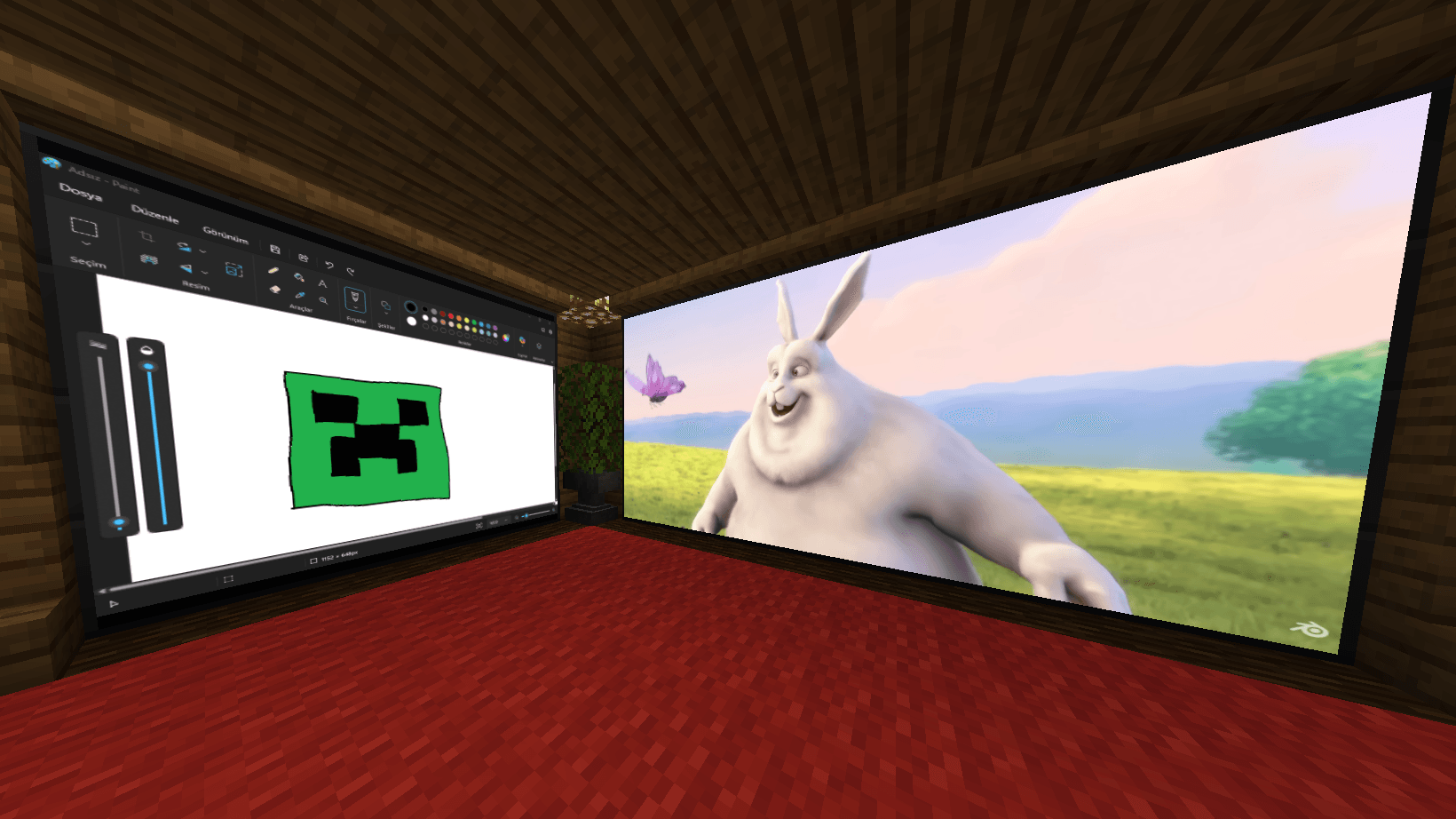
Its own picture on every screen. Each screen can show a different monitor or just one window: a video on the big screen, Discord by the door, a wiki next to the crafting table. A window is captured on its own (as Discord and OBS window sharing do), so it shows even while other windows cover it.

Sharing. Add friends by name, and they see your screen too and hear your PC near it, fading with distance: watch a video together on a server. They never hear Minecraft, nor your voice chat unless the screen shows its window, so nobody on your Discord call hears themselves twice. Friends can mute or hide a shared screen for themselves.

Picture-in-picture. Pin a window and it stays small in a corner while you play, with the inventory or chat open too (they go over it). Pick the corner and the size, or drag it anywhere. Needs a tablet in your inventory.

[image: two screens side by side, each showing a different window]

Using the desktop

  • G: use the screen you're looking at (or, with a tablet in your inventory, the desktop anywhere).
  • Right Ctrl (tap): back to the game. Switching to Minecraft (Alt+Tab or its taskbar button) works too.
  • Right Ctrl + M: next monitor.
  • Right Ctrl + W: just the window under the mouse; again for the whole monitor.
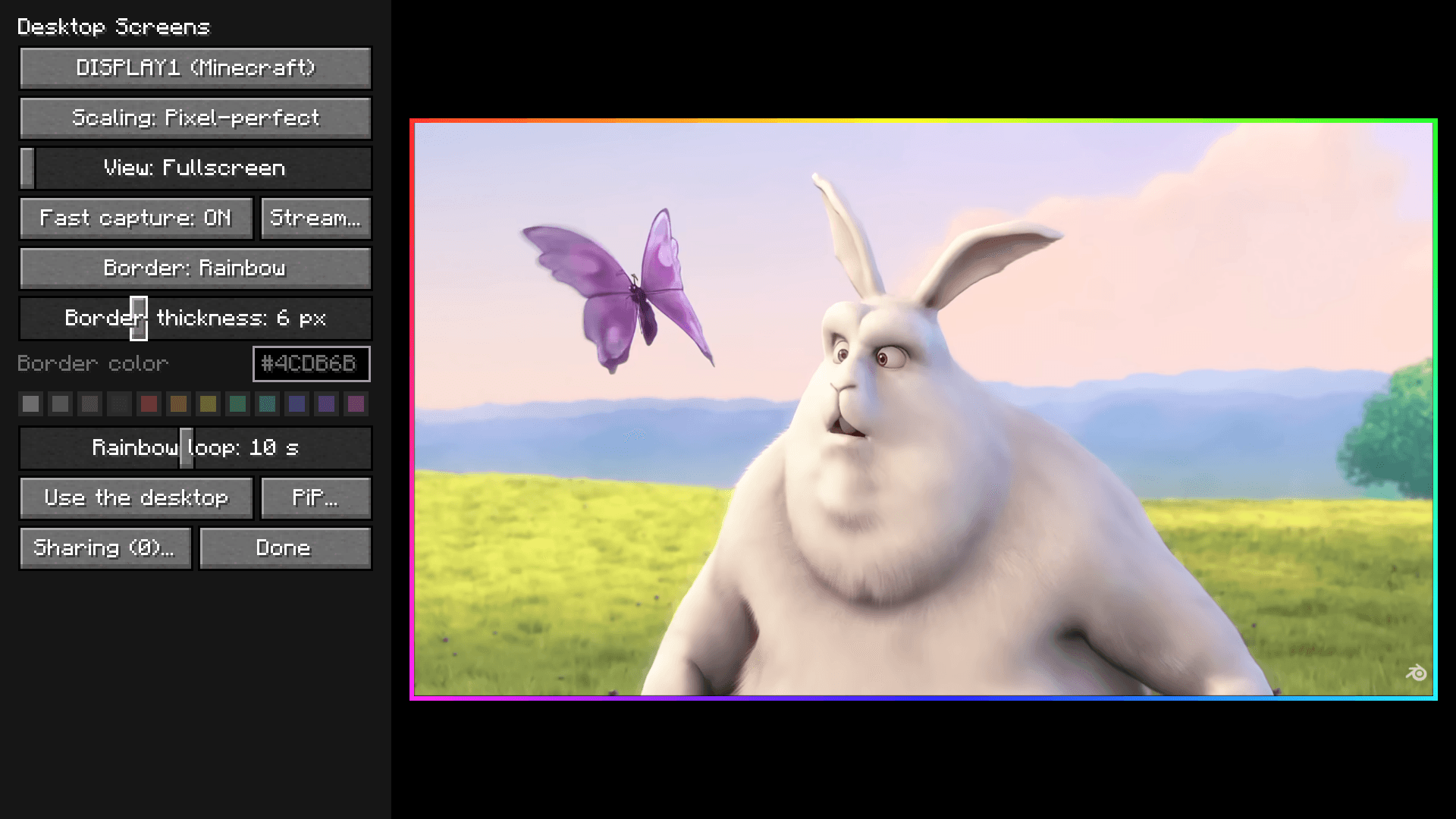
  • Right Ctrl + O: settings, with a live preview.
  • Right Ctrl + P: pin the window under the mouse for picture-in-picture.
  • Right Ctrl + F: framed view, with some of the world around the desktop.
  • Right Ctrl + mouse wheel (or Up/Down): zoom.
  • Right Ctrl + S: scaling: Sharp, Smooth or Pixel-perfect.

Framed view, zoom and scaling are for the desktop view of another monitor, not for screens in the world or Minecraft's own monitor.

While you use the desktop, the mouse stays on that monitor and new windows open there, so nothing pops up where you can't see it. Right Ctrl belongs to the mod meanwhile: use Left Ctrl for shortcuts in your apps. No Right Ctrl on your keyboard (many new laptops have a Copilot key there)? Every key can be changed in Controls, under "Desktop Screens": G, Right Ctrl, and a settings and a picture-in-picture key.

One monitor or two

Two or more monitors: Minecraft shows another monitor and you work on it through the picture: filling the game window, framed with the world around it, zoomed in, or right on the screen in the world.

One monitor: the mod uses the monitor Minecraft is on, in place. The game turns see-through where you work, and your clicks go straight to the real windows behind it. Using a screen in the world glides the camera into it first. Nothing to install, no virtual monitors.

Streaming and recording

Discord and OBS see Minecraft as always. One thing to know: where a screen shows the monitor Minecraft itself is on, the game would show inside itself, so a note covers that part of the picture instead. To see your desktop there, Stream… in the settings can hide the game from screen capture, but Windows then hides it from every program, your stream included. Screens that show a window or another monitor never need this.

Privacy

  • Your desktop is only drawn in your own game. Other players see your screens dark, unless you add them by name.
  • A shared screen's picture and sound go through the Minecraft server you're on, and only while someone you shared it with is watching. Which monitor or program each screen shows stays in your own game's settings.
  • The mod connects nowhere else, downloads nothing and collects nothing.
  • It uses a keyboard hook (so Right Ctrl never reaches your apps), which only exists while you're using the desktop.

For modpacks and servers

  • Just the jar. No drivers, no helper programs. On Fabric it needs Fabric API; Mod Menu is optional (for the settings button in the mods list).
  • Quiet by default. G only does something while you look at a screen that's on or carry a tablet, so a clash with another mod's G is unlikely. Every key can be changed in Controls, and the settings and picture-in-picture keys start unbound. Right Ctrl only belongs to the mod while someone is using the desktop, so it never clashes in play.
  • Joining works everywhere. Players with the mod can still join servers without it (the desktop stays off there). One exception, from Fabric API: on 26.1 and newer, a NeoForge player can't join a Fabric server that has the mod. The Windows parts never load on Mac, Linux or a dedicated server.
  • No cost while unused. Nothing is captured unless a screen that's on for you is in view, picture-in-picture is showing, a friend is watching your shared screen, or you're using the desktop.
  • Land claims are respected. The Screen Builder asks claim mods before it builds, moves or takes down a screen. Tested with FTB Chunks, Open Parties and Claims and Flan (FTB Utilities on 1.12.2). On NeoForge and Forge it works with any claim mod that uses the loader's block events; on Fabric, with those using Fabric API's break event, the Common Protection API or Architectury's events.
  • Recipes are data files, so packs can change them.
  • Server settings in config/desktopscreens-server.properties:
    • builder.maxWidth, builder.maxHeight: the biggest screen (32 × 32 by default, 64 at most).
    • builder.range: how far away the builder works (32 blocks).
    • sharing.enabled, sharing.sound: sharing, and its sound, on or off.
    • sharing.maxFps, sharing.maxWidth, sharing.maxHeight, sharing.maxStreams: limits for shared pictures (30 per second, 1280 × 720, 4 at once per player).
  • A shared screen sends at most about 5.5 Mbit/s through the server, much less for a still desktop (about 16 Mbit/s while a Mac or Linux player is among those watching).

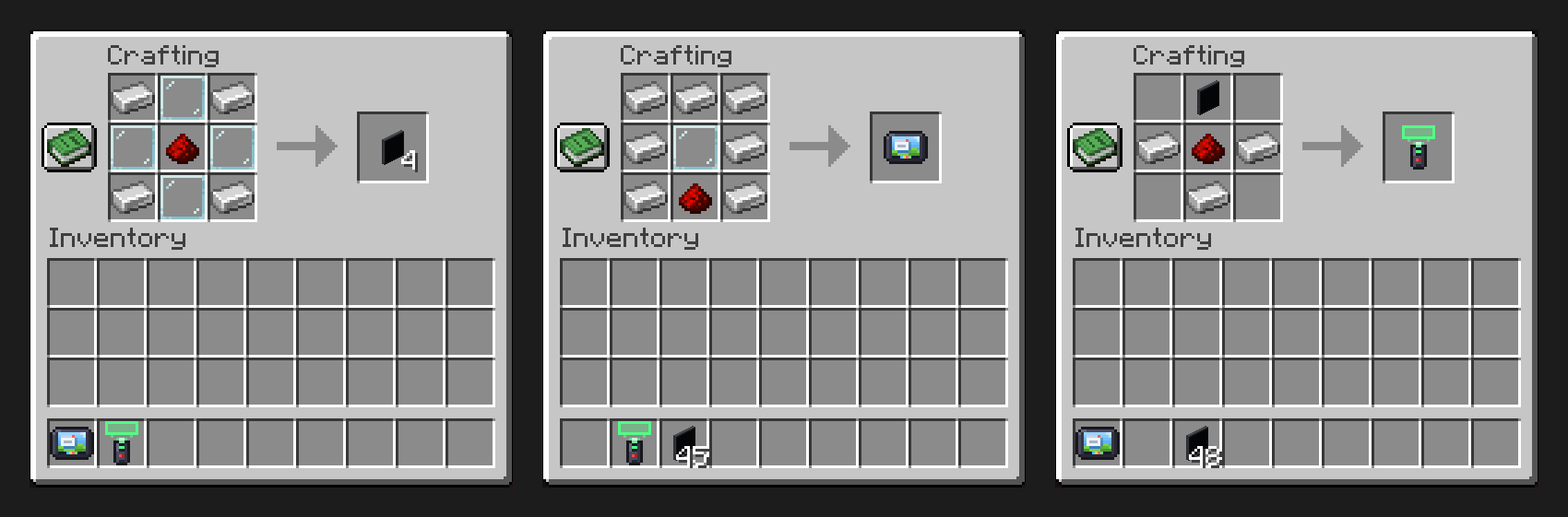
Recipes

[image: the three recipes]

  • Screen (makes 4): 4 iron ingots, 4 glass panes, 1 redstone.
  • Tablet: 7 iron ingots, 1 glass pane, 1 redstone.
  • Screen Builder: 1 screen, 3 iron ingots, 1 redstone.

They unlock in the recipe book once you have redstone (the builder: a screen).

Good to know

  • Protected video (Netflix, Prime Video, Disney+…) is black on screens and for friends watching, as in any screen capture (Discord, OBS). It does play on the monitor Minecraft is on, in the desktop view.
  • Programs running as administrator can't be moved to the monitor you're using: Windows doesn't let normal programs do that.
  • On Windows 10, Windows draws a yellow frame around a window while a screen shows it. Windows 11 doesn't.
  • A browser fully covered by other windows may stop drawing (browsers do that to save power). Covered only by Minecraft, it keeps playing.
  • Fullscreen (F11) with two monitors: clicking something on the other monitor, or Alt+Tab to a window there, no longer minimizes Minecraft. The Start menu or a window on Minecraft's own monitor still do, as usual.
  • Picture black or frozen? Turn off "Fast capture" in the settings.

Feedback

It's a beta, so reports help a lot: open an issue on GitHub, or leave a comment on CurseForge. Please say which Minecraft version and loader, which Windows and how many monitors, and attach logs/latest.log from your Minecraft folder.

MIT license. Includes Concentus (BSD 3-Clause) for the shared sound, on Fabric the Common Protection API (MIT), and on 1.12.2 JNA 5 (Apache 2.0), which that Minecraft only has in an older version. The pictures show Big Buck Bunny, © Blender Foundation, CC BY 3.0.

Desktop Screens 0.1.0 beta (Fabric 1.21.1)
MC Client, Fabric, 1.21.1, Server
Release 2026-09-29 Get
Desktop Screens 0.1.0 beta (NeoForge 1.21.1)
MC Client, 1.21.1, NeoForge, Server
Release 2026-09-29 Get
Advertisement Remove ads with Premium →

You Might Also Like