Badges update automatically and link to the mod page on MineUniverse.
I created this mod after I'd used WorldEdit's //generate command, but was left frustrated that I had to come up with some ridiculous equations to describe some curves and shapes that could've been pretty easily described parametrically. There are now a wide number of commands that are pretty useful when building in your world, complete with a comprehensive and efficient expression parser and a custom format for block templates!
Block Palatte Formatting:
Due to some weird things with how Minecraft handles commands, we are forced to use quotes occasionally. But if you are generating a structure, there are a number of pretty easy ways to generate exactly the type of block palette you want!
Basic: stone, or "stone"
Quotes optional. This will make every block placed by the command be just stone.
Multiple Blocks: "stone:diamond_ore"
Tragically, the quotes are required. But now half the blocks placed will be stone, the other half diamond ore, randomly distributed.
Multiple Blocks with Weights: "stone:10%diamond_ore"
If a weight is not specified, a weight of 100% is assumed. In this case, there will be a 100%:10%, or 10:1, ratio of stone to diamond ore.
Multiple Palettes: "stone:10%diamond_ore,dirt,grass"
Some commands (/parametric, /isometric) let you specify the block variable in their expression. For block < 1 (based on whatever equation you'd like), the command will place from the first palatte. For 1 <= block < 2, it will place a dirt block, and for block >= 2 it will place grass. Tip: False evaluates to 0 and True to 1, so if you are just using two palettes you can just use a boolean expression.
Generation Commands:
/paintbucket [palette] [radius]:
This command uses a block search algorithm to fill the region around you that it can reach by only going through the blocks that you are standing in. So if you were standing inside of a hollow, closed, irregular shape, this command is great for filling the space. It will only try placing the blocks within [radius] of you to prevent infinite expansion if there is a gap in your container.
/parametric [palette] [t-0] [t-max] [t-step] [expression]:
My pride and joy, and the ultimate reason for this mod. This lets you trace a parametrically defined path with a given (or defaulted to 1.5) radius. You define x, y, and z in the expression with the given formatting: x=f(t);y=g(t);z=h(t)
For example, a nice helix can be given by: x=10*cos(t/2); y=t; z=10*sin(t/2)
You can also define how thick the line is tracing the parametric (optional): r=5+2*cos(3*t)
You can, in this command, define which block palette to use (optional): block=y>10
A final parameter that is read by the command is the "margin", or how far on each side of the tube segments connecting each iteration of t the segments should stretch out. This can be helpful when you are working with a path that has high curvature: margin=1;
As a tip, the variables are computed left to right, so you can use the pre-calculated value of a variable in any new calculation to its right. For example, look at this donut that uses all the features of /parametric:
/parametric "stripped_oak_wood,pink_wool:10%lime_wool:10%blue_wool" 0 6.3 0.1 x=30*sin(t);y=0;z=30*cos(t);r=12;block=y>(4+sin(z/2)*3+3*cos(x/2)); margin=1
This parametric provides two block palettes; it provides stripped_oak_wood for the tan of the donut, and a combination of wools for the frosting. It starts at t=0, and climbs to t=6.3 in increments of 0.1. Looking at the equations for x, y, and z it's clearly just a circle with radius 30. We trace around curve with a tube of radius 12 to make the full torus shape. We then define what block palette to use based on the x, y, and z of the point to provide a kind of wavy frosting pattern, and provide a small extended margin for the tubes to make sure the donut is fully encased.
To illustrate how you can reuse variables, look at this spiral into the sky: /parametric stone 0 200 3 r=100/(20+t);x=10*r*cos(t/10);y=t;z=10*r*sin(t/10)
We can use the calculated value for r in our definitions for x and z. We can also simply make a new dummy variable for later use: temp=100/(20+t);r=temp-1;x=10*temp*...
/isometric [palette] [box-size] [expression]:
This will search in a cubic position centered at the player when they use the command every x, y, z tuple and evaluate the expression, passing in x, y, and z. The variable "place" will determine whether or not the block gets placed (0 means the block is not placed, non-zero means it is placed. As in parametric, you can pass in multiple block palettes and choose which one is placed by setting block.
/gentree [trunk-palette] [leaf-palette] [light-palette] [radius] [scale] [leaf density]:
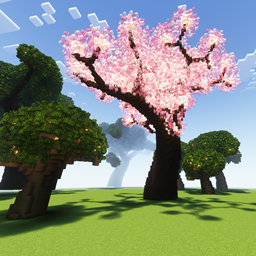
Another beautiful command. This will generate really pretty giant trees. Each of the palettes only takes a single palette, but mess with the radius, scale, and density as you wish. In general, the best combinations of the radius, scale, and leaf density are about:
4 0.5 0.85 (for "small" trees)
8 1 1 (for "medium" trees)
12 1.6 1.3 (for "large" trees)
I also like to pair oak_wood, "oak_leaves:50%mangrove_leaves:10%spruce_leaves", and shroomlight, as well as "spruce_wood:25%dark_oak_wood", the recommended leaf one that is just a bunch of pink and white stained glass, and pearlescent_froglight. The first is a great giant oak, and the second a giant cherry!
Selection Commands:
/nah: This will undo your most recent placement or generation command, whether it be generating a tree, graphing a parametric, or pasting a selection. Super helpful.
/mark1, /mark2: Doing these will mark the corners of a selection area a la WorldEdit's //pos1 and //pos2.
/copysel: Copies the selection area marked by mark1 and mark2 to your clipboard. Paste position is relative to where the player stood when copying.
/pastesel: Pastes the clipboard relative to the player presently vs. where they were when they copied.
/flipsel [axis]: Axis is either x, y, or z, and this will flip the clipboard along that axis.
/rotsel [degree] [axis]: Rotates clipboard by specified degrees around specified axis.
/scoot [x] [y] [z]: If you are unhappy with exactly where you placed something or where you generated it, you can scoot it by the specified number of blocks. Great if you like the way a tree came out but just wanna move it a little to the left.
/snip: If you generated or pasted something, it will remove it from the world but save it to your clipboard. Great for generating a tree or a curve, but then deciding you want to flip or rotate it before putting it back.
/retry: Will undo the last generation command you did, then redo it with the exact same parameters and at the last position you used it. Useful if you don't exactly like the way a tree randomly generated, but the settings you used were good.
That is about it for now, but I plan to keep adding to this!
Github: https://github.com/EganBoschCodes/BoschsMod/tree/release