Automatic connected textures for Minecraft blocks — no block lists, no manual textures. Preview, paint, and export them right inside the game.
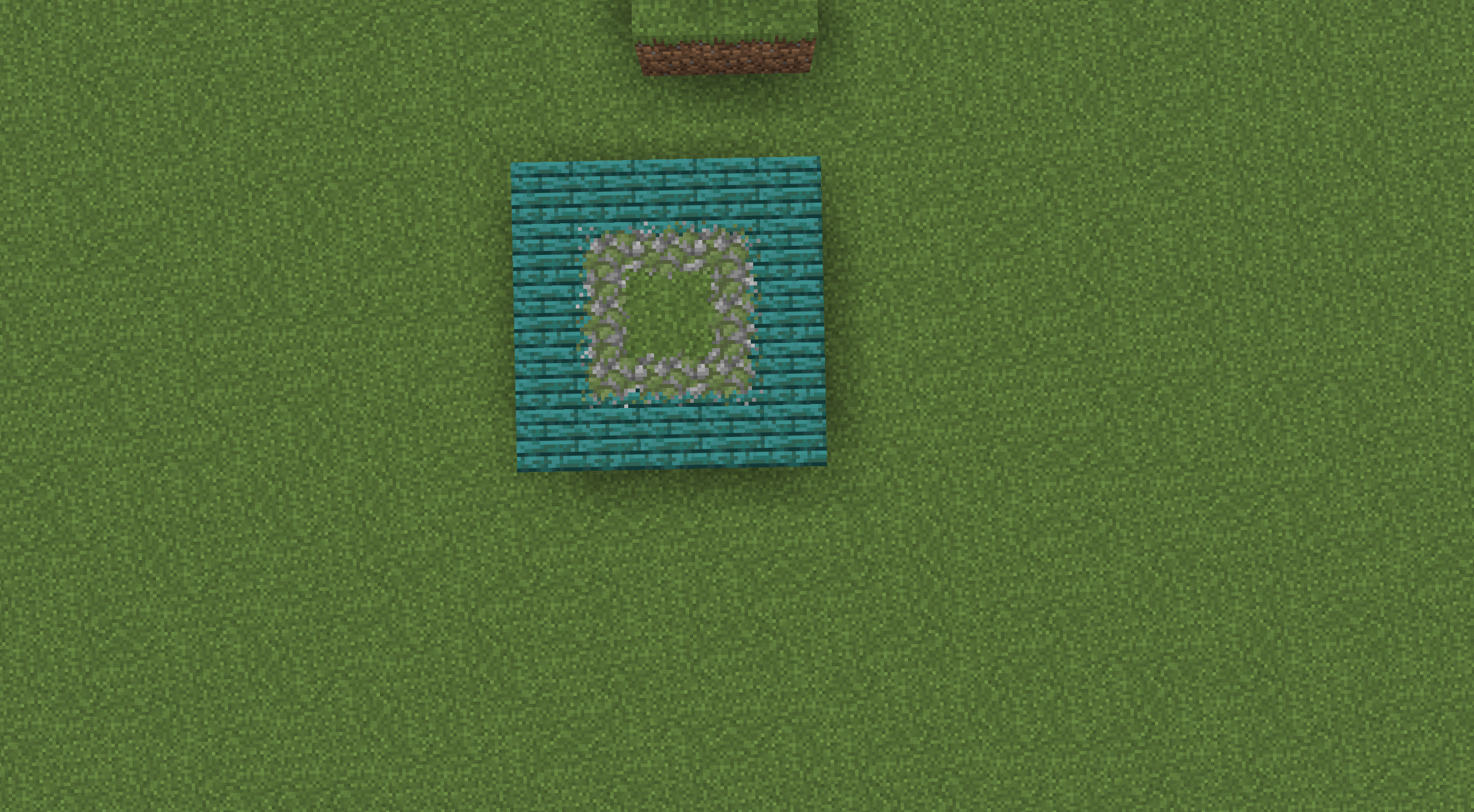
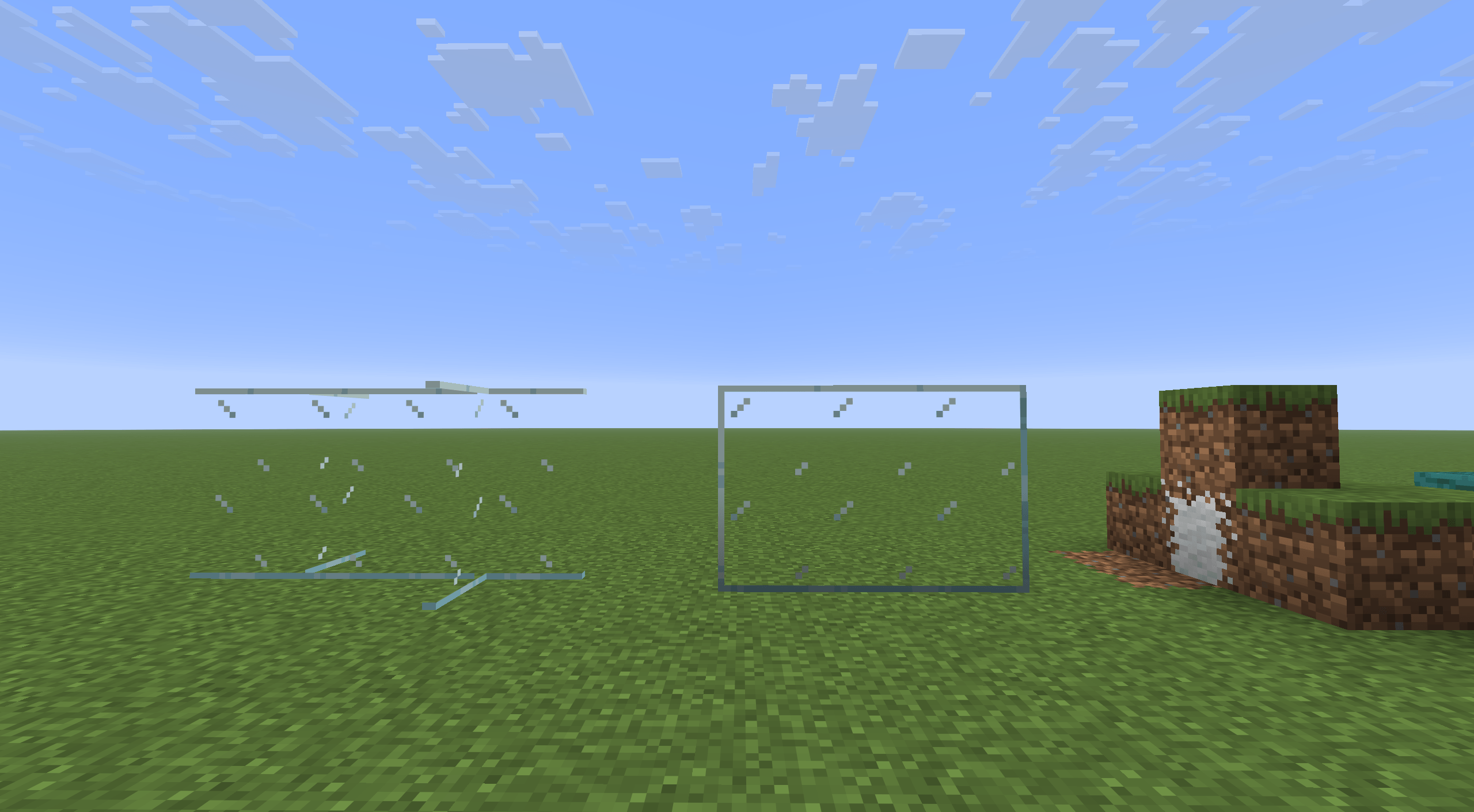
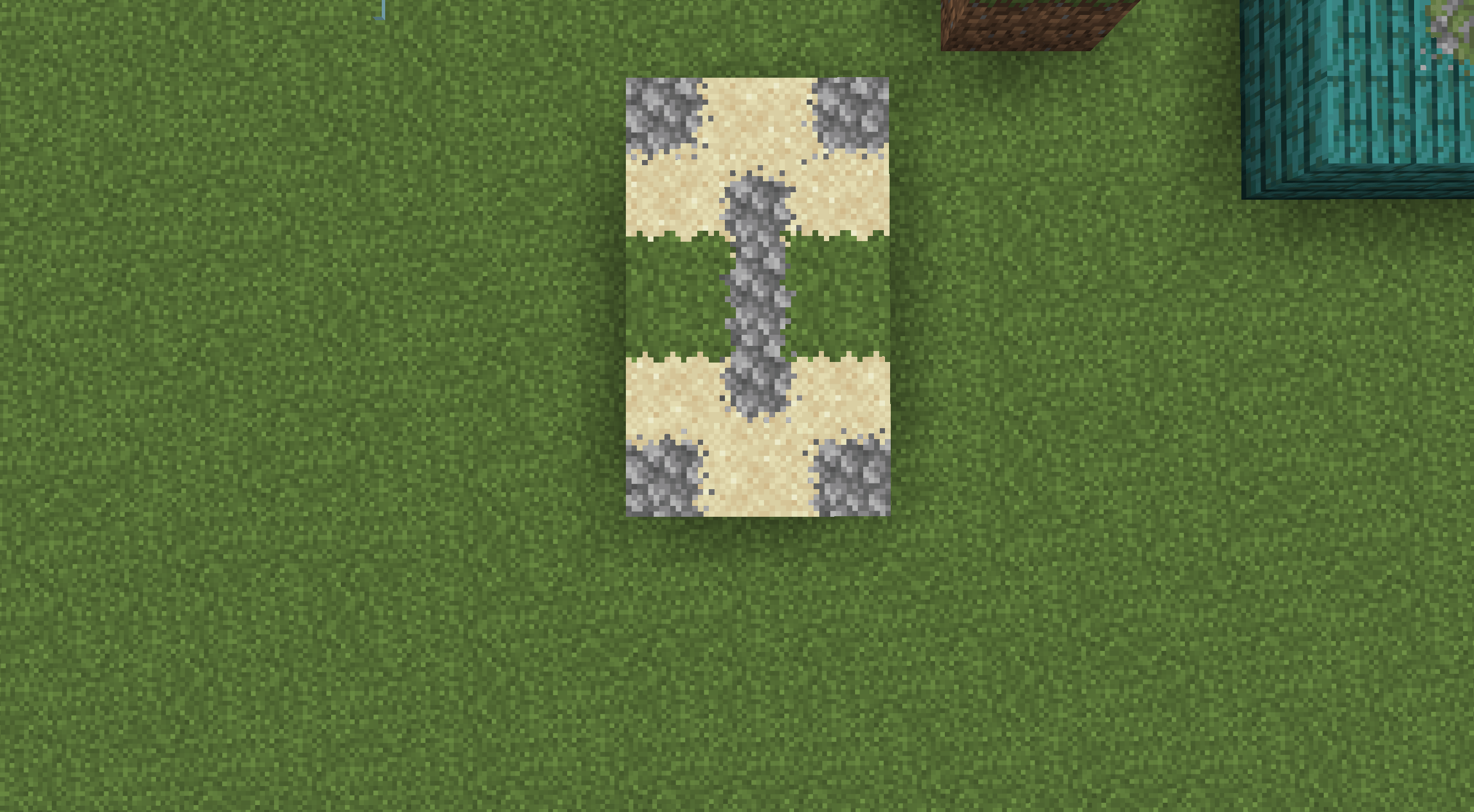
Place the same block next to itself in Minecraft and you often see a visible seam between the two surfaces — glass panes are the classic example. Connected textures make neighbouring surfaces flow into each other, so a whole wall looks like one continuous block instead of many separate tiles.
AutoSeamBlend does this for you automatically:
It is an add-on for the well-known connected-texture engines. Install any one of them and AutoSeamBlend is ready to go.
/autoseamblend to open an editor: see which blocks
already use connected textures and add your own.Install AutoSeamBlend for your Minecraft version and loader.
Install Fzzy Config (required) and any one of these engines:
The available engines depend on the version and loader (for example, some Fabric targets have no CTM adapter). On some loaders, Fabric API and Fabric Language Kotlin are also required. The UI library (UILib) is bundled with the mod — nothing else to install.
Launch the game. Type /autoseamblend to open the GUI, or
/autoseamblend export to export a baked resource pack.
AutoSeamBlend has three configuration entry points. Their priority, from highest to lowest:
/autoseamblend) and save. It lives in
resourcepacks/AutoSeamBlend Managed/ and only fills in what third-party
packs do not cover.config/autoseamblend/autoseamblend.json5
(Fzzy Config). Best for adding or excluding blocks by hand; it has the
lowest priority and only applies when nothing above it matches.Priority rule: third-party resource pack > built-in resource pack > config file. When a higher-priority source matches, lower-priority sources never override it. When nothing higher matches, the lower-priority source applies in full and only completes the missing texture states.
Common config fields:
automaticDiscovery — automatic discovery toggle, true by default;targets — add target blocks per method bucket, for example add
"minecraft:stone" under targets.auto.non-compatibility, or use
"#minecraft:stone" to make the whole tag a connection group;excludedTargets — explicitly exclude blocks you do not want processed.After editing the config file, reload the game's resources to apply the changes (for example press F3+T or restart the game).
Nothing changed in-game? Make sure at least one engine is installed and active. Without an engine, AutoSeamBlend only shows a diagnostics screen.
Do I need to install it on my server? No — AutoSeamBlend is purely client-side.
Will it modify my worlds or resource packs? No. It only writes to its own “AutoSeamBlend Managed” resource pack when you save, and exports go to a separate folder you choose.
Why isn't a particular block connected? Automatic discovery is based on the block's real model and texture behaviour. Blocks with special dynamic rendering may not be picked up automatically — you can still add them manually in the GUI or in the config file and edit them there.
Which engine should I choose? Any one from the list works. They use different formats internally, but the editing and export workflow is the same.
Can I share my result with others? Yes — the exported baked pack is a normal resource pack. Anyone with the same engine can use it, even without AutoSeamBlend.
Is it compatible with other mods? Of course — that's exactly what it was made for!
ModernFix compatibility: AutoSeamBlend is incompatible with ModernFix’s mixin.perf.dynamic_resources optimization. When this option is enabled, block models may not be fully baked during AutoSeamBlend’s initial surface scan, causing all generated blending surfaces to be silently rejected. Set mixin.perf.dynamic_resources=false to restore blending.