Description | Configuration | Customization | Video | Pictures | Forum thread
In all my time of playing Minecraft I have seen a great many things. But I have never seen any proper slot machines. Troubled at this fact, I set out to put together the definite plugin for all your gambling needs, all in the comfort of your own Minecraft server.
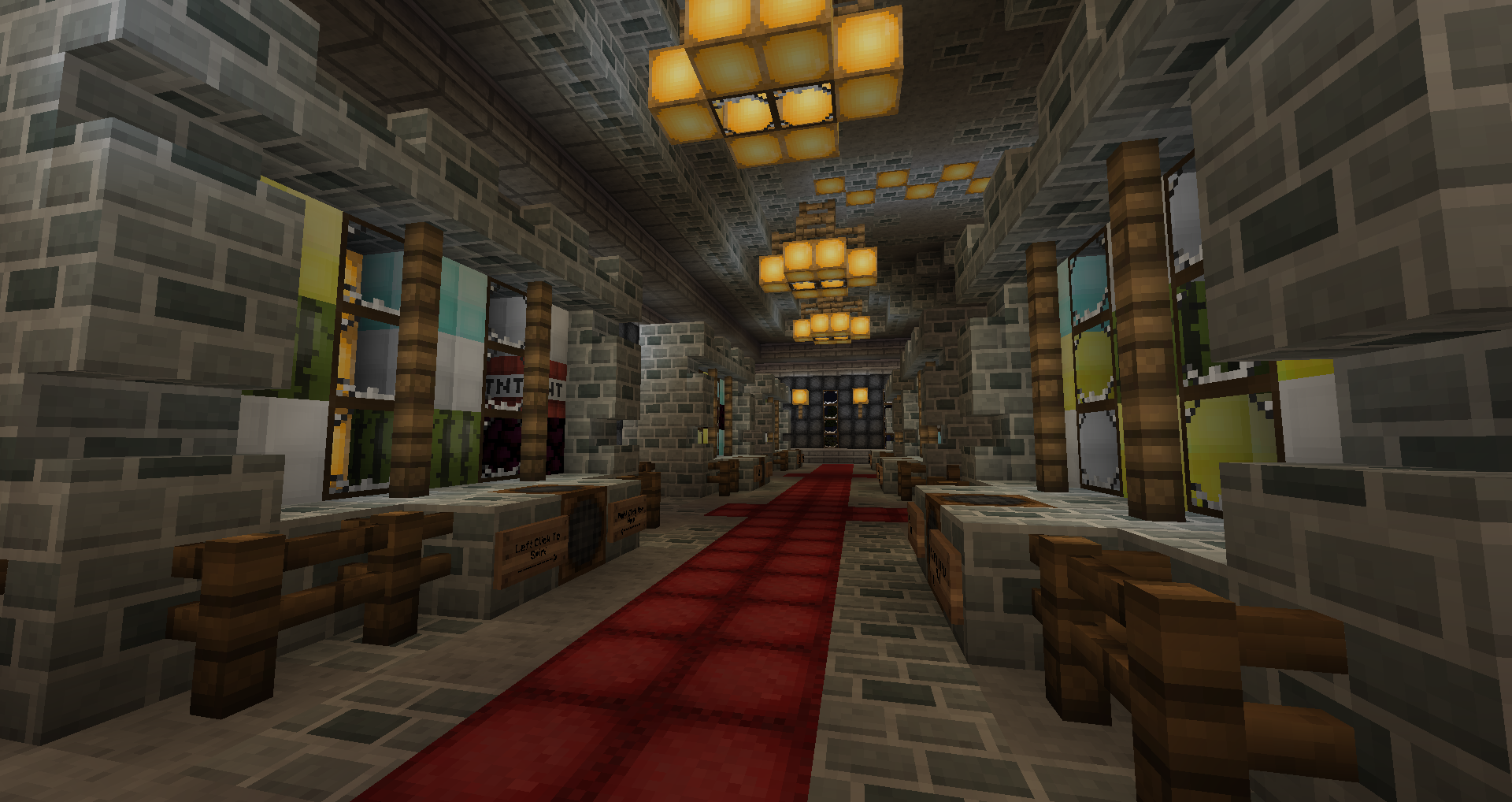
AnCasino allows you to easily set up interactive and proper block-based slot machines anywhere in your world. Nearly every aspect of these slot machines can be customized to your needs, including block types, costs and prizes, winning chances and more. The slot machines are compact and elegant, designed to give you large amounts of freedom to sculpt them any way you'd like.
Want to help test the upcoming rewrite of AnCasino? Head over to the beta page for downloads and more information!
AnCasino plugin introduction video
Follow the command guide above to set up your first slot machine. When creating a slot machine, you will define a control block with which the slot machine is controlled. Punch this block to play the slots, and right click it for more information. Players with the ancasino.admin permission node will see usage statistics upon right-click, while users without will see your custom help text.
Upon punching, the player will be deducted the play-cost and the slots will spin. Achieve 3 in a horizontal row to win the price! Prizes are dispensed depending on the winning block and your custom configuration, as well as a hearty victory fanfare should you win.
Simply drop AnCasino.jar in your server's plugin directory. Config files will be automatically generated upon server reload. Make sure to also fulfill dependencies outlined below.
See the configuration page for more information about the config file, and the customization page for a more detailed tutorial on customizing your slot machines.
Depends on Vault for permissions and economy support. An economy plugin of your choice is also required.
Should you wish to tip this humble maker of casinos, you will find a 'Donate' button in the top right of your screen, just above the search bar.