Overview
CreatorHotbar is a hotbar management tool supporting Creative mode and Survival/Adventure mode. Use the scroll wheel or the pickup hotkey to quickly switch between a large number of preset rows or inventory rows, ready to use on the fly.
All shortcuts can be customized in the in-game Key Bindings settings. Press the H key in Creative mode to open the settings panel.
Creative Mode
Multi-Page Preset System
- Supports multiple pages, each independently storing 9 rows × 9 slots of item presets
- No upper limit on the number of pages — pages can be added, deleted, or cleared, with secondary confirmation for delete and clear
- Each page can have its own independent number of active rows (1-9 rows). Fewer rows are positioned lower, with upper rows automatically disabled
Three Write Strategies
- Full Replace (
REPLACE_ALL): Completely overwrites the hotbar with the preset content
- Skip Empty Presets (
NON_EMPTY_ONLY): Only overwrites hotbar slots where the preset is non-empty
- Insert Into Empty Slots (
EMPTY_ONLY): Only writes to empty slots in the hotbar
Tab Pickup Mode
Hold Tab to release the mouse cursor and move freely over the HUD; the hovered row/slot is automatically highlighted. Release Tab to switch to that row and select the slot. The key can be customized in Key Bindings.
Keyboard and Scroll Operations
| Action |
Key |
Description |
| Switch selected row |
modifier + scroll |
Cycles through active rows on the current page, executes immediately |
| Toggle write strategy |
modifier + Numpad 0 |
Cycles through the three strategies |
| Flip page |
Ctrl + scroll |
Switches preset pages |
| Move selected row up/down |
Numpad - / + |
Moves the selection up/down among active rows (no modifier required) |
| Open settings |
H |
Opens the settings panel |
Preset Configuration Panel
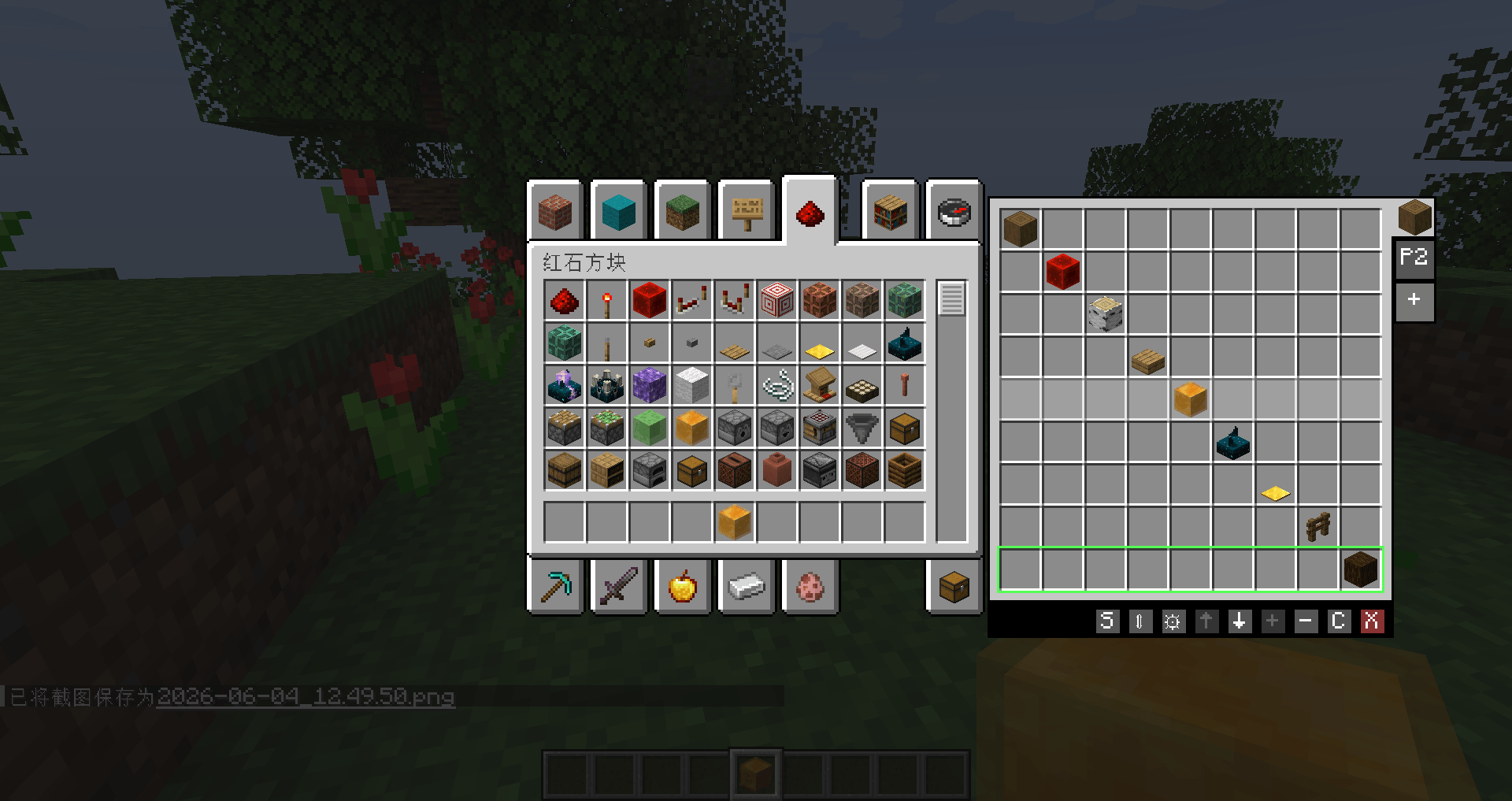
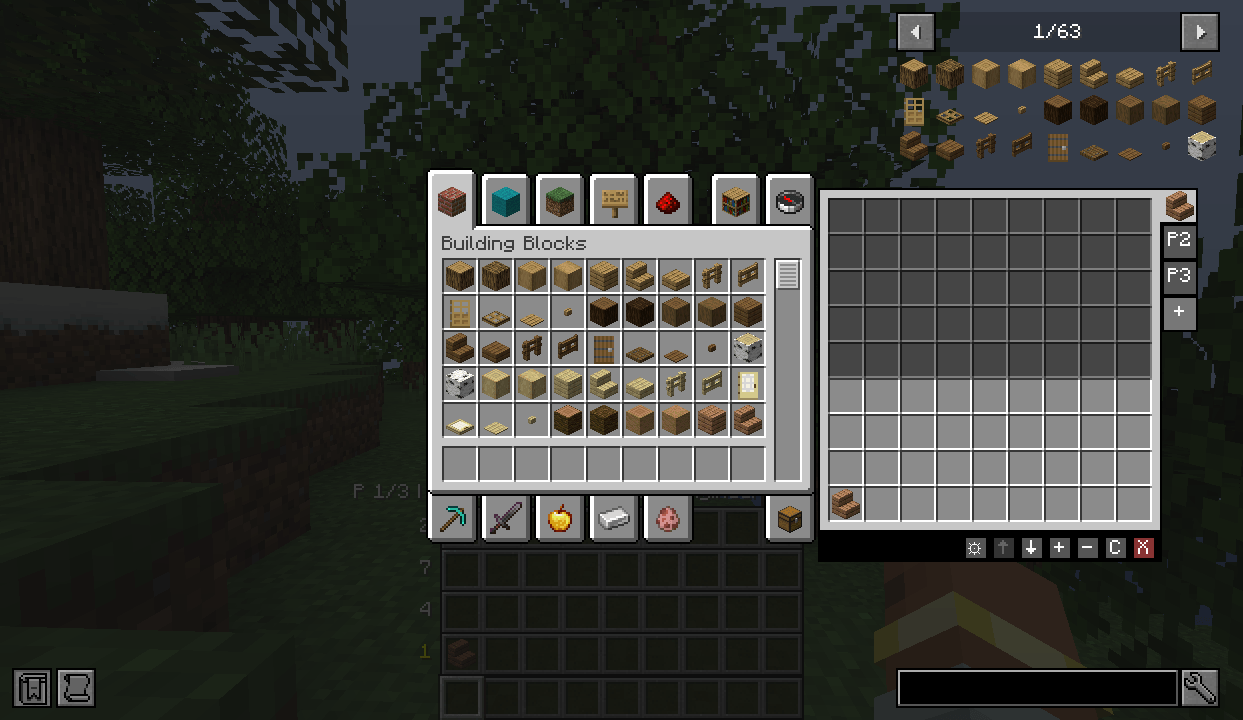
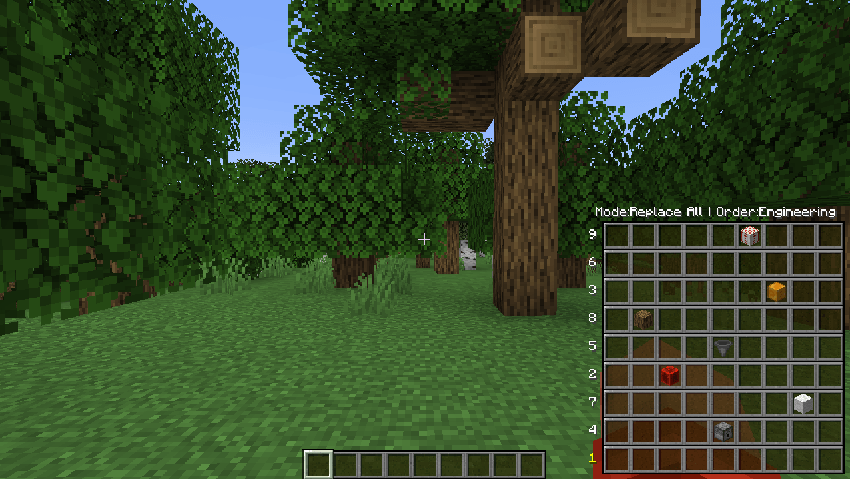
Displays a 9×9 preset editing panel to the right of the Creative mode inventory:
- Hover over items to show tooltips
- Left-click to take/place, right-click to split, middle-click to duplicate items within the panel
- Shift + left-click directly deletes the item in a preset slot (no need to drag it out)
- Click the tab bar above the panel to switch pages; the "+ " tab adds a page
- ↑↓ buttons on the right side of the panel adjust page order; +- buttons adjust row count; C clears the page; X deletes the page
- Ctrl + click C / X skips the confirmation popup and executes immediately
- Click the ⇳ button on the far left of the bottom button bar, then hold and drag to reposition the panel on the screen
- A "Reset Panel Position" button in the settings page restores the panel to its default position with one click
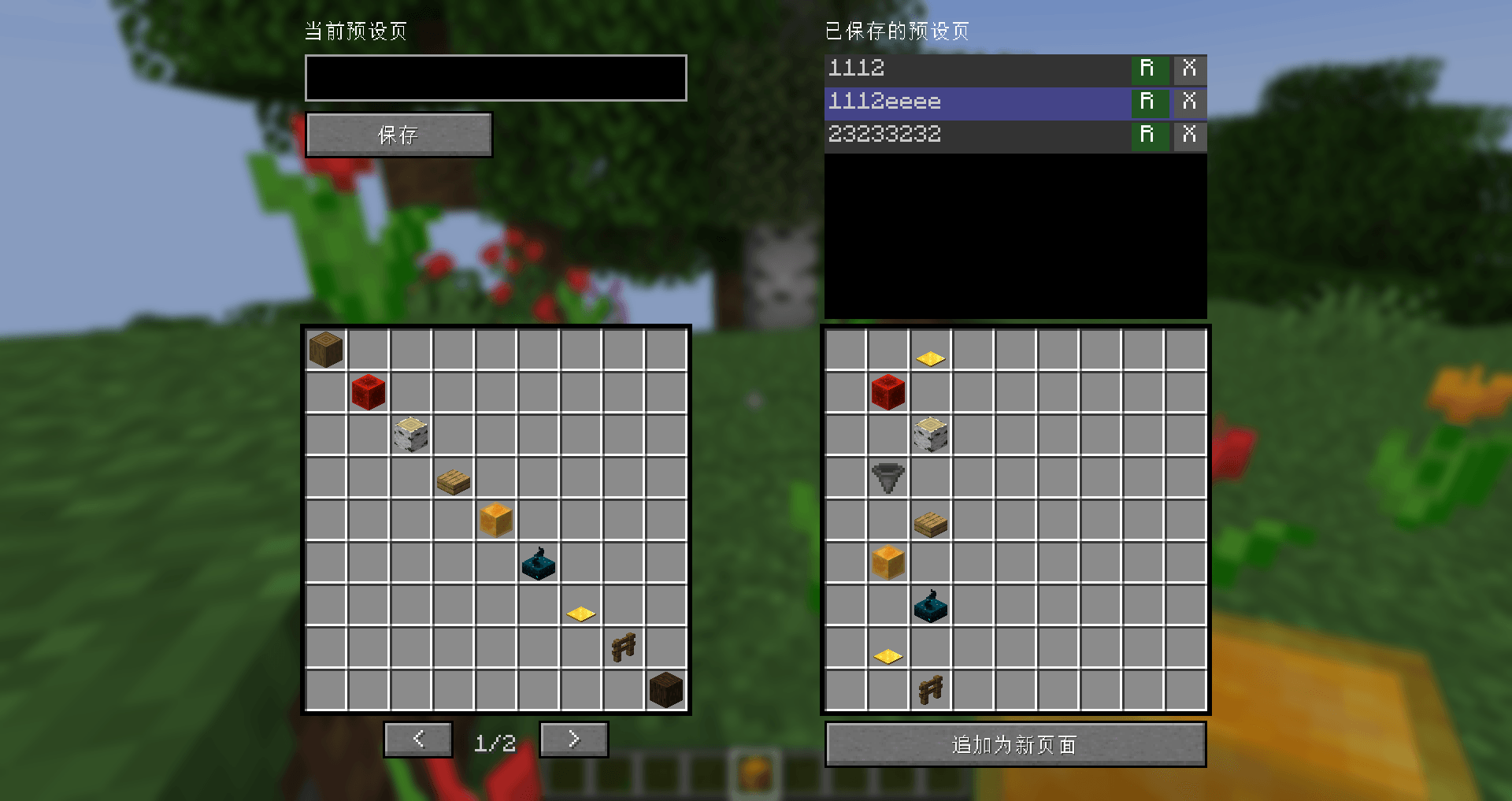
- Click the S button on the bottom button bar to open the preset save/load interface:
- Left side: file name input box + save button + 9×9 grid preview + ← → navigation buttons
- Right side: local file list (supports scrolling, rename R, delete X) + selected file preview + "Append as New Page" button
- Files are stored in the
creatorhotbar/presets/ directory
HUD Display
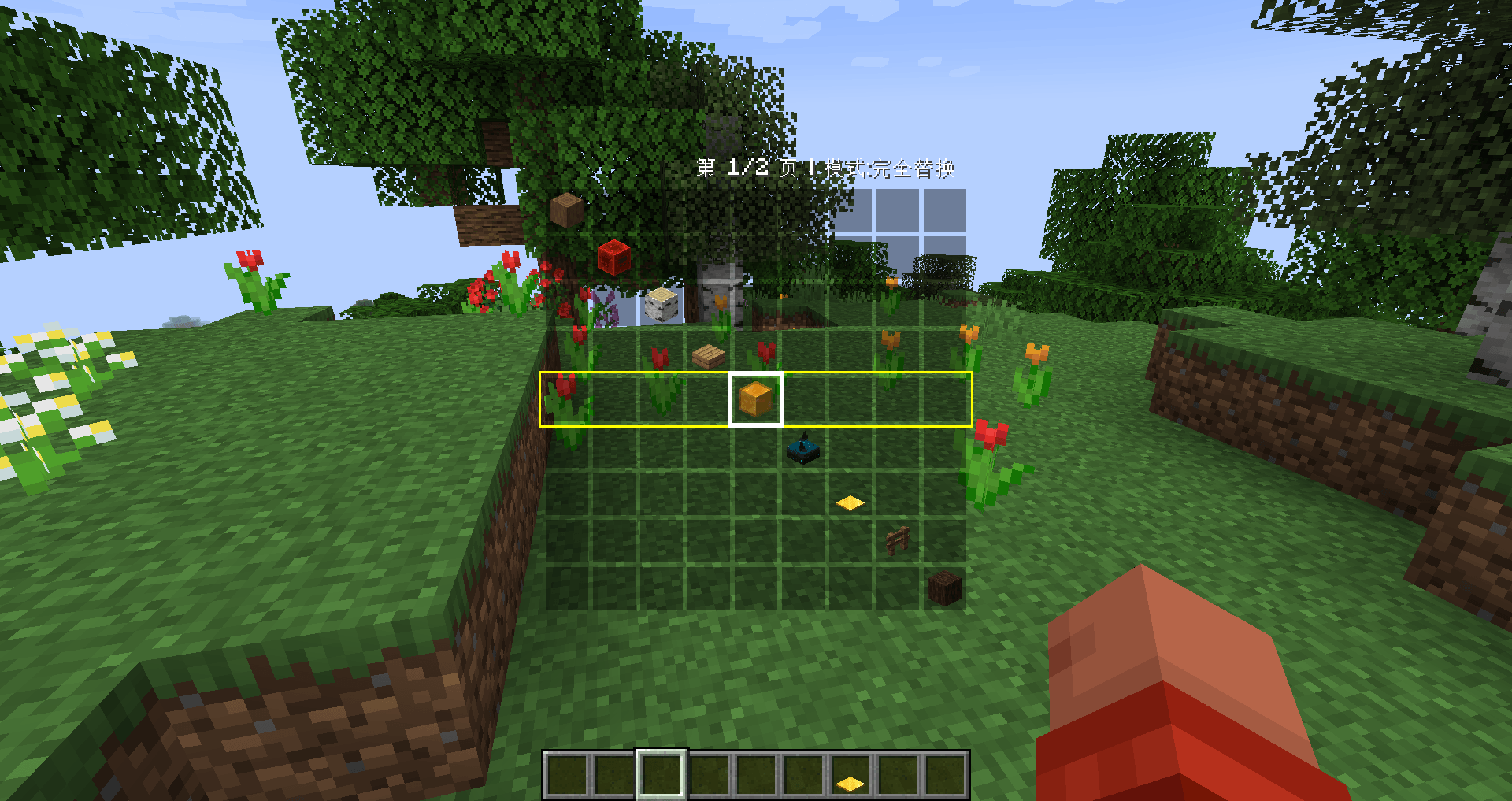
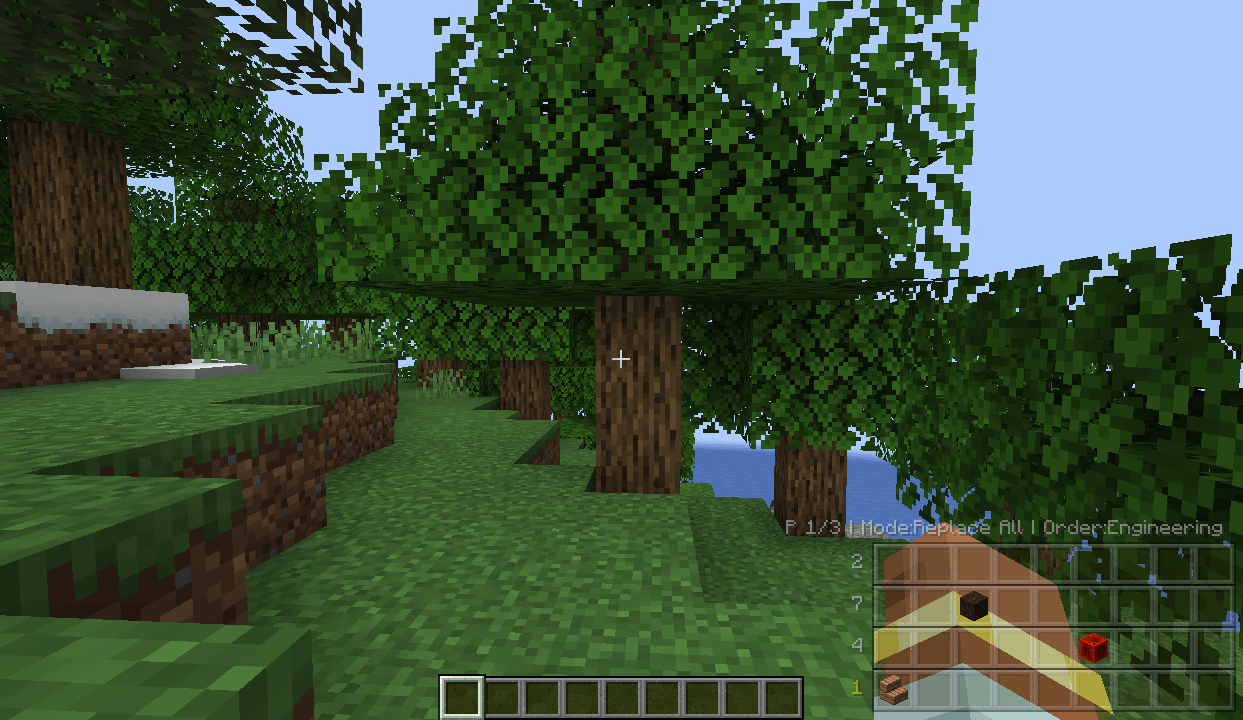
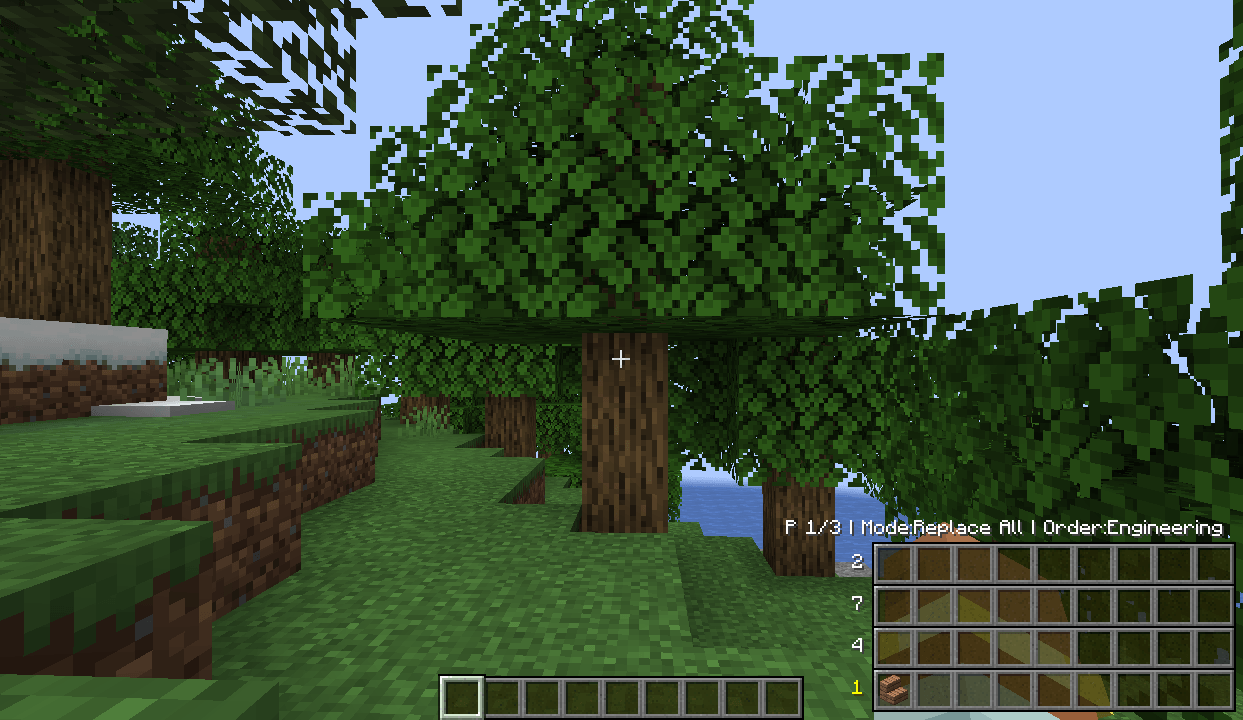
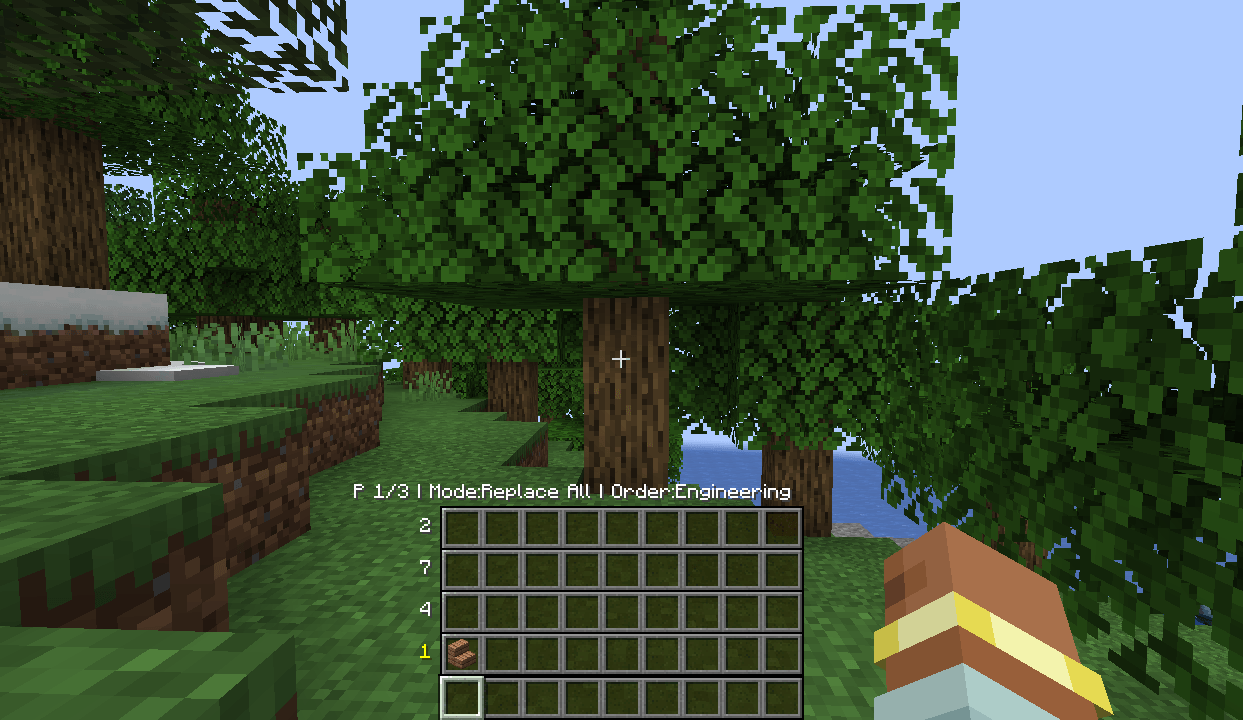
- Supports four positions: Bottom Right, Right of Hotbar, Centered, Above Hotbar
- Supports "Minimalist Style" appearance: uses a semi-transparent black rectangle instead of the native hotbar texture, with slot spacing naturally forming grid lines
- Supports 4 display modes:
- Always On (
ALWAYS_ON): Always fully opaque
- Auto Hide (
AUTO_HIDE): Hidden when modifier is not held, fully visible when held
- Show Semi (
SHOW_SEMI): Hidden when modifier is not held, semi-transparent (40%) when held
- Semi-Transparent (
SEMI_TRANSPARENT): Always visible, semi-transparent (40%) when modifier is not held, fully visible when held
- Supports scaling (Auto / 1x / 2x / 3x / 4x)
- Selection box can be set to "Always On" or "Show only when modifier is held"
- In the panel/HUD, a green box indicates the currently selected row, and a yellow box indicates the row being swapped
Visual Sync
A special mode. When enabled, the currently selected row in the HUD and panel no longer displays preset items, but instead reflects the current hotbar content in real time. When switching rows, automatically saves the current hotbar to the original preset row, then loads the target row. That row in the panel has a light gray overlay, indicating it is in sync state. This mode is enabled by default for new installations.
Survival/Adventure Mode
Inventory Row Swapping
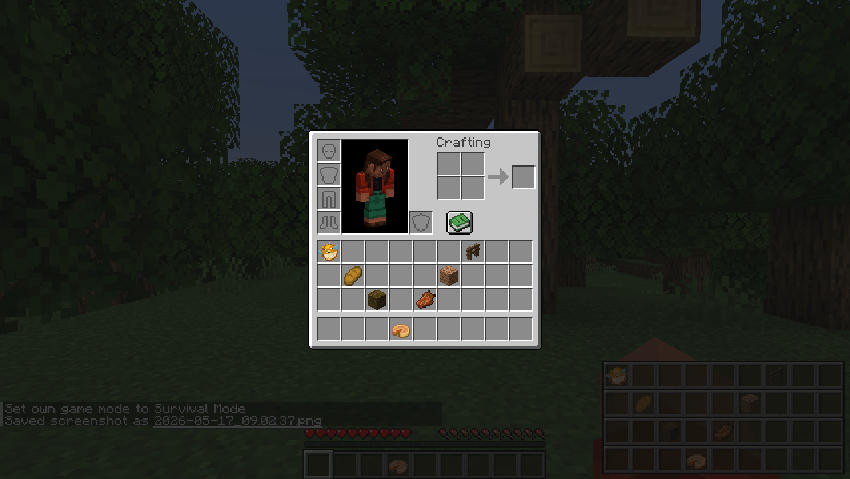
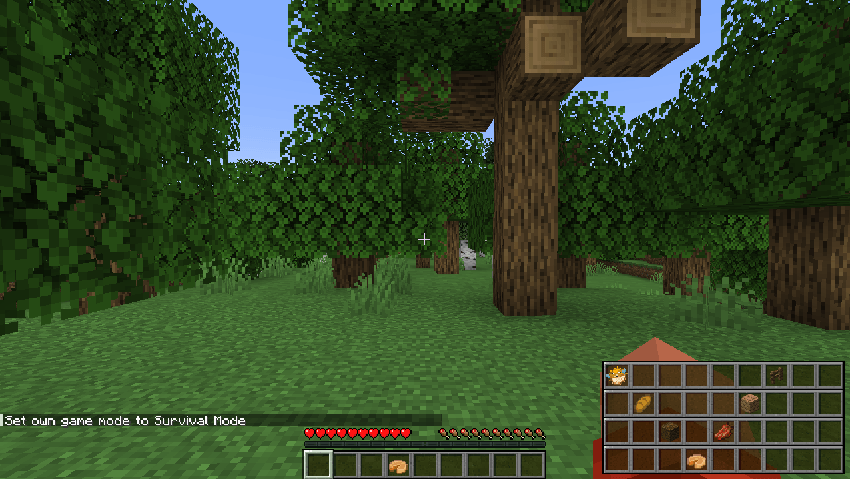
Based on the 4 rows of the inventory (3 inventory rows + 1 hotbar row). Hold modifier + scroll to switch target rows, release to complete the swap. Press 1 on the numpad to instantly switch back to the main hotbar.
HUD Display
- Displays 4 rows (Inventory Row 1-3 + Hotbar). The HUD remains static during the switching process
- Automatically detects overlaps and shifts up when overlapping to avoid obstruction
General
- All shortcuts can be customized in the Key Bindings settings
- Supports JEI list auto-avoidance of the panel area
- Supports both Chinese and English languages